# We Made Work GIFs With ChatGPT Images 2.6. Here's What Worked
> ChatGPT's new image model turns a typed description into an animated GIF. We made five real work GIFs with it, a status update, a process explainer, a chart for a slide and a Slack reaction, and counted the tries, the seconds and the typos.
By AI for Mortals Staff · November 9, 2026 · 8 min
Canonical: https://www.aiformortals.co/blog/ai-gif-maker-chatgpt-work-gifs
ChatGPT became an AI GIF maker with [Images 2.6](https://openai.com/index/introducing-images-2-6/), the image model OpenAI released on November 4. You describe an animation in plain words, or upload a picture, and get back a short looping GIF you can speed up, slow down or fix one frame at a time.
Most of the launch demos were dancing cats and dogs in tutus. We wanted to know if it holds up for work, so we made five GIFs a normal office week could use: a project status update for an email, a process explainer and an animated chart for slides, the same status card updated a week later, and a celebration GIF for Slack.
Every one came out usable on the first try, and every word on every frame was spelled right. The prompts are below, ready to copy.
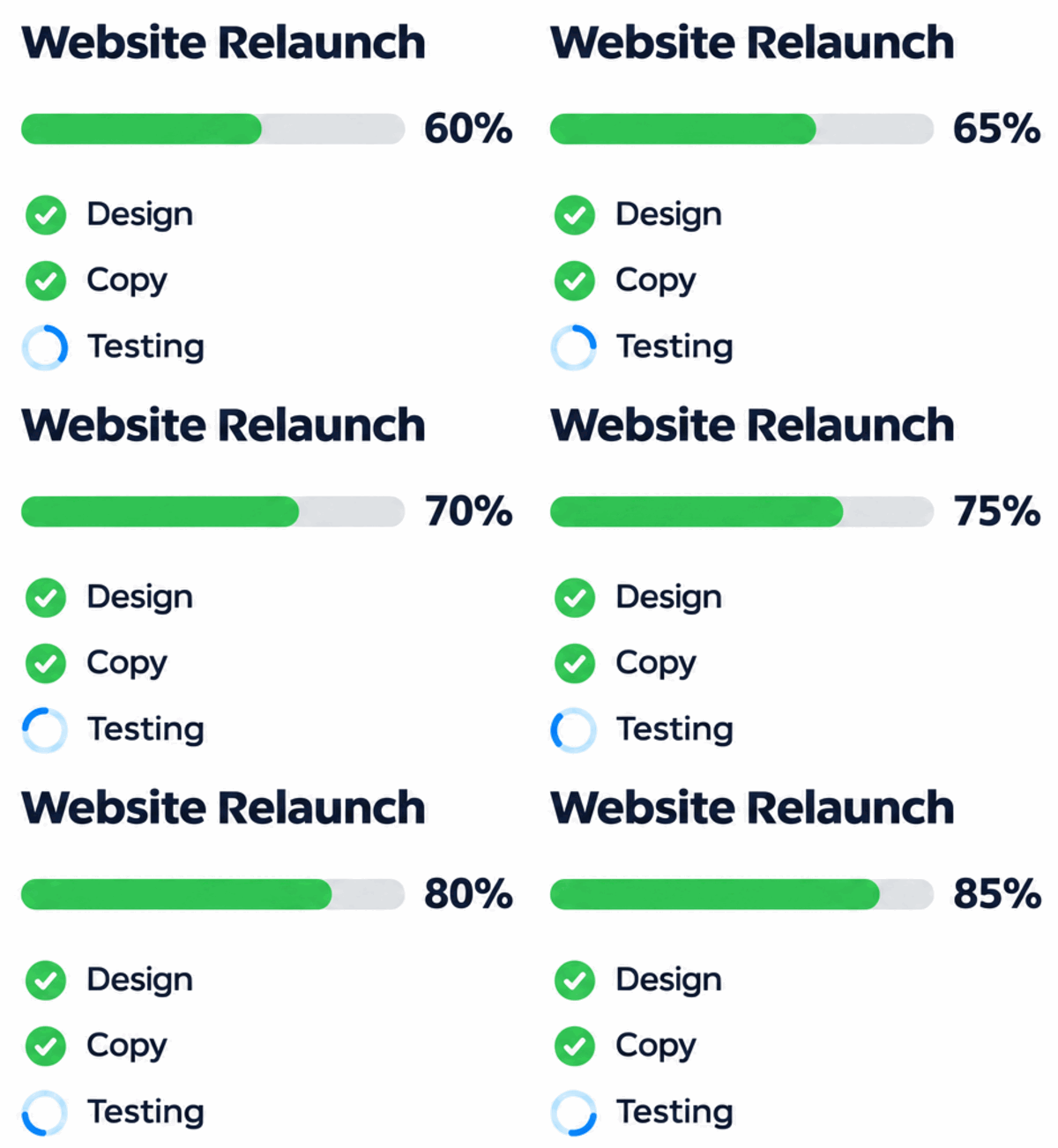
Our status-update GIF, made from one prompt on the first try.
## ChatGPT can make GIFs now. Here's how we tested it
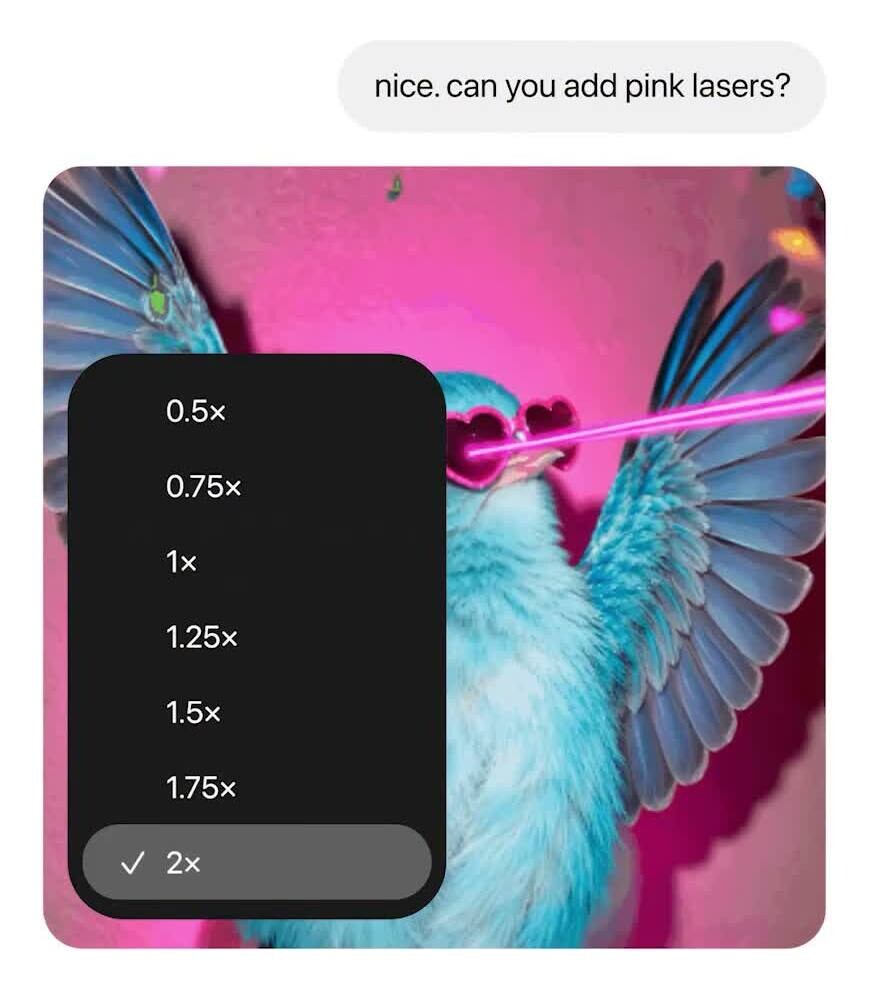
In the ChatGPT app you just ask for a GIF. Under the result there's a speed button that goes from half speed to double speed, and you can open the GIF to edit, resize or remove single frames before you download it. Our [walkthrough of ChatGPT's GIF maker](https://www.aiformortals.co/blog/chatgpt-images-gifs) covers every button.
The GIF speed menu in ChatGPT, from OpenAI's launch video. From OpenAI on X
We ran our tests through Codex on a ChatGPT subscription, which OpenAI says uses Images 2.6 on every plan. Codex hands back still images, so we used the method OpenAI published for its own GIFs: the model draws all the frames on one sheet (a sprite sheet), and the frames play in order. We cut each sheet into its frames and joined them into a GIF ourselves, which also let us check every frame for typos.
Each sheet took between 42 and 62 seconds, including the moment Codex spends reading the request. OpenAI says Images 2.6 is 50% faster than the last version, but there's no way to pick the old one anymore, so we couldn't time the two side by side.
## A status update GIF for a team email
The job: a project update you could drop at the top of a team email, where the moving progress bar does the talking.
```
Create a single animation sprite sheet for a looping GIF I can paste into a team status email. A clean, flat, modern status card on a solid white background. Title at the top in dark navy: "Website Relaunch". Below it a wide rounded progress bar in green that fills from 60% in the first frame to 85% in the last frame, with the percentage written in bold to the right of the bar and counting up: 60%, 65%, 70%, 75%, 80%, 85%. Under the bar a short checklist: "Design" with a green check, "Copy" with a green check, "Testing" with a small blue spinner that rotates a little each frame. Fixed camera, identical layout and text in every frame except the bar, the percentage and the spinner. Exactly 6 sequential frames arranged in a precise 3-column by 2-row grid, read left-to-right then top-to-bottom. Every panel has identical dimensions and framing. No borders, no gutters, no panel numbers. Spell every word exactly. No other text.
```
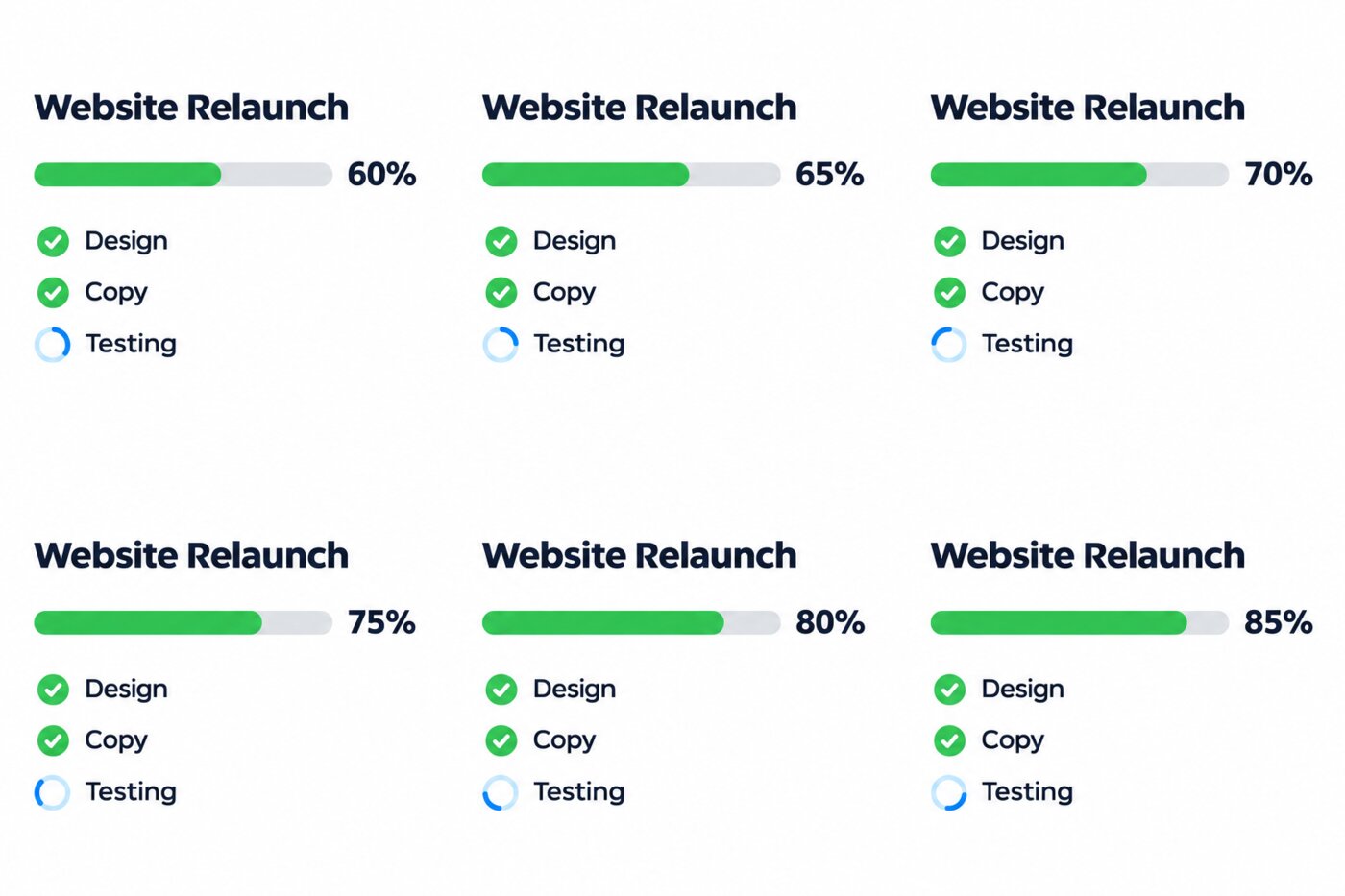
It worked on the first try, and we ran it a second time to make sure that wasn't luck. Both runs got all six percentages right and the bar grew a little each frame. The title didn't move by more than a pixel between frames, which is what keeps a GIF from looking jittery.
The six raw frames behind the status GIF.
Then we tested the part that matters a week later: updating it. We attached the first sheet and asked for the next version.
```
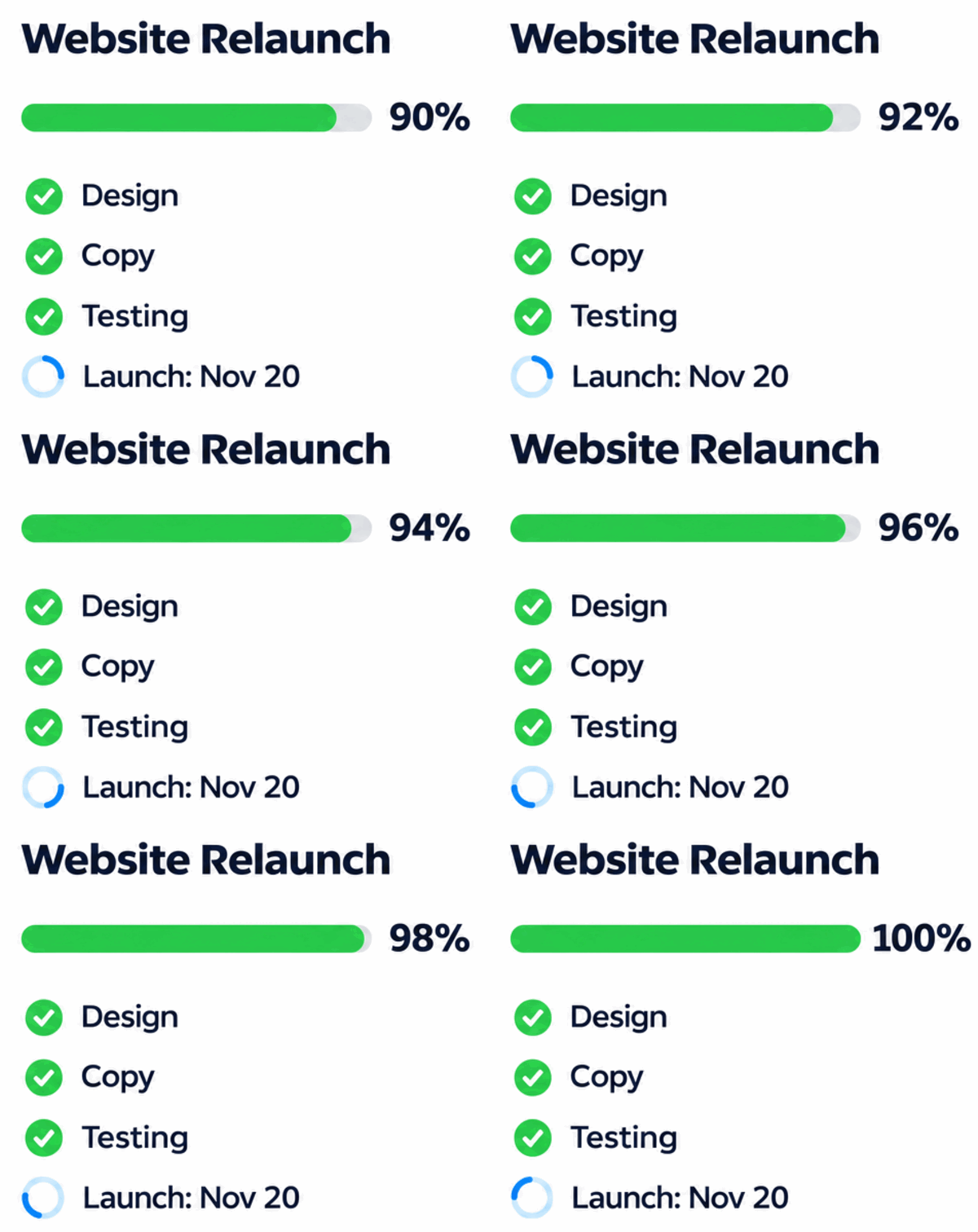
Edit the attached sprite sheet for next week's update. Keep everything exactly the same: the same 3-column by 2-row grid of 6 frames, the same card, title, fonts, colors, layout and spacing. Change only this: the green progress bar now fills from 90% in the first frame to 100% in the last frame, with the percentage counting up 90%, 92%, 94%, 96%, 98%, 100%. "Testing" now has a green check like the others, and a fourth line "Launch: Nov 20" appears under it with a small blue spinner that rotates a little each frame. Spell every word exactly. No other text.
```
It kept the card's look exactly and made every change we asked for, in 44 seconds. A recurring update GIF is realistic here, as long as you keep the first one to edit from.
Next week's version, edited from the first GIF's frames.
## An explainer GIF for a slide
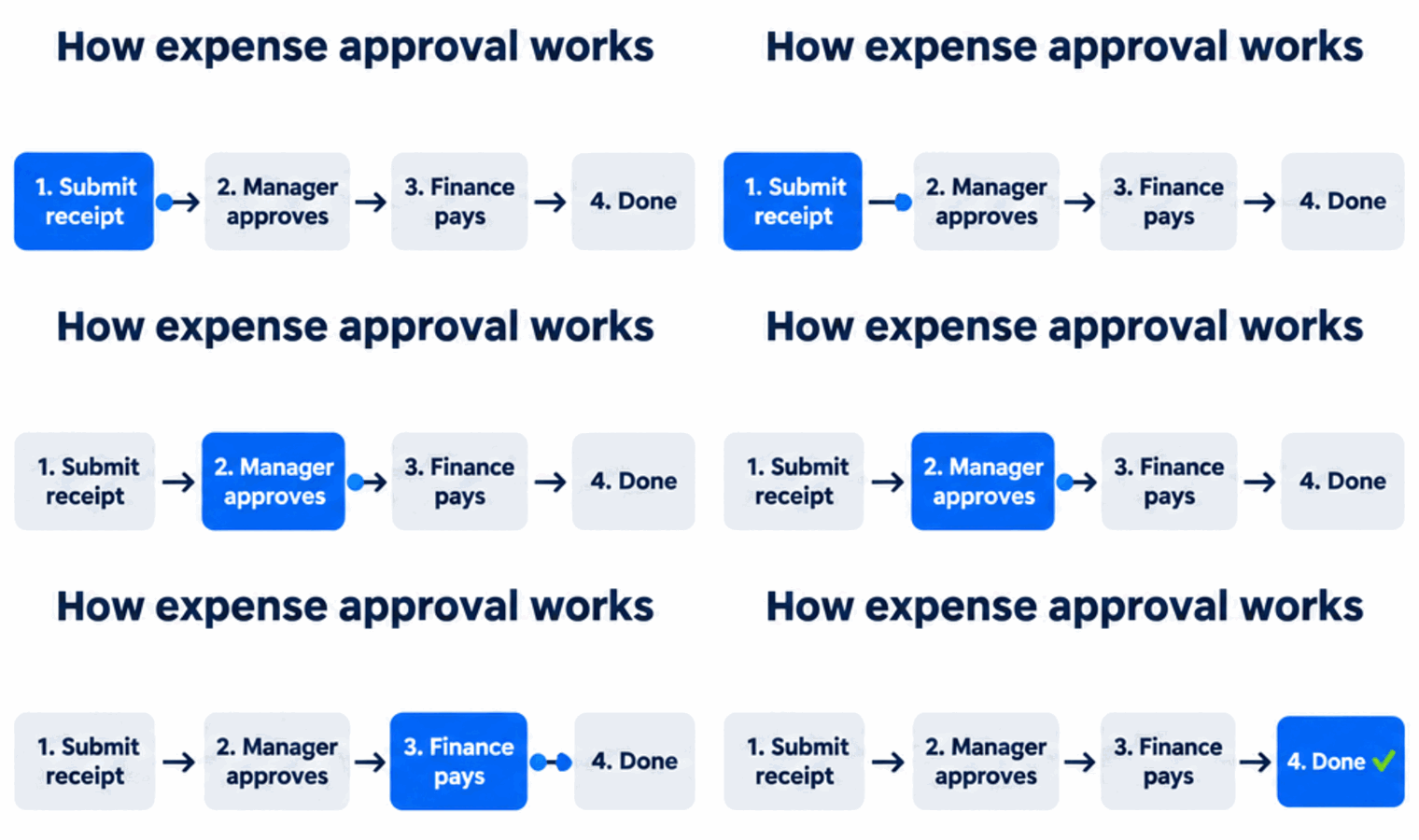
On a slide, a process that lights up one step at a time is easier to follow than four static boxes and some arrows. We tried a four-step expense approval flow.
```
Create a single animation sprite sheet for a looping explainer GIF for a slide. A clean flat diagram on a solid white background titled "How expense approval works" in dark navy at the top. Below, four rounded boxes in a row joined by arrows, labeled exactly: "1. Submit receipt", "2. Manager approves", "3. Finance pays", "4. Done". In each frame one box is highlighted in bright blue with a small dot travelling along the arrow to the next box: frame 1 highlights box 1, frame 2 the dot moves to box 2, frame 3 highlights box 2, frame 4 the dot moves to box 3, frame 5 highlights box 3, frame 6 highlights box 4 with a green check. Everything else identical in every frame. Exactly 6 sequential frames arranged in a precise 3-column by 2-row grid, read left-to-right then top-to-bottom. Every panel has identical dimensions and framing. No borders, no gutters, no panel numbers. Spell every word exactly. No other text.
```
First try again, with every label spelled right in both runs. The model squeezed the diagram into a thin strip across the middle of each frame, so we trimmed the empty white space above and below before saving it. Ask for a wide 16:9 frame if you want it slide-shaped from the start.
The process explainer, with each step lighting up in turn.
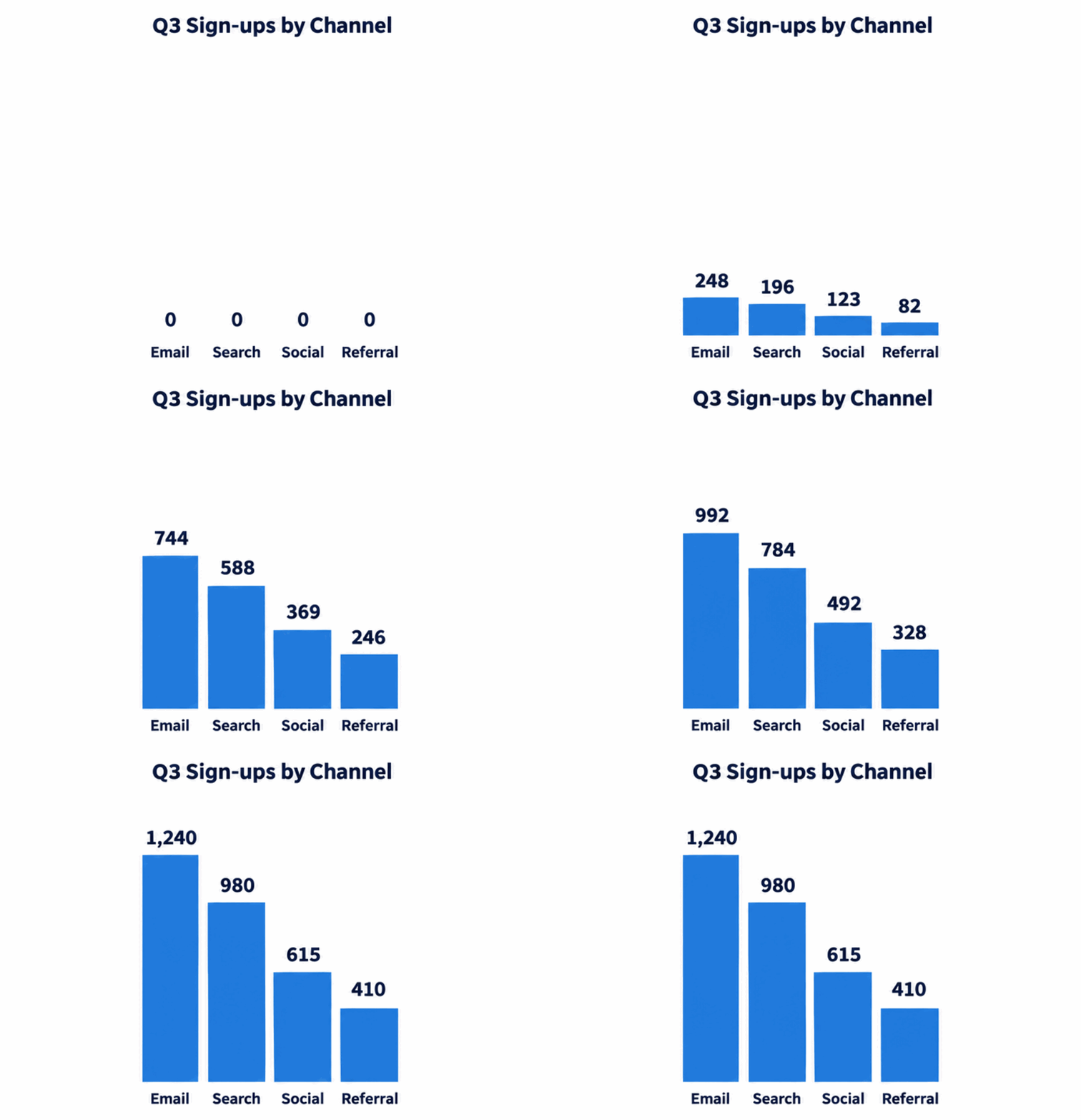
To push it harder, we asked for an animated bar chart with more text and eight frames instead of six.
```
Create a single animation sprite sheet for a looping GIF for a quarterly review slide. A clean flat bar chart on a solid white background titled "Q3 Sign-ups by Channel" in dark navy. Four vertical bars labeled underneath exactly: "Email", "Search", "Social", "Referral". The bars grow up from zero together and stop at their final values, shown above each bar: Email 1,240, Search 980, Social 615, Referral 410. Frames 1 to 6 show the bars growing with the numbers counting up; frames 7 and 8 hold the final chart. Exactly 8 sequential frames arranged in a precise 4-column by 2-row grid, read left-to-right then top-to-bottom. Every panel has identical dimensions and framing. No borders, no gutters, no panel numbers. Spell every word and number exactly. No other text.
```
We never gave it the in-between numbers, and it worked them out correctly: 248, 496, 744 and 992 for Email, exactly 20%, 40%, 60% and 80% of 1,240, and the same for the other three bars. The bar heights in the middle frames are a little off scale, which you'd only spot by measuring.
The animated chart. The model worked out every in-between number on its own.
The numbers are drawn into the picture, so nothing will flag a wrong one for you. Check them yourself before a chart like this goes into a deck.
## A GIF for Slack, in one try
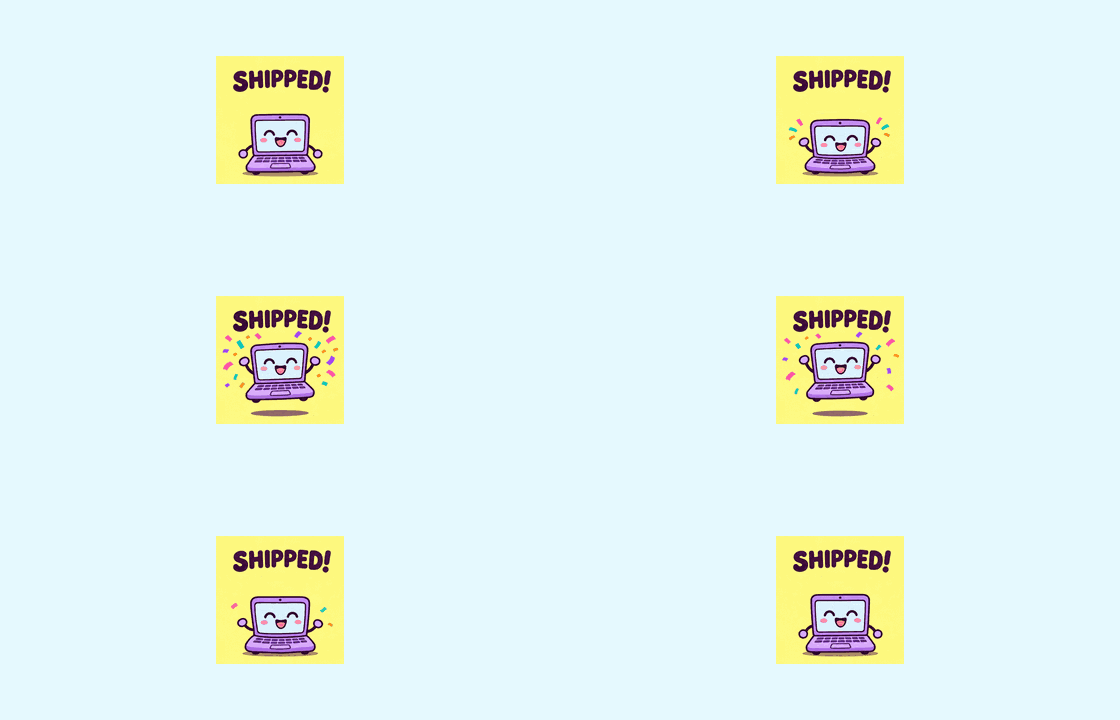
The fun one: a reaction for the moment a project goes out the door.
```
Create a single animation sprite sheet for a looping Slack reaction GIF. A cute cartoon laptop with a happy face and tiny arms on a solid light yellow background celebrates: it throws its arms up, colorful confetti bursts, it does a little hop, then lands back in the starting pose. Big bold rounded word above it: "SHIPPED!" in dark purple, the same in every frame. Flat friendly cartoon style with clean outlines. Same character, same background, fixed camera in every frame. The sixth frame flows smoothly back into the first. Exactly 6 sequential frames arranged in a precise 3-column by 2-row grid, read left-to-right then top-to-bottom. Every panel has identical dimensions and framing. No borders, no gutters, no panel numbers. Spell the word exactly. No other text.
```
The laptop stayed the same laptop in every frame, and the confetti and hop read clearly even at full speed. Six frames makes a choppy loop, which suits a cartoon reaction fine. On the second run the word "SHIPPED!" grew so big it nearly touched the frame edges, so we would add "leave space around the word" to the prompt.
The Slack reaction, first try.
We also shrank it into a custom Slack emoji. [Slack's guidelines](https://slack.com/help/articles/206870177-Add-custom-emoji-and-aliases-to-your-workspace) ask for square images under 128KB, and GIFs can have up to 50 frames. Ours came out at 22KB at 128 by 128 pixels.
The same GIF at Slack emoji size, 22KB.
## What made the prompts work
Five GIFs, zero retries. Four habits in the prompts made the difference:
- **Write out every word that appears**, in quotes, and end with "Spell every word exactly. No other text." Text was perfect on all eight sheets we made.
- **Say what changes in each frame.** "Counting up: 60%, 65%, 70%…" or "frame 3 highlights box 2" gives the model a script to follow.
- **Say what stays the same**: the title, the layout, the character, the background and the camera.
- **Ask for a solid background color.** An earlier cartoon test of ours came back with a see-through background when we didn't make the color clear.
In the ChatGPT app you can skip the sprite-sheet part and start with "Make a looping GIF of…". We didn't test the app's own GIF button, but the parts above describe what's on screen, which is what any GIF prompt needs.
For more on writing image prompts that come back right the first time, our [Images 2.6 test](https://www.aiformortals.co/blog/chatgpt-image-generator-images-2-6) covers product photos, photo edits and slide text with the same model.
## How to add a GIF to PowerPoint, an email or Slack
Once you've downloaded the GIF, it goes in like any picture:
- **PowerPoint:** Insert, then Pictures, then pick the GIF. It plays when you start the slide show, per [Microsoft's instructions](https://support.microsoft.com/en-us/office/add-an-animated-gif-to-a-slide-3a04f755-25a9-42c4-8cc1-1da4148aef01).
- **Google Slides:** Insert, then Image, then Upload from computer. GIFs play in the editor too.
- **Email:** drag the GIF into the body of the message. Gmail and Apple Mail play it, but the Outlook desktop apps from 2007 to 2019 [only show the first frame](https://www.litmus.com/blog/a-guide-to-animated-gifs-in-email), so put the key number in that first frame.
- **Slack:** drag it into a message, or add it as a custom emoji (square, under 128KB) from the emoji menu.
If you're building the slides themselves with AI too, [Gemini in Google Slides now edits a whole deck from one prompt](https://www.aiformortals.co/blog/gemini-slides-whole-deck).
## Where it slipped, and what people are saying
Nothing we made needed a second try, and three limits still showed up. The GIFs are short, six or eight frames, so the motion looks stepped. That suits a progress bar or a cartoon and looks rough on anything that should glide. The model also lays things out where it likes, so expect to trim empty space now and then.
People who've tried it agree on the choppiness: it's usable for quick loops, though rarely smooth, and small details drift from frame to frame in OpenAI's own photo-style examples. The most repeated complaint in the launch threads is about a faint grainy pattern in realistic photos. Our flat, clean work graphics didn't show it.
OpenAI hasn't said how many GIFs each plan can make, and GIFs may reach some accounts later than the rest of Images 2.6.
Here's OpenAI's launch video for Images 2.6:
When a GIF isn't enough and you want real motion graphics for a video, Pat built them from scratch with Codex in this one:
## Sources
- [Introducing Images 2.6](https://openai.com/index/introducing-images-2-6/) (OpenAI)
- [Images 2.6 announcement thread: GIFs and the speed menu](https://x.com/OpenAI/status/2118124944928432327) (OpenAI on X)
- [Introducing ChatGPT Images 2.6](https://www.youtube.com/watch?v=bJldMYfRvMQ) (OpenAI on YouTube)
- [Add custom emoji and aliases to your workspace](https://slack.com/help/articles/206870177-Add-custom-emoji-and-aliases-to-your-workspace) (Slack Help Center)
- [A guide to animated GIFs in email](https://www.litmus.com/blog/a-guide-to-animated-gifs-in-email) (Litmus)
- [Add an animated GIF to a slide](https://support.microsoft.com/en-us/office/add-an-animated-gif-to-a-slide-3a04f755-25a9-42c4-8cc1-1da4148aef01) (Microsoft Support)
- [Introducing Images 2.6 discussion](https://www.reddit.com/r/ChatGPT/comments/1xo3oir/introducing_images_26/) (r/ChatGPT)
- [ChatGPT Images 2.6 can make GIFs discussion](https://www.reddit.com/r/accelerate/comments/1xo8m96/introducing_chatgpt_images_26_can_make_gifs/) (r/accelerate)
- [Images 2.6 discussion](https://news.ycombinator.com/item?id=50372945) (Hacker News)