# ChatGPT Can Now Read and Send Your iCloud Mail
> OpenAI added iCloud Mail and iCloud Calendar to ChatGPT on every plan, including Free. Here's how to connect them with an Apple app-specific password, what ChatGPT can do once they're in, and how to make it ask before it sends anything.
By Pat Simmons · October 27, 2026 · 5 min
Canonical: https://www.aiformortals.co/blog/chatgpt-icloud-mail
OpenAI [added iCloud Mail and iCloud Calendar to ChatGPT](https://help.openai.com/en/articles/6825453-chatgpt-release-notes) on Tuesday, so you can ask it to find an email, catch you up on your inbox, check your schedule or move a meeting.
It works on every ChatGPT plan, including Free, on the web, in the desktop app and on your iPhone. Until now, ChatGPT could reach Gmail and Outlook but not the email address Apple gives you.
Here's OpenAI's launch post, with the short demo video:
## What ChatGPT can do once your iCloud Mail and Calendar are connected
They arrive as two separate plugins, **iCloud Mail** and **iCloud Calendar**, and you can add one without the other.
With Mail connected, ChatGPT can search and read your iCloud email, manage messages and drafts, and send email for you, according to [MacRumors' rundown of the plugins](https://www.macrumors.com/2026/10/27/chatgpt-icloud-mail-calendar-plugin/). With Calendar connected, it can read your events, add new ones and change existing ones.
Both plugins can also look up people in your iCloud contacts, but only to read them, per [OpenAI's help page on connected apps](https://help.openai.com/en/articles/11487775-connected-apps-in-chatgpt). That's how it can find "the email from my landlord" without you typing an address.
Calendar changes show up in the Calendar app on your iPhone, iPad and Mac, and in any other calendar app that syncs with iCloud.
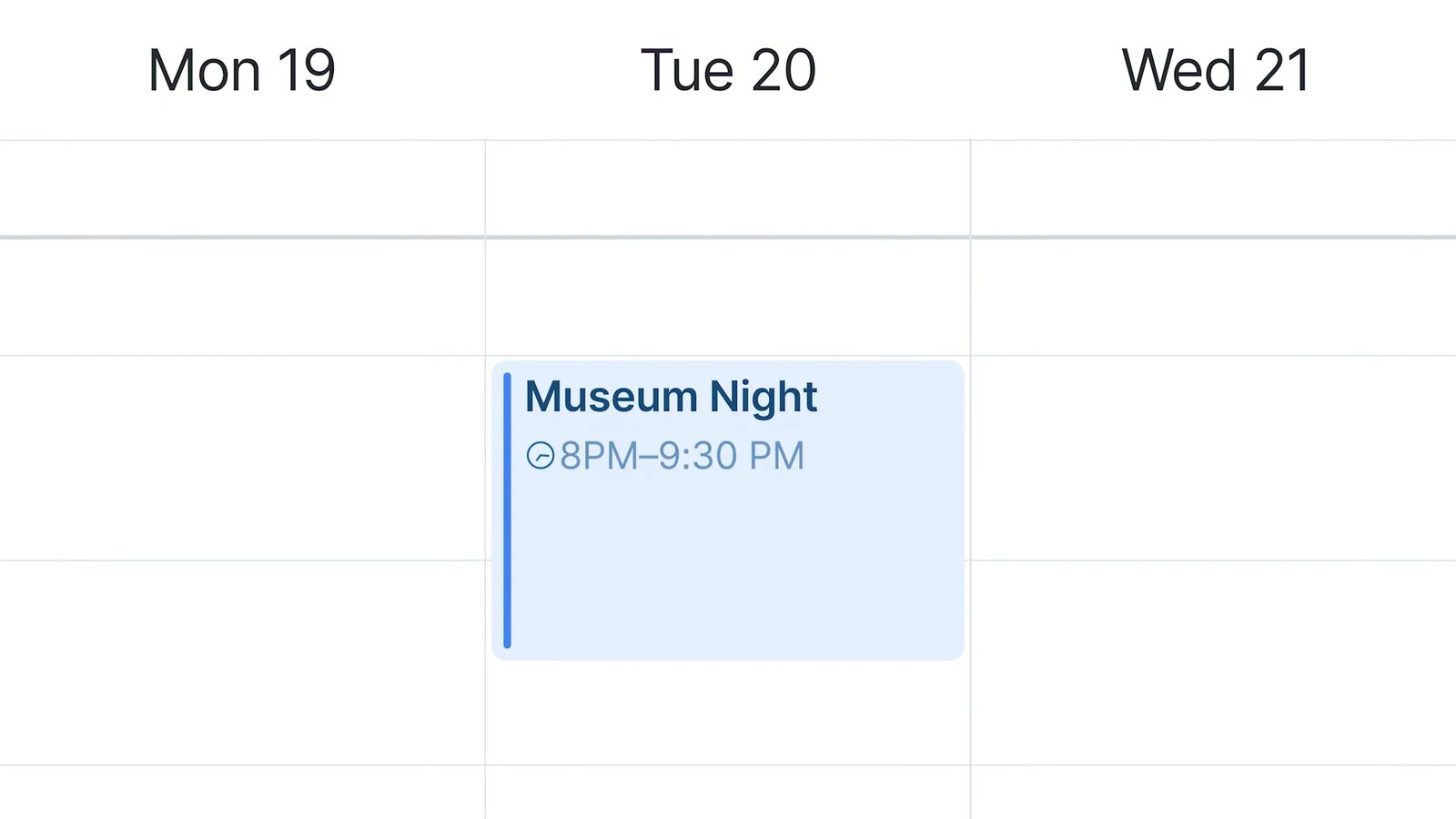
In OpenAI's demo, someone types "I want to use my museum membership more. Find an event when I'm free." ChatGPT searches the mail for exhibit details, checks the calendar, and adds a museum night to a free evening.
The event ChatGPT adds at the end of OpenAI's demo, after finding the exhibit in the inbox. From ChatGPT on X
## How to connect iCloud Mail and Calendar to ChatGPT, step by step
The one extra step is an **app-specific password**. ChatGPT doesn't take your normal Apple Account password, so you make a separate password at Apple just for ChatGPT, which keeps your main password out of the app. Your Apple Account needs two-factor authentication turned on before you can make one.
First, make the password at Apple, following [Apple's own instructions](https://support.apple.com/en-us/102654):
1. Go to [account.apple.com](https://account.apple.com/) and sign in.
2. In the **Sign-In and Security** section, select **App-Specific Passwords**.
3. Select **Generate an app-specific password**, give it a name like "ChatGPT", and copy the password it shows you.
Then add the plugins in ChatGPT:
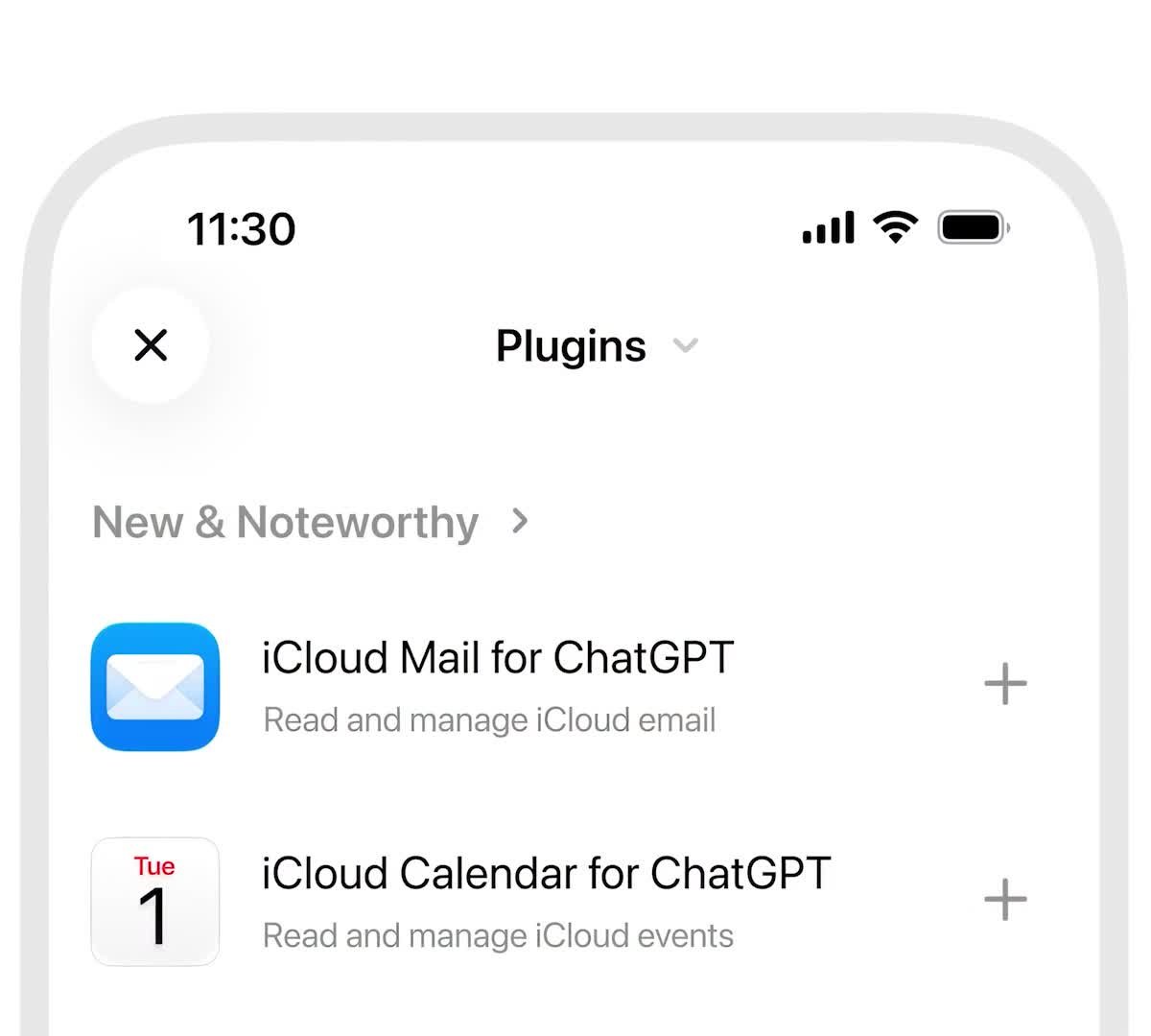
1. Open **Settings**, then **Plugins**. On your iPhone, the demo shows both iCloud plugins under **New & Noteworthy**.
2. Select **iCloud Mail for ChatGPT** and install it.
3. In the connection form, enter your iCloud Mail address and paste the app-specific password.
4. Repeat for **iCloud Calendar for ChatGPT** if you want your calendar too.
Both iCloud plugins on the Plugins screen of the ChatGPT iPhone app. From ChatGPT's launch video
[OpenAI's setup guide](https://help.openai.com/articles/20001494) has two details that are easy to miss.
For Mail, the address has to end in @icloud.com, @me.com or @mac.com. For Calendar, enter the main email address of your Apple Account, which can be a different address, like a Gmail address you signed up to Apple with.
Paste the app-specific password into the connection form only. OpenAI says never to use your regular Apple password there, and never to paste a password into the chat itself.
Once a plugin is connected, you can ask for it by name: type **@** in a chat and pick iCloud Mail or iCloud Calendar, or tap **+** and choose it from the menu.
## Make ChatGPT ask before it sends an email or changes your calendar
Since these plugins can send email and change events, the setting worth checking first is how much ChatGPT may do without asking.
In **Settings > Plugins > Permissions**, [OpenAI's permissions guide](https://help.openai.com/articles/20001495) lists these choices:
- **Always ask:** ChatGPT asks before it reads anything or makes a change.
- **Allow read actions:** it reads your mail and calendar freely but asks before changing anything.
- **Allow low-risk actions:** it approves low-risk actions on its own, and higher-risk ones may still need your OK.
- **Allow all actions:** it acts without asking. OpenAI labels this one elevated risk.
With **Allow read actions**, ChatGPT can search and summarize without interrupting you, and before a change it shows an approval card describing what it's about to do. You can also set this for one connected account instead of all of them.
On **Always ask** and **Allow read actions**, OpenAI says ChatGPT asks before making changes. On the looser settings, sending an email is on OpenAI's list of actions that may need extra review, which falls short of a promise to check with you every time. Either way, start with finding and summarizing, and when you want a reply, ask for a draft and read it before anything goes out.
## Copy-paste prompts to try first
To catch up after a few days away:
> Using iCloud Mail, summarize the emails I got in the last three days that need a reply from me. List who sent each one, what they're asking for and any deadline. Don't send anything.
To dig up something buried:
> Find the email from my dentist with my next appointment time, then check iCloud Calendar to see if it's on there. If it isn't, tell me the details so I can approve adding it.
To move a meeting:
> Look at my iCloud Calendar for [day] and suggest two times I could move my [time] call to without clashing with anything. Show me the change before you make it.
To write a reply you'll check first:
> Draft a short, friendly reply to the latest email from [name] saying I can do next week but not this one. Save it as a draft and show it to me. Don't send it.
## Which accounts and apps the iCloud plugins don't reach
The plugins only cover mail at your Apple address. If you read Gmail, Outlook or a work account inside Apple's Mail app, ChatGPT [can't see those messages](https://www.macrumors.com/2026/10/27/chatgpt-icloud-mail-calendar-plugin/) through the iCloud plugin. ChatGPT has separate plugins for Gmail and Outlook, which you connect on their own.
Reminders isn't part of this launch. OpenAI's help page says standalone Contacts and Reminders plugins are outside it, so your to-do lists stay out of reach for now.
This is the first time ChatGPT can read and send from an Apple inbox. Apple's own [Siri AI](https://www.aiformortals.co/blog/apple-homeview-siri-ai), the rebuilt Siri that's still in beta, already works with your iCloud Mail and Calendar, so these plugins mostly help iPhone owners who'd rather do this in ChatGPT.
## Keep your emails out of OpenAI's model training
Before you connect your inbox, check one setting.
On Free, Go, Plus and Pro, OpenAI may use information ChatGPT reads from connected apps to train its models if your **Improve the model for everyone** setting is on, according to [OpenAI's connected apps page](https://help.openai.com/en/articles/11487775-connected-apps-in-chatgpt). Turn it off under [**Settings > Data controls**](https://help.openai.com/en/articles/7730893-data-controls-faq) if you don't want your mail used that way. On Business, Enterprise and Edu, OpenAI doesn't train on app data by default.
If you have Memory turned on, ChatGPT may also remember details it read in your mail. You can review or delete them under **Settings > Personalization**.
To cut ChatGPT off later, disconnect the plugin in **Settings > Plugins**, then delete the app-specific password at account.apple.com too. Disconnecting in ChatGPT doesn't remove the password at Apple. Changing your main Apple password also cancels every app-specific password at once.
## Let a ChatGPT Dot watch your iCloud inbox
If you pay for Pro or Business Premium, the plugins also work with [Dots](https://www.aiformortals.co/blog/openai-dots), OpenAI's always-on agents, for the first time ([9to5Mac](https://9to5mac.com/2026/10/27/icloud-mail-and-calendar-plugins-now-work-with-chatgpt/)). You can even ask your Dot to help you set the plugins up.
When I tested Dots, I connected my Gmail, and my Dot spotted a failed payment in Vercel without me asking. I highly recommend connecting all those plugins, and iCloud users can now do the same.
Here's my Dots video:
I haven't tried the iCloud plugins yet. If you're choosing between agents, I put Dots up against Grok Bot and Meta Muse in [this side-by-side test](https://www.aiformortals.co/blog/grok-bot-vs-meta-muse-vs-chatgpt-dots).
## Sources
- [OpenAI Help Center: ChatGPT release notes](https://help.openai.com/en/articles/6825453-chatgpt-release-notes)
- [OpenAI Help Center: Connected apps in ChatGPT](https://help.openai.com/en/articles/11487775-connected-apps-in-chatgpt)
- [OpenAI Help Center: Connecting and managing app accounts in ChatGPT](https://help.openai.com/articles/20001494)
- [OpenAI Help Center: Managing app permissions in ChatGPT](https://help.openai.com/articles/20001495)
- [ChatGPT on X: iCloud Mail and Calendar launch video](https://x.com/ChatGPT/status/2115139248458191070)
- [Apple Support: Sign in to apps with app-specific passwords](https://support.apple.com/en-us/102654)
- [MacRumors: ChatGPT Can Now Access Your iCloud Mail and Calendar](https://www.macrumors.com/2026/10/27/chatgpt-icloud-mail-calendar-plugin/)
- [9to5Mac: iCloud Mail and Calendar plugins now work with ChatGPT](https://9to5mac.com/2026/10/27/icloud-mail-and-calendar-plugins-now-work-with-chatgpt/)