# ChatGPT Slides Lets Your Team Edit Decks Together
> OpenAI added Slides to ChatGPT, so you can turn a chat, a file or an outline into a deck that you and your teammates edit and comment on at the same time.
By Pat Simmons · October 19, 2026 · 5 min
Canonical: https://www.aiformortals.co/blog/chatgpt-slides
OpenAI added Slides to ChatGPT. You ask for a presentation, ChatGPT builds it from your chat, your files or an outline, and then you and your teammates work on the same deck at the same time.
Slides first showed up in ChatGPT's [release notes](https://help.openai.com/en/articles/6825453-chatgpt-release-notes) on October 16. On October 19, [OpenAI's post on X](https://x.com/ChatGPT/status/2112265233192657153) put the focus on the two parts built for teams: editing a deck together in real time, and clicking right on a slide to change it.
Slides lives in ChatGPT Space, the shared workspace OpenAI introduced at [DevDay](https://www.aiformortals.co/blog/openai-devday-2026-explained) along with Pages, its shared documents. It's separate from ChatGPT for PowerPoint, the add-in that runs inside Microsoft's app.
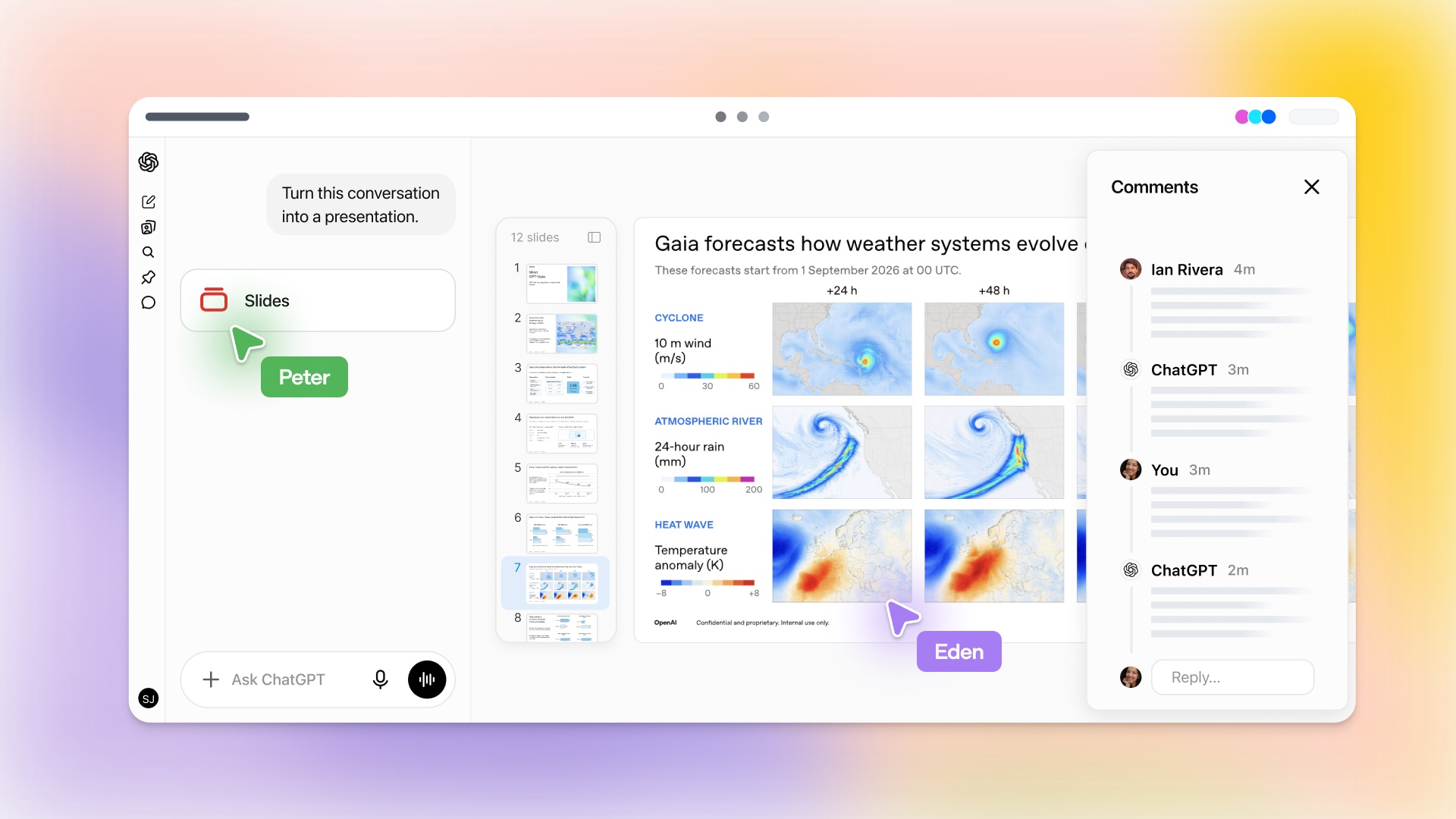
A chat turned into a 12-slide deck, with two teammates editing and ChatGPT answering in the comments. From OpenAI's Slides page
## Start a deck from a chat, your files or a template
There are two ways in. The first is Work, the ChatGPT mode built for getting tasks done. You ask it for a slide, a presentation or a deck, and OpenAI's [help article](https://help.openai.com/en/articles/20001605) says to describe the topic, who it's for and what it should cover. ChatGPT can build it from a conversation you've already had or from files you attach.
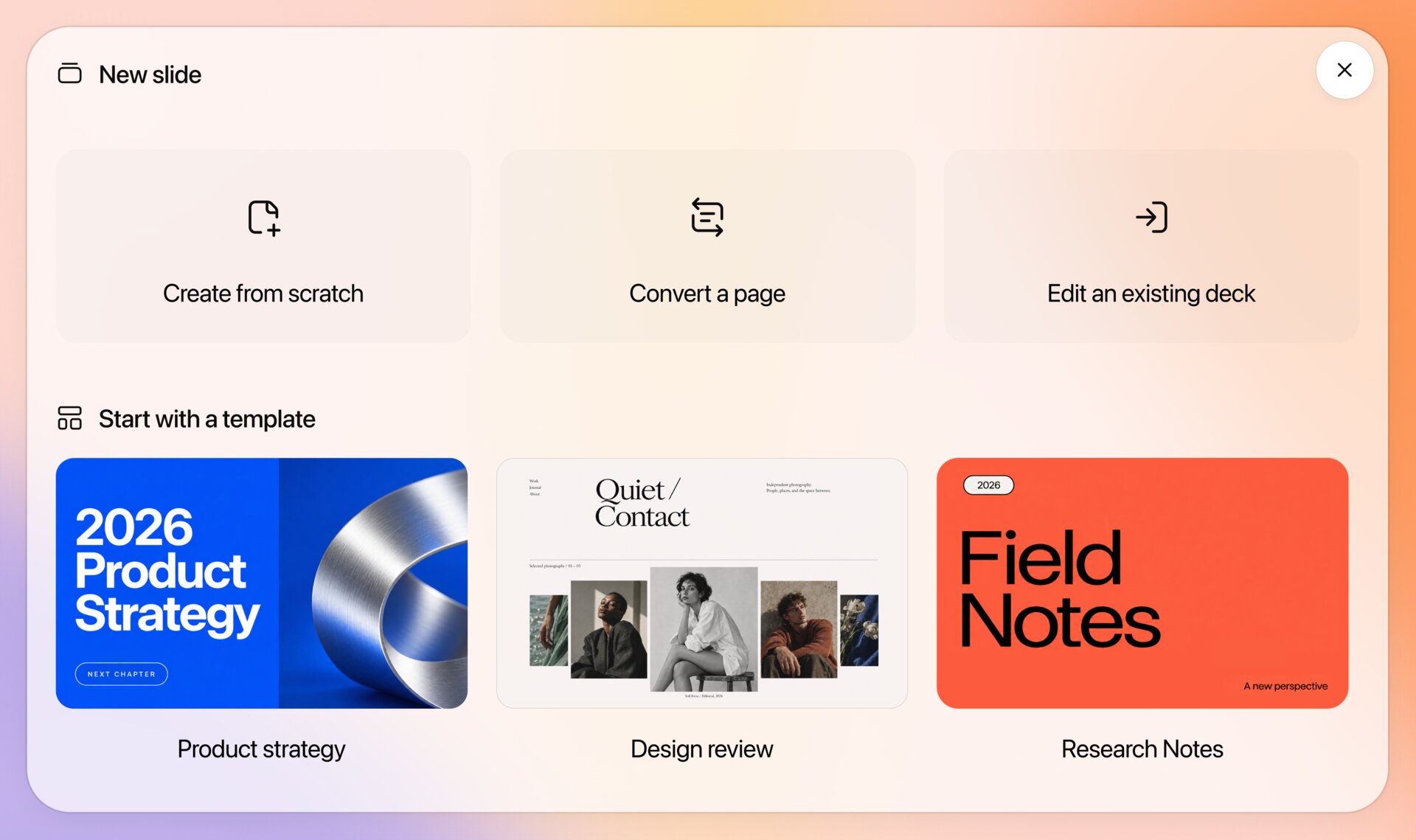
The second is Space, where you pick **Create**, then **Slide**. That opens a menu where you start from scratch, turn a Page you already wrote into slides, bring in an existing deck to edit, or pick one of OpenAI's templates.
The New slide menu in Space: start from scratch, turn a Page into slides, edit a deck you already have, or use a template. From OpenAI's Slides page
To make the deck look like your company's, share an example deck and ask ChatGPT to follow its style and layout. For example, ask it to make a six-slide project update from your notes that covers progress, risks and next steps, using your project update template for the style and layout.
ChatGPT can also make custom images for the slides or use images you upload. A team that wants the same look every time can save it with a tool called template-creator and share it with everyone through the workspace's plugins.
## Change any part of a slide yourself, or select it and ask ChatGPT
Once the deck exists, you can click into it and edit the text, images, shapes, tables and charts directly.
When you'd rather ChatGPT do it, you select one element, choose **Request edits** and describe the change, which points ChatGPT at the one chart or paragraph you picked. For changes across the whole deck, you type into the prompt bar under the slide instead. OpenAI's examples are shortening a slide, updating a chart from new data and redoing the layout.
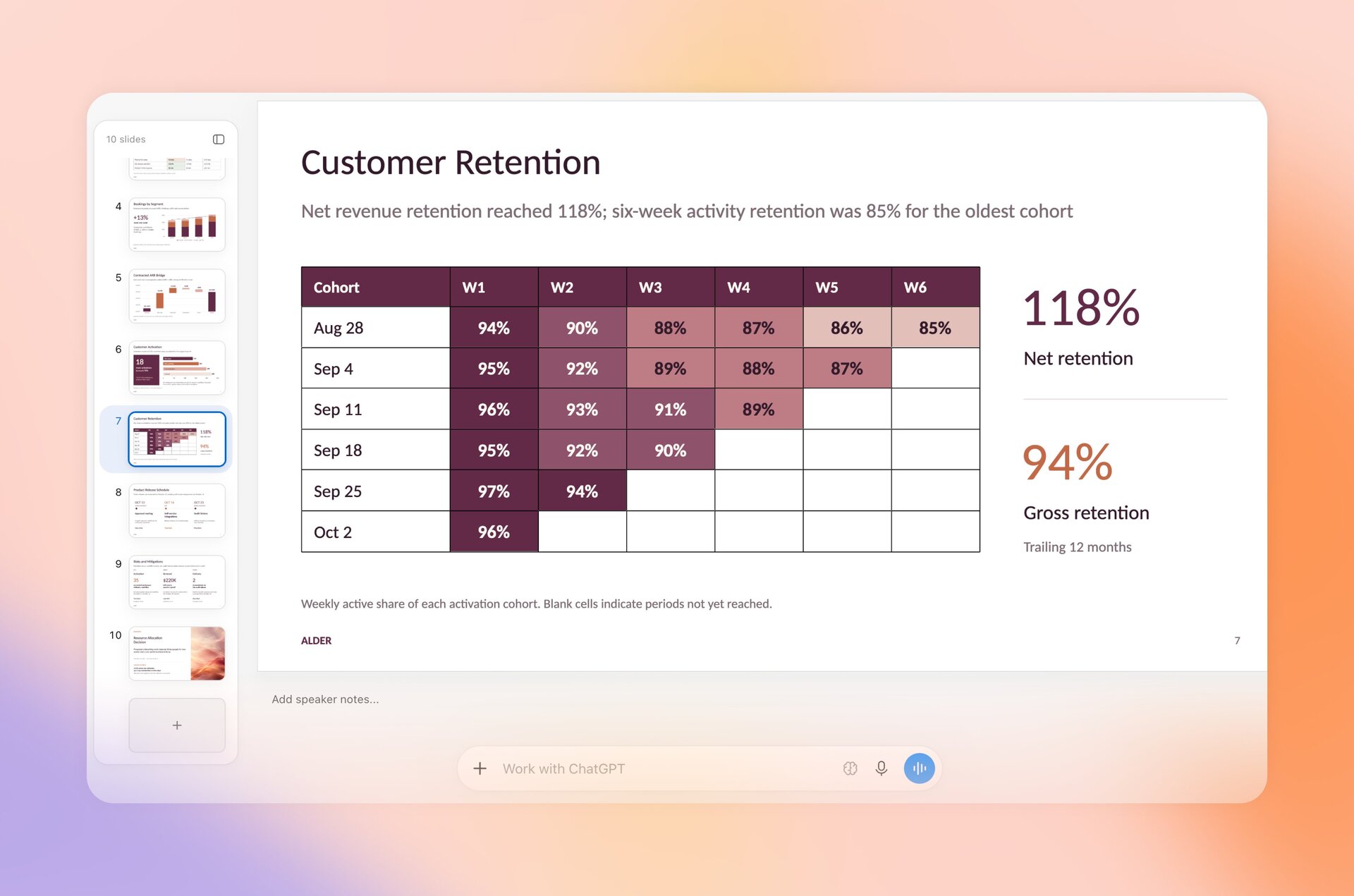
A slide open in the editor, with the "Work with ChatGPT" bar for deck-wide changes underneath. From OpenAI's post on X
Fonts depend on where you're working. On the web, the font picker shows the fonts your browser has. In the desktop app, ChatGPT can use the fonts installed on your computer, which helps if your company has its own typeface.
OpenAI's help article also tells you to check the text, figures and layout before you share or present the deck.
## Your team edits the same deck, and ChatGPT takes requests in the comments
You share the deck with your teammates, and anyone with edit access can work on the slides at the same time as you.
I haven't tried Slides myself yet, but according to OpenAI's help article, feedback works through shared comments. Teammates @mention each other to talk through a change, and when someone wants ChatGPT to make it, they @mention ChatGPT in the comment and it updates the slide.
You can also @mention your dot there, the always-on agent OpenAI launched in September. OpenAI's own demos for Dots included building a board deck, and I covered what a dot is like to work with when I [gave one real jobs for a day](https://www.aiformortals.co/blog/openai-dots).
OpenAI says comment-only access isn't available at launch, so you can't invite someone just to leave feedback.
## Present it from ChatGPT or take it to PowerPoint, Google Slides or Keynote
When the deck is done, you can present it straight from ChatGPT.
On the web you can also export it three ways: a PowerPoint file to keep editing, a PDF to send to people who only need to read it, or a copy in Google Slides to keep working there. In the desktop app, you can open the deck in PowerPoint or Keynote if you have them installed, and on a Mac you can show the file in Finder.
OpenAI says to open whatever you export and check the content and formatting before you use it.
## Who can use Slides, and what Windows 10 users get instead
Slides is rolling out to ChatGPT Pro, Business and Enterprise accounts that have Space, on the web and in the desktop app. Pro starts at [$100 a month](https://help.openai.com/en/articles/9793128). ChatGPT Plus and Free don't get Slides, and OpenAI hasn't said if they will.
On Plus or Free, you can still make decks with [ChatGPT for PowerPoint](https://help.openai.com/en/articles/20001242), the add-in that opens ChatGPT in a sidebar inside Microsoft PowerPoint. It has been on every plan since July (Free and Go get limited use), and it builds new decks and revises ones you already have.
Windows users should check one thing first. In the desktop app, Slides needs a Windows component called MXC, and Windows 10 doesn't support it. So on Windows 10, the app makes regular PowerPoint files instead of decks your team can edit together in ChatGPT.
On Windows 11 you may need an update, or your company's IT team may have to turn the component on. Either way, ChatGPT on the web works, and so does the desktop app's cloud mode.
## Why it matters
Claude opened its slide decks to every plan, Free included, earlier this month, and coworkers can edit those with Claude and leave comments on them too ([here's that story](https://www.aiformortals.co/blog/claude-docs-free)). ChatGPT keeps Slides on its pricier plans.
OpenAI is betting teams will pay for **everyone working in one deck**, with ChatGPT and their dot taking requests in the comments. Slides joins Space and Pages, which come with the same Pro, Business and Enterprise plans.
Claude, Microsoft's [Copilot](https://www.aiformortals.co/blog/office-in-copilot) and ChatGPT's own PowerPoint add-in can all make a first draft of a deck now, so the rounds of feedback after that draft are where ChatGPT Slides has to stand out. Here's my video on Dots, the agent you can now hand those requests to:
## Sources
- [ChatGPT on X: ChatGPT Slides collaboration and on-slide editing](https://x.com/ChatGPT/status/2112265233192657153)
- [OpenAI Help Center: Creating and collaborating on slides in ChatGPT](https://help.openai.com/en/articles/20001605)
- [OpenAI: ChatGPT release notes (Slides, Space, ChatGPT for PowerPoint)](https://help.openai.com/en/articles/6825453-chatgpt-release-notes)
- [OpenAI: ChatGPT Slides feature page](https://chatgpt.com/features/slides/)
- [OpenAI Help Center: About ChatGPT Pro tiers](https://help.openai.com/en/articles/9793128)
- [OpenAI Help Center: ChatGPT for PowerPoint](https://help.openai.com/en/articles/20001242)
- [Anthropic: Claude apps release notes (Claude Slides on every plan)](https://docs.claude.com/en/release-notes/claude-apps)