Google Vids Now Makes Free AI Video Clips. Are They Good Enough for Work?
Anyone with a Google account can now make 15-second AI video clips with sound in Google Vids at no cost. We ran three everyday work clips through the same model, a training reminder, a meeting announcement and a slide background, and all three were usable on the first try.
 AI for Mortals Staff
The Google Vids AI video generator got a big upgrade on November 5. Vids, the video editor that comes with every Google account, now runs on Omni 1.2 Flash, Google's newest video model, and anyone can make up to three 15-second clips with sound a month at no cost.
That puts a decent AI video tool inside the same account you already use for Docs and Slides. So we tested the kind of clips people actually make at work: a quick training reminder, a meeting announcement and a background for a presentation slide.
All three came back in under a minute, and all three were usable as they were. The spoken lines matched our script word for word, and the handwriting on the whiteboard was spelled right.

Is Google Vids free?
Yes, the basic editor is free with any Google account, and since November 5 the AI clips are too, up to a monthly limit. Google's announcement says anyone with a personal Google account or a Workspace subscription can make up to three 15-second videos a month at no cost.
Google's limits page counts the allowance in seconds of AI video a month, and it's bigger on paid plans:
- Personal Google account (free): 60 seconds a month
- Google Workspace Individual: 60 seconds
- Workspace Business Starter: 200 seconds
- Workspace Business Standard and Plus: 500 seconds
- Google AI Pro: 500 seconds
- Google AI Ultra: 2,500 or 10,000 seconds, depending on the tier
The allowance resets at midnight Pacific time on the first of each month, and unused seconds don't carry over.
On a free account, one 15-second clip uses a quarter of your month. A clip you don't like still counts, so it pays to get the prompt right before you press Generate (the prompts below are a good starting point).
If you use Vids through your company's Google Workspace, your IT admin decides whether you get it at all and can switch the AI features off. Workspace Frontline plans don't include them.
How to use Google Vids to make an AI clip
Vids only works on a computer, in the browser. The steps, from Google's help page:
- Go to vids.new in your browser.
- On the start screen, pick Create AI videos. Inside a video you're already making, click AI video on the right.
- In the side panel, choose Create and type your prompt. Say who's in it, where, what happens, how the camera moves, any lines people say, and the sounds you want.
- Click the Omni pill at the bottom to set the length (3 to 15 seconds), the shape (landscape 16:9 or portrait 9:16) and the resolution (720p or 1080p).
- Click Generate, then Insert to drop the clip into your video's timeline.
Insert the clips you like before you close the tab. Vids keeps your generations in a history panel for that session only, and the history disappears when the tab closes.
The panel has three more tricks. Ingredients lets you add up to seven reference images, like your logo or a product photo, so they show up in the clip. Animate turns a JPG or PNG into a short moving clip. Extend adds more action to the end of a clip you just made.
When the video is done, you can download it as an MP4 from the File menu, or share it like any Google Doc.
Three work clips, tested
We ran our tests through Google's Gemini API, which serves the same Omni 1.2 Flash model that powers Vids, at 720p. That let us time every clip and save the files. Inside Vids, you'd paste the same prompts into the Create box.
A 15-second training reminder with two spoken lines
The first clip is the kind of thing an office manager might post in the team chat: a person talking to the camera, a close-up of the action, then back to the person. We wrote the timing into the prompt.
[0-5s] Medium shot of a friendly office manager in her 40s with short gray hair and a navy cardigan, standing in a bright modern office kitchen, looking into the camera. She says, warmly: "Quick reminder, everyone. The dishwasher runs at six every evening."
[5-10s] Close-up of her hands loading coffee mugs into the dishwasher, closing the door and pressing the start button.
[10-15s] Back to the medium shot. She smiles and says: "Load your mugs before you leave. Thanks!"
Quiet office room tone, no music.
It took 58 seconds to make. We ran the audio through a transcription tool and both lines came out exactly as written, in the right parts of the clip. The woman, her cardigan and the kitchen stay the same across the cuts.
She does look like a stock-video actor, and the kitchen looks like a showroom. That's fine for a light reminder and a little odd for anything that's supposed to feel like it came from your actual office.
A meeting announcement with words on screen
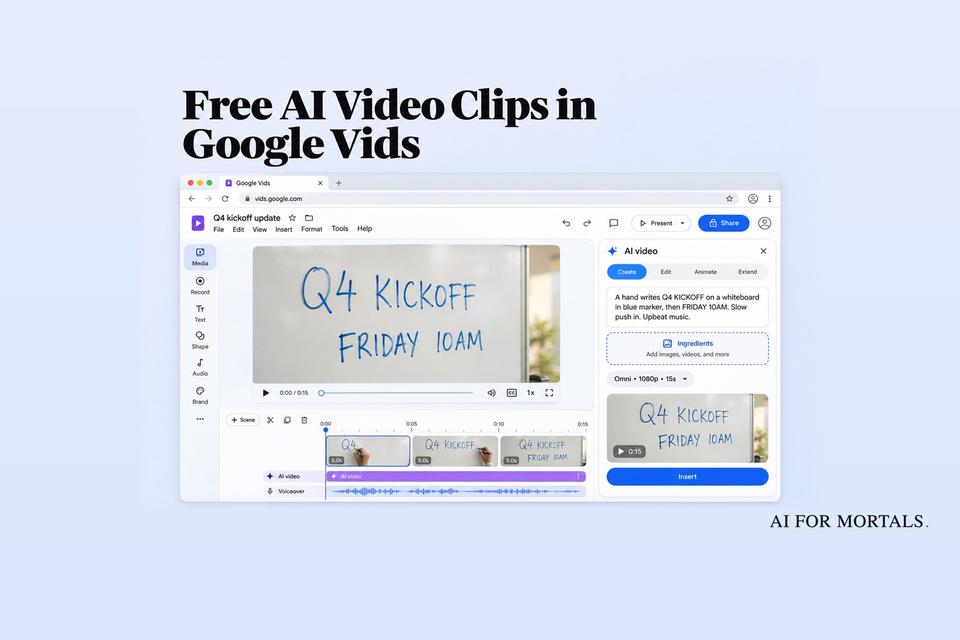
AI video has long had trouble with written words, so the second clip puts them front and center: a hand writing on a whiteboard.
A 10-second clip in a sunlit office meeting room. A hand writes the words "Q4 KICKOFF" on a clean whiteboard in blue marker, then underneath writes "FRIDAY 10AM". The camera slowly pushes in as the writing finishes. Light upbeat music, no dialogue.
This one took 38 seconds. Both lines are spelled right, and the words appear stroke by stroke as the marker moves, which is the part we expected to break.
Keep the words short. We only tested two short lines, and a full sentence on the board is a bigger gamble when your free allowance is 60 seconds a month.
A background clip for a presentation slide
The third clip is filler footage to sit behind a title slide or play while someone talks over it.
An 8-second clip for the background of a presentation slide: a small team of four coworkers around a wooden table in a bright office, looking at sticky notes on a glass wall and nodding as one of them moves a note. Slow sideways camera move, shallow depth of field, soft natural light. Quiet office ambience, no dialogue.
It came back in 33 seconds and looks like the stock footage companies pay for. The camera glides sideways, one woman moves a sticky note, and nobody's hands or faces go strange.
If you build decks in Google Slides, this pairs well with Gemini's new whole-deck edits in Slides: fix the deck there, then turn it into a Vid with a clip like this behind the opening slide.
Where the free clips fall short
Our clips worked on the first try because we asked for simple things the model is good at. A few limits are worth knowing before you spend your free seconds.
Changing the camera after the fact doesn't work well. When we tested chat edits on the same model last week, swapping the background, the time of day or the art style worked, but asking for a faster camera move or a pause at the end changed nothing, twice. Put the camera move in your first prompt.
Some things are still hard for it. Google says the model still struggles with fast sports action, scripts that change quickly, and complicated physics.
Editing your own footage has limits. The Edit tab only changes the last 10 seconds of a video you upload. In the EU, the UK, Switzerland, Illinois and Texas, you can't upload videos to edit at all, only clips Vids made for you.
Avatars aren't on the free plan. Using an AI presenter as an ingredient needs a work or school plan, or Google AI Pro or Ultra in the US, and only works in English.
Say when a clip is AI-made. Google says Omni clips made in the Gemini app, Flow and YouTube carry SynthID, an invisible watermark that detection tools can find. Its Vids announcement doesn't mention it, so label AI clips yourself in anything that goes outside your team.
Is the Google Vids AI video generator good enough for work?
For internal videos, yes. A training reminder, a meeting announcement or a few seconds of background footage behind a slide all came out at a quality most teams would happily use, from one short prompt each.
For anything with your real coworkers, your real office or your real product, you'll need reference images in the Ingredients box, and you'll burn through 60 free seconds fast while you get it right. That's when a Workspace Business or Google AI Pro plan, at 200 to 500 seconds a month, starts to make sense.
For the full rundown of what changed in the model itself, see our news story on Omni 1.2 Flash's 15-second clips.
If you'd like to see how AI video holds up for product ads, Pat walks through a full beginner's workflow in this video:
Sources
- Google: Generate longer AI videos with Omni 1.2 Flash in Google Vids at no cost
- Google Workspace Updates: Gemini Omni 1.2 Flash now in Vids with 15-second generations
- Google Help: Use AI to generate video clips in Google Vids
- Google Help: Availability and limits of Gemini features in Google Vids
- Google DeepMind: Gemini Omni 1.2 Flash
- Google: Introducing Gemini Omni 1.2 Flash
- Google Help: Export your data from Docs, Sheets, Slides and Vids
- Google Workspace on X: the launch post



Comments
Sign in to join the conversation.