Gemini Can Now Edit a Whole Google Slides Deck at Once
Gemini in Google Slides can now rework many slides or an entire presentation from one prompt: update the content, restyle every slide or match another deck's look. Here's how it works, the prompts Google suggests, and who gets it.
 AI for Mortals Staff
Gemini in Google Slides can now edit many slides or an entire presentation from one prompt. You can update the content across a deck, restyle every slide at once or make it match the look of another presentation.
It's rolling out to Google AI Pro and Ultra subscribers and to Workspace business plans, in English.
How to use Gemini in Google Slides to edit a whole deck
We haven't tried this ourselves yet. Here's how it works, per Google's announcement.
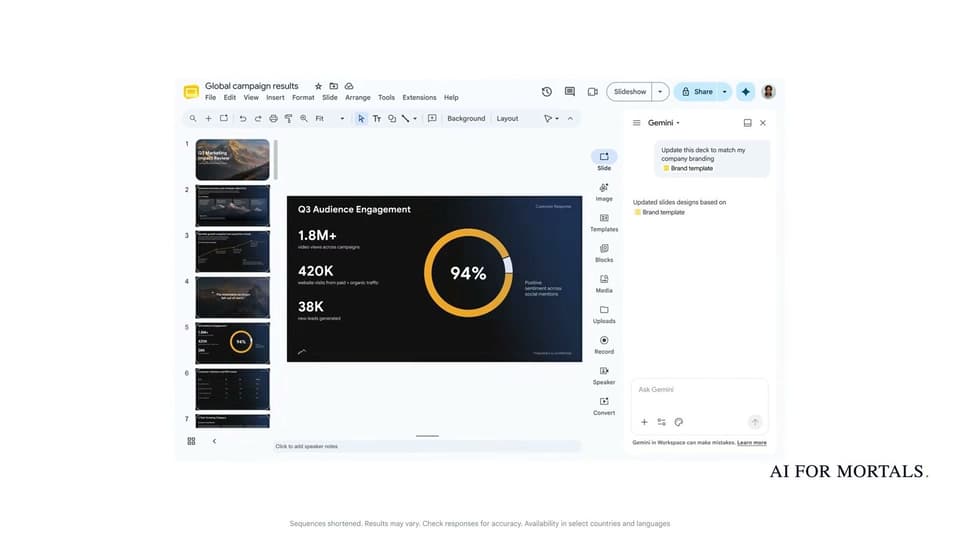
You open a deck you already have, open the Gemini side panel, and type one request that covers the whole presentation. You can point it at a file in your Drive, like a brand template or a report.

Gemini then works out which slides need to change. Google says it edits your native, editable slides directly, so you can keep adjusting anything afterward.
When it's done, a summary of what changed appears in the side panel. Google says the edits are applied as if you made them, so undo and version history still work if you want to review or roll back.

In Google's demo, the prompt "Update this deck to match my company branding" with a Brand template file attached turns the plain white deck into a dark, branded one, slide by slide.
Four kinds of whole-deck edits Google suggests
Google's post groups the edits into four jobs, each with an example prompt:
- Refresh the look: fonts, backgrounds and color schemes across the deck. "Update this whole deck to match the style of this [reference file]"
- Update the content: simplify it, expand it or change its focus, using files from your Drive. "Update this presentation to include more details based on [reference file]."
- Combine or add slides: squeeze several slides into one, or add new ones. "Summarize slides 5–7 into a single slide."
- Make styling consistent: line up title styles or remove page numbers everywhere. "Make the titles on all slides the same font size and color."
Which Google plans get Gemini's whole-deck editing, and when
It's included on these plans, per Google:
- Google AI Pro and Ultra for personal accounts, plus Google AI Pro for Education
- Workspace Business Standard and Plus
- Workspace Enterprise Standard and Plus
Free Gmail accounts and Workspace Business Starter aren't on the list.
The rollout started October 29, and Google says it may take more than 15 days to show up on every account. It works in English only at launch, and Google's Help Center lists Gemini in Slides as desktop-only for now. There's no admin switch for it, so work accounts on those plans simply get it.
Workspace customers also get promotional higher limits for creating multi-slide presentations through at least December 1. After that, per-user limits apply, and Google says it will post the details ahead of time.
Gemini in Slides now starts decks and reworks them
In June, Gemini in Slides learned to build a whole new, editable deck from a prompt. Last week, the Gemini app started letting you edit the files it makes right in the chat.
With this update, Gemini in Slides handles both ends of the job: starting a deck from a prompt and reworking one you already have. The rivals are building the same thing: OpenAI has ChatGPT Slides for editing decks together, and Anthropic made Claude's Docs, Slides and Design free.
The clearest use is the one in Google's demo: a brand template file and one prompt to restyle a deck. A whole-deck edit is a bigger job than changing one slide, so the change summary and version history are the safety net here, and undo or version history puts it back if the result is off.
Sources
- Google Workspace Updates: Edit entire presentations with Gemini in Google Slides
- Google Workspace on YouTube: Edit entire presentations with Gemini in Google Slides
- Google Slides Help: Generate presentations with Gemini in Google Slides
- Google Workspace Updates: Create fully native and editable presentations with Gemini in Google Slides (June)



Comments
Sign in to join the conversation.