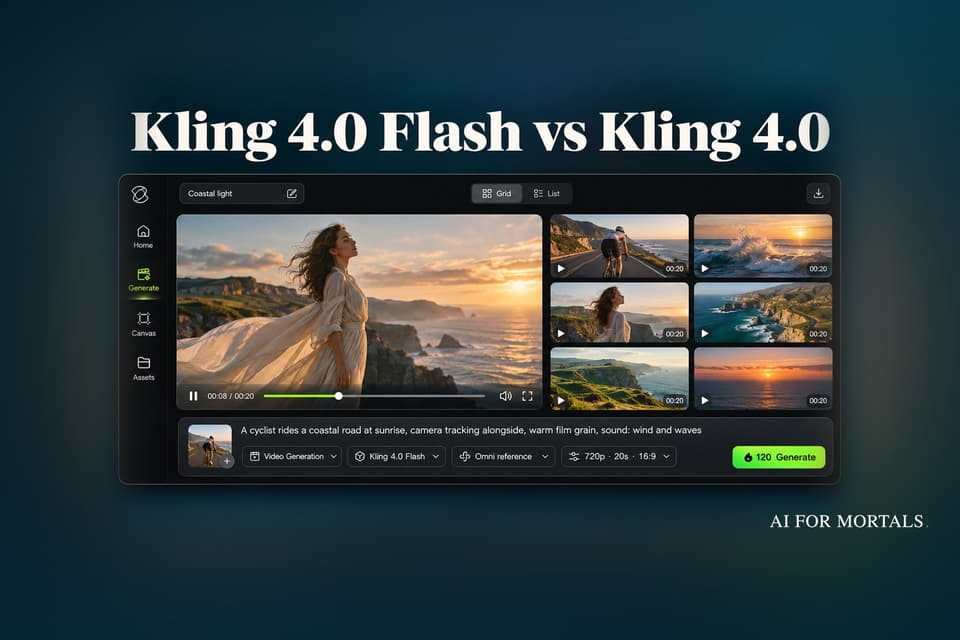
Kling 4.0 Flash vs Kling 4.0: What the Cheaper, Faster Version Gives Up
Kling's fast video model is now open to everyone on the website and the API. It still makes clips with sound, and it costs about 40% less than Kling 4.0 at the same quality setting. Here is what you trade for that, what it costs in credits, and when to use each one.
 AI for Mortals Staff
On this page
- What's new in Kling 4.0 Flash
- Kling 4.0 Flash vs Kling 4.0: what you give up
- Kling AI pricing: what Flash costs in credits
- How to use Kling 4.0 Flash in the web app
- Kling AI image to video: a product clip from one photo
- A talking clip with sound and lip sync
- A 20-second scene in three shots
- Edit a video you already shot
- Which one should you pick?
Kling 4.0 Flash is the cheaper, faster version of Kling's newest AI video model, and as of November 4 anyone with a Kling account can use it. On Kling AI pricing, it is the friendliest way into Kling 4.0: about 6 credits a second, against 10 to 15 for the full model.
It makes clips from 3 to 20 seconds long with sound built in, from a text prompt, a photo or a video you already have. In exchange, everything comes out at 720p, and a few of Kling 4.0's fanciest controls stay with the full model.

What's new in Kling 4.0 Flash
Kling announced on X that Flash is "now available to everyone on the Kling AI website and via API." Kling 4.0 itself launched in October with 30-second clips and finer control; Flash is the version Kling built for trying lots of ideas quickly and cheaply.
Kling's launch page for Kling 4.0 lists Flash's specs:
- Length: 3 to 20 seconds per clip. Kling 4.0 goes to 30.
- Quality: 720p only, standard color. Kling 4.0 offers 720p, 1080p and 4K, plus HDR.
- Shapes: widescreen, vertical, square and an extra-wide cinema shape, the same as Kling 4.0.
- Sound: on by default. Flash makes the audio in the same pass as the picture, matched to what's on screen.
- Inputs: text, images and video, so you can start from a product photo or hand it a clip to change.
The announcement also says you can reach Flash through Kling's MCP connector and command-line tool (handy if you already run AI agents) and through Kling's plugins for Photoshop, Premiere Pro and After Effects. If you edit in Premiere, that means generating a shot without leaving your timeline, which pairs well with the kind of AI-assisted editing Pat does in Premiere.

Kling 4.0 Flash vs Kling 4.0: what you give up
Flash keeps most of what makes Kling 4.0 useful. Both can tell a story across several shots in one clip, both make sound, and both take reference images and videos to keep a face, a product or a look consistent from take to take.
According to Kling's developer capability table, Flash leaves out two things:
- Multiple keyframes. Kling 4.0 lets you pin up to 10 images as storyboard panels the video has to pass through. Flash doesn't.
- Voice reference. Kling 4.0 can take a sample of a voice and give it to a character. Flash makes its own voices.
If you need a character to sound like a specific person, or a 25-second ad that hits five exact frames, stay on Kling 4.0. For a quick product clip, a social post or a rough cut of an idea, Flash covers it.
Kling AI pricing: what Flash costs in credits
Kling's API price list puts the two side by side, per second of finished video:
| Model | 720p | 1080p |
|---|---|---|
| Kling 4.0 Flash | 0.6 units | Not offered |
| Kling 4.0 | 1.0 unit | 1.5 units |
That makes Flash 40% cheaper than Kling 4.0 at 720p, and 60% cheaper than the 1080p clips most people default to. When you feed in a video to edit, both models count the input clip's seconds as well, at a lower rate (0.4 units a second for Flash).
The Kling app uses credits instead of API units, on the same ratio. Recent pricing checks put Flash at 6 credits a second (120 credits for a full 20-second clip) against 10 a second for Kling 4.0 at 720p and 15 at 1080p.
On Kling's Standard plan, which comes with 660 credits a month, that buys you:
- about 110 seconds of Flash video
- about 66 seconds of Kling 4.0 at 720p
- about 44 seconds of Kling 4.0 at 1080p
Credit rates change with promotions and plans, so trust the number on your own screen. Kling shows the cost right on the green Generate button before you click.

Kling doesn't publish how many seconds Flash takes to render compared with Kling 4.0, only that it is faster. API customers buy units in prepaid packs starting at $500, which works out to roughly $0.09 a second for Flash.
How to use Kling 4.0 Flash in the web app
- Sign in at kling.ai and open the creation page.
- Under the prompt box, set the model dropdown to Kling 4.0 Flash. Flash only makes 720p, so there is no quality setting to change.
- Pick the length (3 to 20 seconds) and the shape: 9:16 for Reels and TikTok, 16:9 for YouTube.
- Type your prompt, or click the plus to add a photo or a video as a reference. In the prompt, refer to them as @image_1, @video_1 and so on.
- Check the credit cost on the Generate button, then click it.
Kling's guide for both 4.0 models says the clearest prompts name each reference and say what to take from it ("keep the face and clothing from @image_1"), then describe the scene, the camera, the action and the sound. Leave a reference without a job and the model guesses what to do with it.
The four starter prompts below follow that shape. Swap in your own product, person and setting.
Kling AI image to video: a product clip from one photo
Upload a clean product photo, then:
Use @image_1 as the product. Keep its exact shape, colors, label and logo. A 10-second vertical video: the product sits on a light oak table by a window in soft morning light. The camera slowly pushes in and circles halfway around it. Steam rises from a coffee cup in the background, out of focus. Sound: quiet cafe ambience, a spoon tapping a cup, soft acoustic guitar. No text on screen.
A talking clip with sound and lip sync
A 12-second medium close-up. A friendly woman in her 30s with short dark hair and a green sweater sits in a bright home office and talks straight to camera. She says in English, warm and upbeat: "I tried three AI video apps this week. Here's the one I'd actually pay for." Small natural hand gestures, a slight smile at the end. Camera locked off at eye level. Sound: her voice only, with light room tone.
Keep spoken lines to a sentence or two. At least one early Flash test on YouTube showed dialogue that didn't match the speaker's mouth, so check the sync on your first take before you spend credits on more.
A 20-second scene in three shots
A 20-second clip in three shots. Shot 1, wide: a cyclist rides along a coastal road at sunrise, the camera tracking alongside. Shot 2, close-up: her hands shift gears, sunlight flickering through her spokes. Shot 3, wide from above: she crests a hill and the sea opens up below. Warm film look with gentle grain. Sound: wind, tires on asphalt, waves, and a rising piano melody that peaks in shot 3.
Edit a video you already shot
Flash can also change footage you upload, up to 20 seconds in total. Kling's own example removes a person from a shot:
Edit @video_1. Remove the person walking through the background on the left. Keep everything else unchanged: the framing, the lighting, the main subject and the original sound.
The same pattern works for other edits. Say what to change, then say what to keep.
Which one should you pick?
Start on Flash. It is the cheapest way to see whether an idea, a camera move or a prompt works, and the sound comes with it.
Switch to Kling 4.0 for the take you plan to keep when you need 1080p or 4K, a clip longer than 20 seconds, exact keyframes, or a specific voice. Drafting on Flash and finishing on the full model also stretches your credits the furthest, since a single 30-second 1080p clip on Kling 4.0 uses about two thirds of a Standard month.
The rest of the field is moving the same way. Seedance 2.5 makes 30-second 4K clips from one prompt, and Grok Imagine 1.5 builds sound into its videos too, so check the prices on all three before you pick a monthly plan. Most people who've put Kling 4.0 next to Seedance 2.5 say Seedance looks more lifelike, while Kling follows detailed prompts and copies motion from a reference clip better.

Kling's own launch video shows what the Kling 4.0 family can do:
Once you have the clips, the edit is where they turn into a video. Pat gave GPT-6 Astra a set of video-editing skills and had it cut his own footage:
Sources
- Kling 4.0 Flash is now fully available (Kling AI on X)
- Kling 4.0 and Kling 4.0 Flash launch page (Kling AI)
- Video capability map (Kling AI developer docs)
- Kling 4.0 Flash API reference (Kling AI developer docs)
- API pricing (Kling AI)
- Kling 4.0 and Flash credit math, from 2:50 (YouTube)
- Kling 4.0 vs Seedance 2.5 discussion (Reddit)
- Kling 4.0 impressions so far (r/KlingAI_Videos)
Comments
Sign in to join the conversation.