I've Spent Thousands of Hours Editing in Premiere. Opus 5.5 Now Does 95% of It.
How I turned Opus 5.5 into my personal video editor: it edits every take inside Premiere Pro on a Mac Mini while I record the next one. The skill and the Premiere Pro bridge are free on GitHub.
On this page
- How I set it up
- 1. File organization
- 2. The watcher and the handoff
- 3. Transcription and Premiere's Pauses filter
- 4. The Premiere Pro bridge
- 5. Pause Cut
- 6. Bad takes and "Chat, cut that"
- 7. Holding pauses when I'm showing an app
- 8. One review cut per section
- 9. The cut comes back to me
- 10. More advanced techniques
- That's about it
All right, I finally cracked it. I have Opus 5.5 doing 95% of my video editing now. It runs on my Mac Mini, editing fully autonomously.
Every time I stop recording a take, an Opus 5.5 agent jumps in and edits it while I record the next part of the video. So all I need to focus on now is recording, and Opus 5.5 does the rest.
Hey, by the way: if you want to skip all of this, here's the skill and the Premiere Pro bridge on GitHub. Just give it to your agent to test, and you can have Opus 5.5 editing your videos with this workflow right away.
I have spent years video editing and THOUSANDS of hours in Premiere, and I can't believe this exists. What a magical time we live in.
Here's how it works, and how to get it set up yourself.
How I set it up
(Reminder: you can just hand this skill to your agent.)
So first up, I have two Claude Code sessions running.
1 - What I'll just call the Mac Mini Agent.
Which is Claude Code running Opus 5.5 in a Terminal window on my Mac Mini.
This is the workhorse doing all of the editing in Premiere, and it needed its own machine, because otherwise it would take over my screen on my Mac Studio.
2 - My orchestrator agent, a project manager of sorts.
It's the one I talk to, a regular Claude Code session in a Terminal window on my Mac Studio, and it hands work to the Mac Mini Agent, keeps an eye on it and brings the finished cut back to me.
1. File organization
The first thing to get right is where the footage lives, since the editing happens on a different computer than the one I record on.
In order for this to work and be fully synced between my Mac Studio and Mac Mini, I've set it up like this (your process of course may vary):
My footage lives on a Samsung SSD plugged into my Mac Studio.
Premiere projects remember the full file path of every clip, so if the Mac Mini kept the footage anywhere else, every clip would show up offline when the edit came back to my main computer.
So the Mac Mini has a fake copy of that drive, a disk image with the exact same name that mounts at the exact same location.
Every take gets copied into the same folders it lives in on the real drive, so the paths match on both computers and nothing ever needs relinking.
(TBH, I don't even really know what that means or how Claude set this up, but it freaking works like a charm.)
2. The watcher and the handoff
On to the actual record.
So I record in OBS on my Mac Studio. Every time I stop recording, a watcher numbers the finished take (1.0, 1.1, 1.2 and so on) and copies it over to the Mac Mini.
As soon as the take lands, my orchestrator agent hands it to the Mac Mini Agent.
It keeps me updated the whole time without me asking: "I just saw you stop recording. I numbered the take, handed it to the Mac Mini Agent, and it's working on it now."
3. Transcription and Premiere's Pauses filter
Then it gets to editing, and the first part of the Mac Mini Agent actually editing a take is: Transcription.
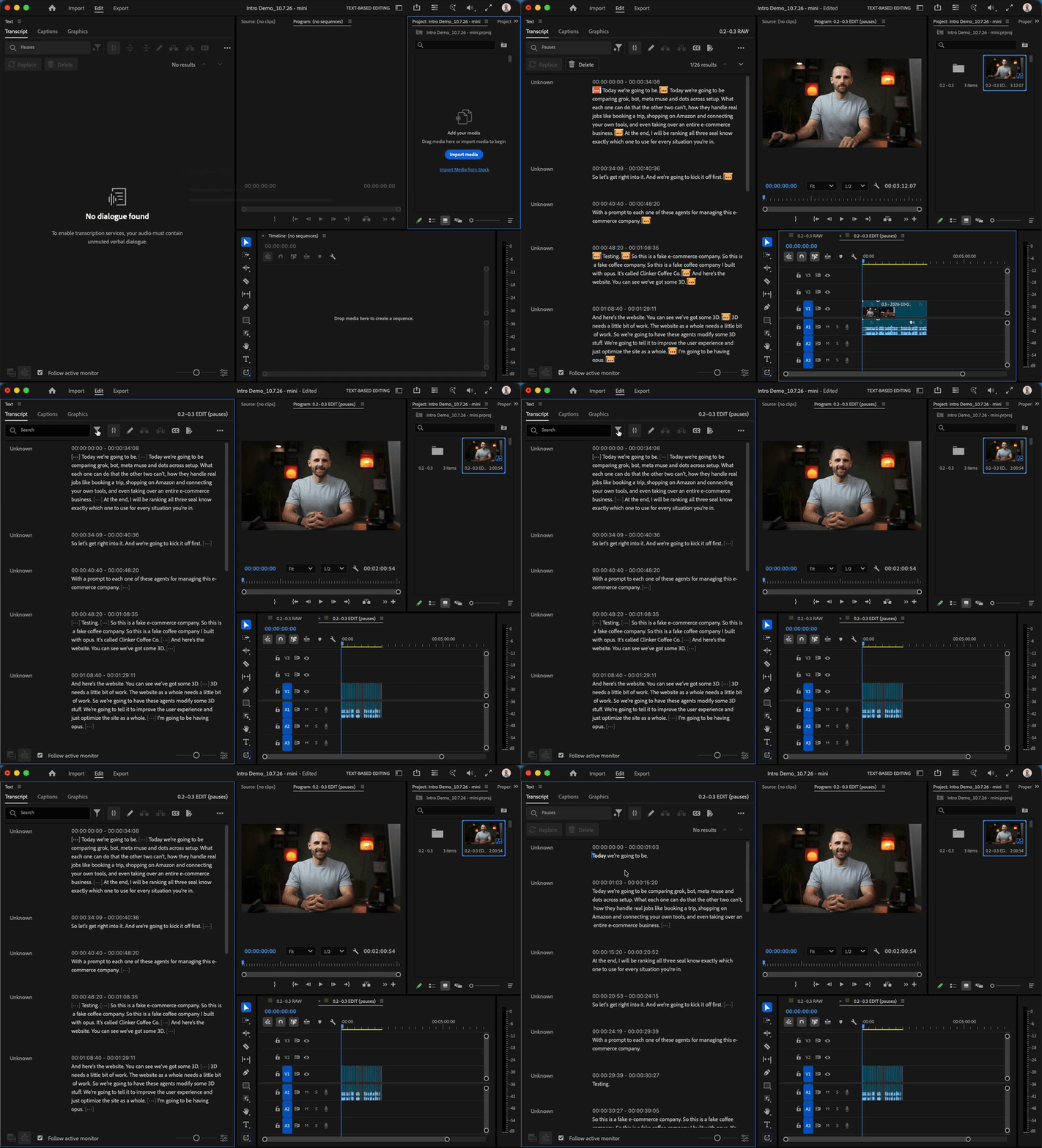
Premiere's built-in transcription does a pretty good first pass, so the Mac Mini Agent clicks the same buttons I would, using Computer Use in Premiere Pro on the Mac Mini:
- In the Text panel, it opens the Transcript tab and clicks the blue Transcribe button.
- It clicks the funnel icon next to the search box and chooses Pauses. Premiere highlights every pause it found.
- It clicks Delete, keeps Extract selected, then clicks Delete all.
- Delete all doesn't actually delete every pause in one pass, so the Mac Mini Agent clicks the funnel, chooses Pauses and runs Delete all again, and again. (I have to do this too. It's a dumb bug in Premiere, and I can't believe they haven't fixed it.)
- It keeps going until the Pauses search says No results. Then it saves.
4. The Premiere Pro bridge
Now, I wanted this to be as token efficient as possible, and as you probably know, Computer Use via Claude Code in Premiere Pro is incredibly inefficient with tokens, not to mention slow.
So I built a custom MCP server, a Premiere Pro bridge, which lets the Mac Mini Agent run Premiere programmatically with scripts instead of clicking around. (It's in the GitHub repo that comes with this post.)
However, it doesn't work for everything.
Transcribe and the Pauses filter only exist as buttons in Premiere's interface, which is why we had to use Computer Use in Step 3 above.
But everything else goes through the bridge:
- Cutting video and audio together, down to the exact frame, and nudging clip edges to put back a clipped word.
- Importing takes, building the bins and sequences, adding each take to the review cut and relinking every video and audio pair.
- Reading Premiere's saved transcript directly, with no export dialogs.
- Placing B-roll, quote cards and lower thirds on the tracks above my footage.
- Putting my cleaned-up voice on its own track with a music bed underneath.
- Exporting stills to check its own work, then exporting the final video.
5. Pause Cut
Now, this is what's always annoyed me about Premiere's auto transcription: it's way too liberal on pauses.
Sometimes it just doesn't detect them and leaves big gaps in the take, which I used to have to go in and cut myself. It was so obnoxious.
Eventually Opus 5.5 and I figured out how to cut them automatically, with something I call Pause Cut. Here's what it does:
- Reads the actual waveform of the take instead of the transcript, and finds every quiet stretch.
- Checks the short gaps between words too, down to about a tenth of a second, including the spots where two cuts meet.
- Leaves a tiny bit of silence before each word starts and after it ends, so no syllables get chopped.
- Looks at the original audio on both sides of every cut. If a cut clipped the start or end of a word, it puts it back.
- Makes the cuts from the end of the timeline backward, cutting video and audio together, and checks that each cut removed exactly what it planned. It saves after every small batch.
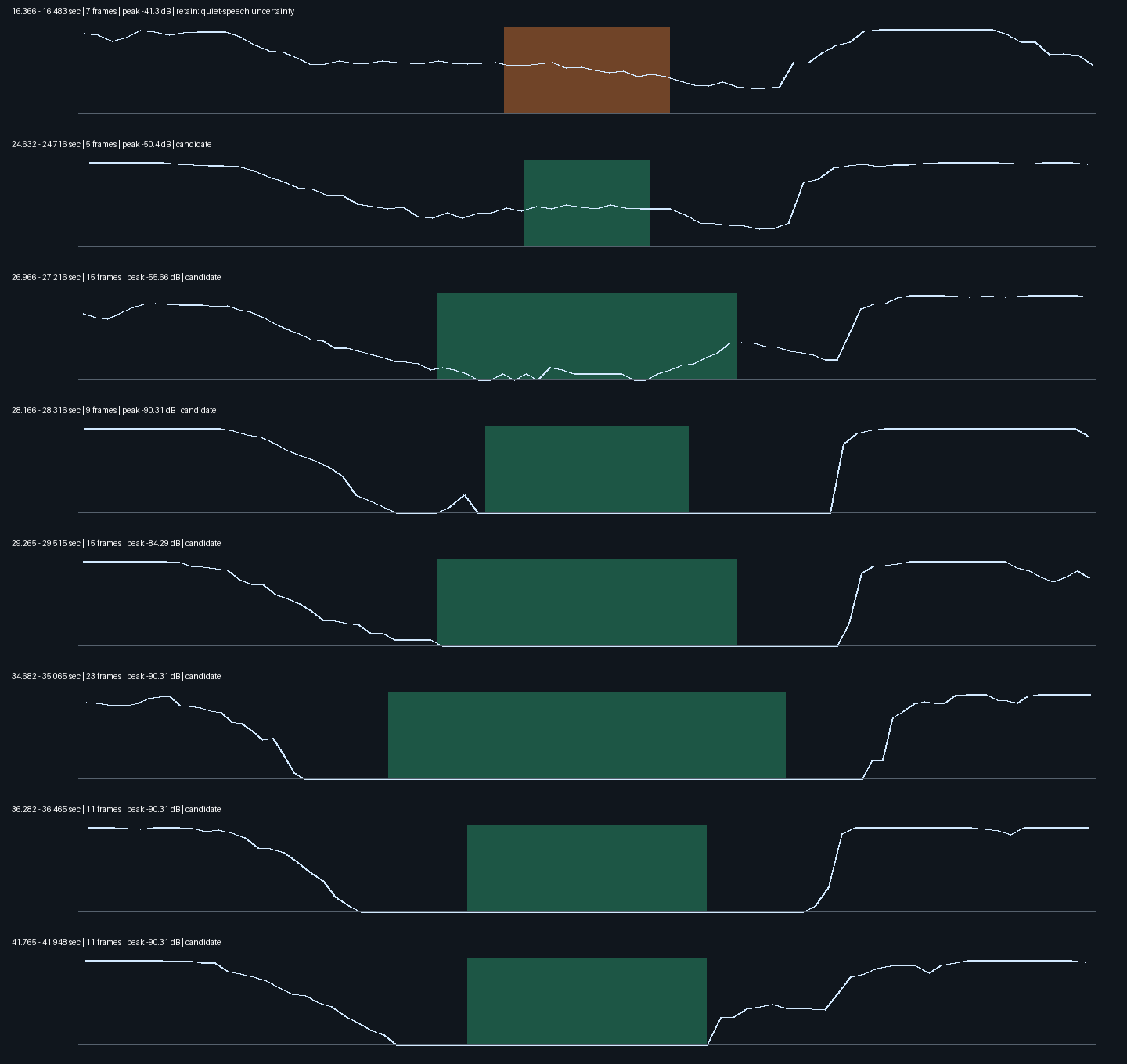
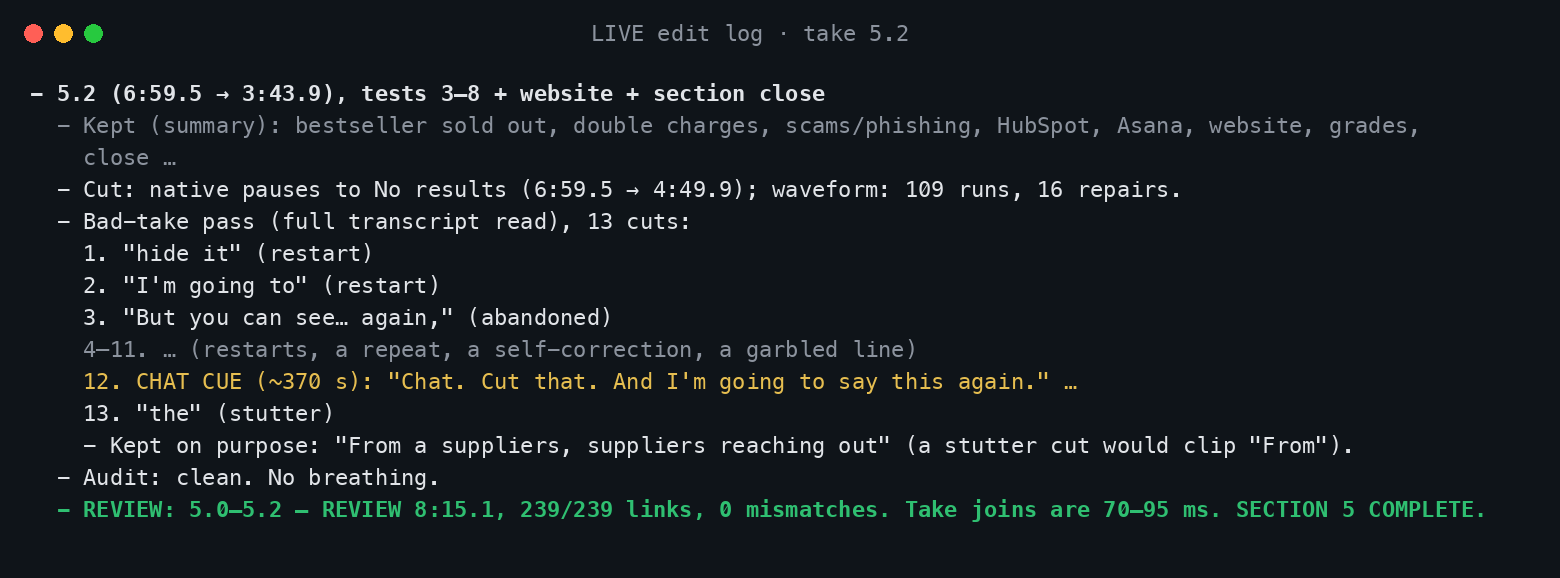
Pause Cut gets rid of about 95% of what's left, and then the Mac Mini Agent does one final pass over the waveform of the entire review cut to make sure every pause is gone.
Between the three of these, it's incredibly thorough, and I almost never have to change anything with the pauses.
Again, it's amazing that it can do this. The amount of hours alone it has saved me is ASININE...
Anyway, back to the rest of the steps.
6. Bad takes and "Chat, cut that"
Now that the Mac Mini Agent has cut out the pauses, the next step is cutting any bad takes: false starts, restarts and repeats.
The easiest way for me to flag those is to just talk to Claude while I record. I detail this in the SKILL: listen for "Chat, cut that."
(I say "chat" instead of "Claude" because transcription never gets Claude right. It always comes out as Clawd or Cloud, which the agent could never find, but it can always find "chat.")
So after the take is transcribed, the Mac Mini Agent looks for "Chat, cut that" in my transcript. It cuts the cue and the mistake right before it, and keeps my retry.
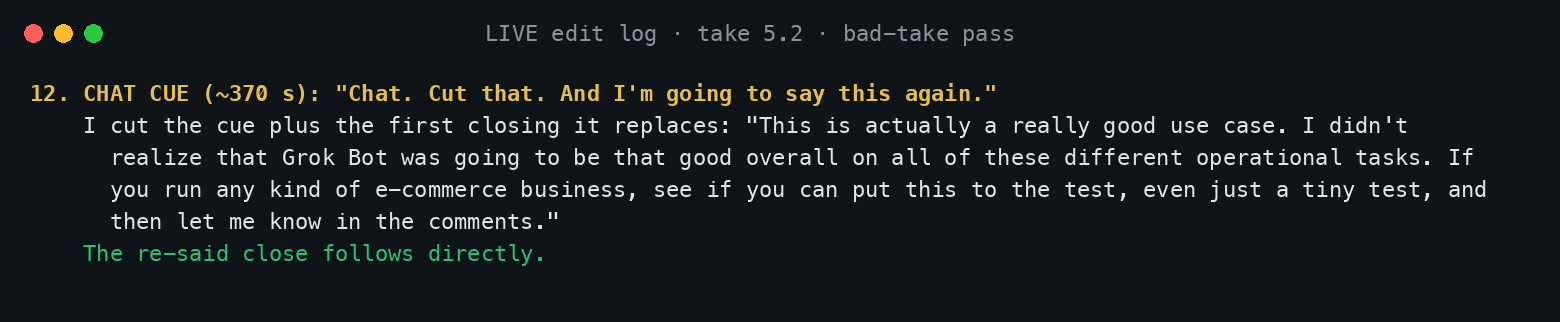
Once the takes are joined (and here's where it gets freaking crazy, again), it reads the combined transcript and uses its reasoning to make sure everything I'm saying in the video still makes sense in the order it's cut.
What that does is catch things like the same sentence showing up twice where two takes meet, or anywhere I forgot to say "Chat, cut that."
At this point, this thing is about 90% done.
7. Holding pauses when I'm showing an app
Now this is where it gets freaking advanced.
When I'm building an app in a video, or previewing one I've just built, there's a lot of silence while I scroll the website or click around, and I still want my audience to see all of that.
Cutting out every one of those silences made the cuts incredibly jarring.
So there's logic built into the skill where the Mac Mini Agent looks for those moments and holds the pauses longer.
It doesn't use AI vision for this: a script measures how much of the app on screen changes from frame to frame (ignoring my webcam and any terminal windows), and the agent puts back up to 1.5 seconds of the removed silence wherever the screen is moving.
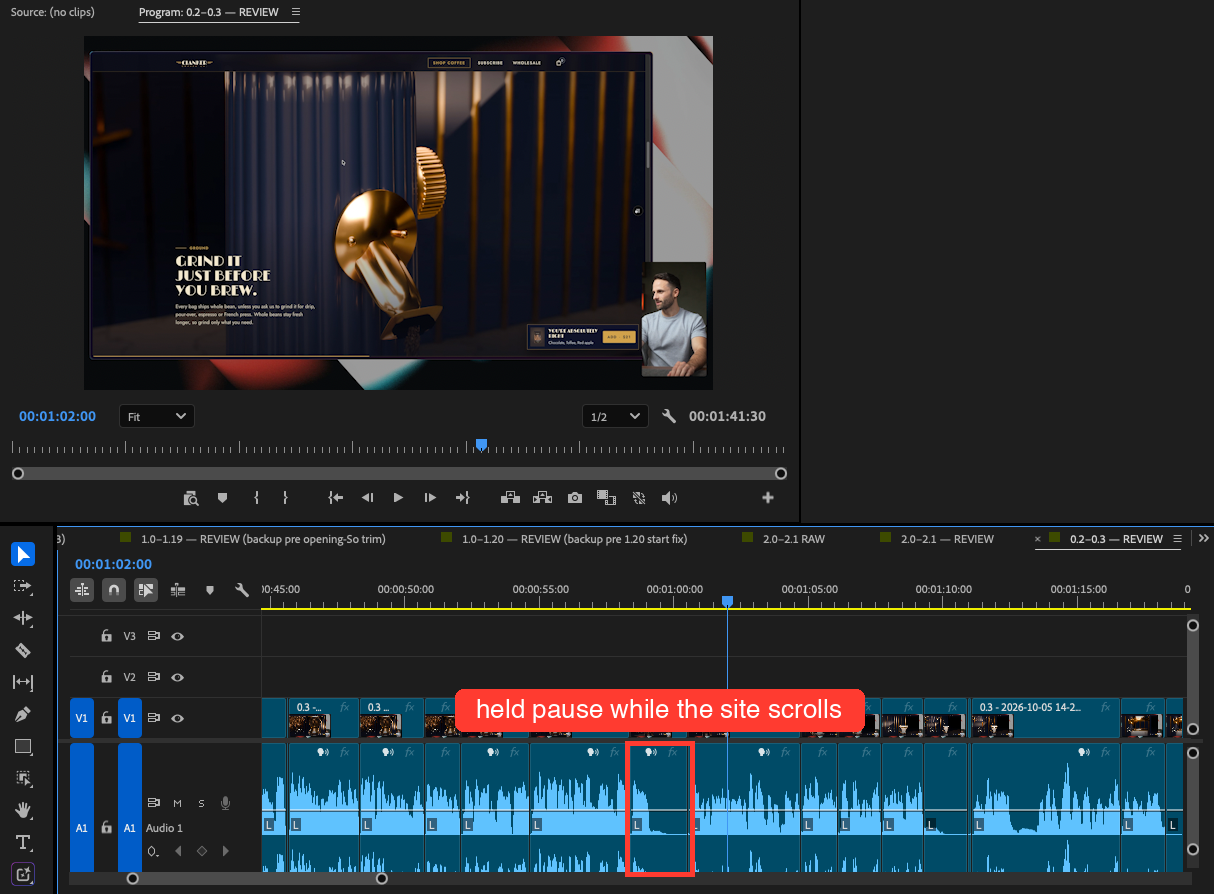
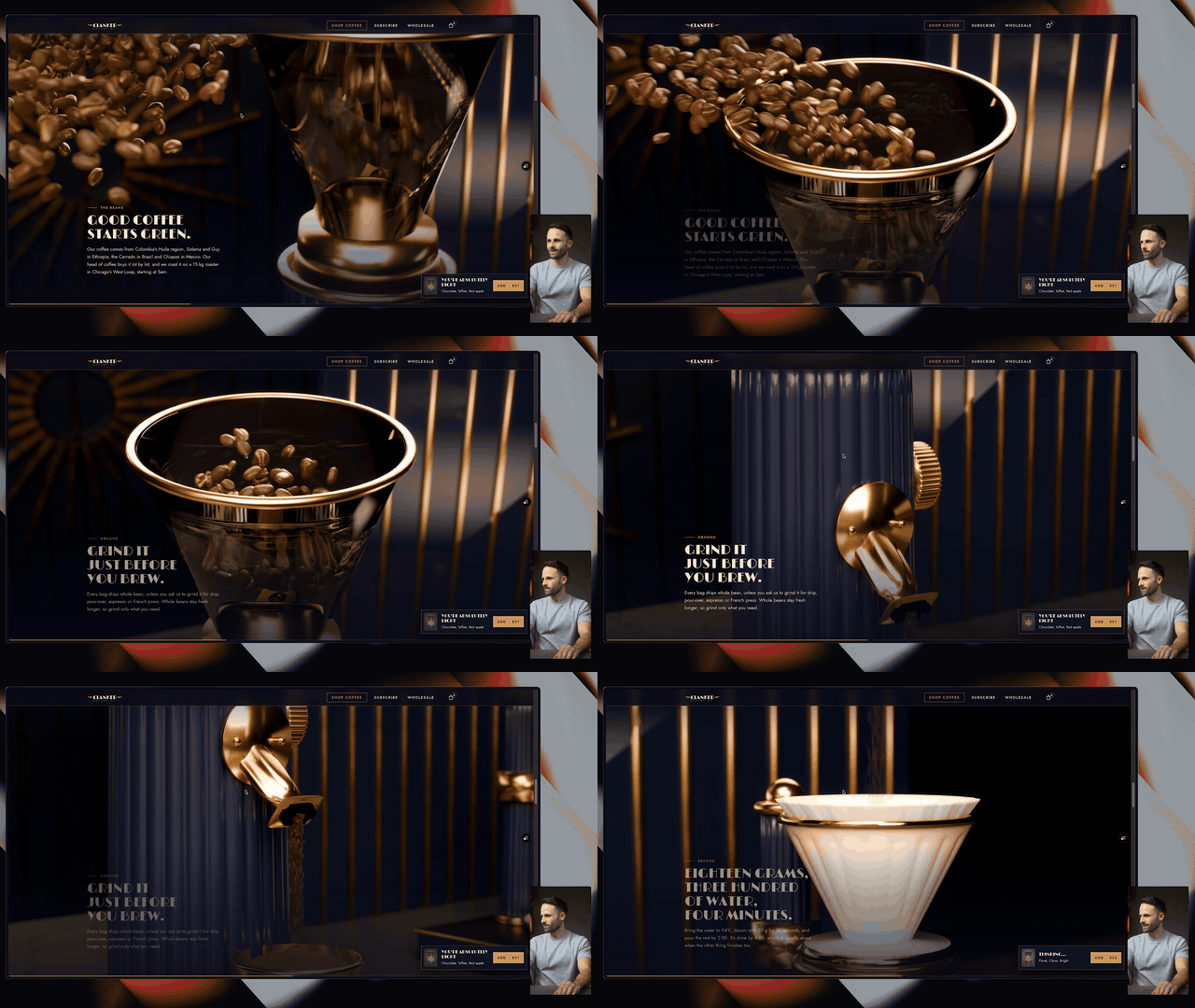
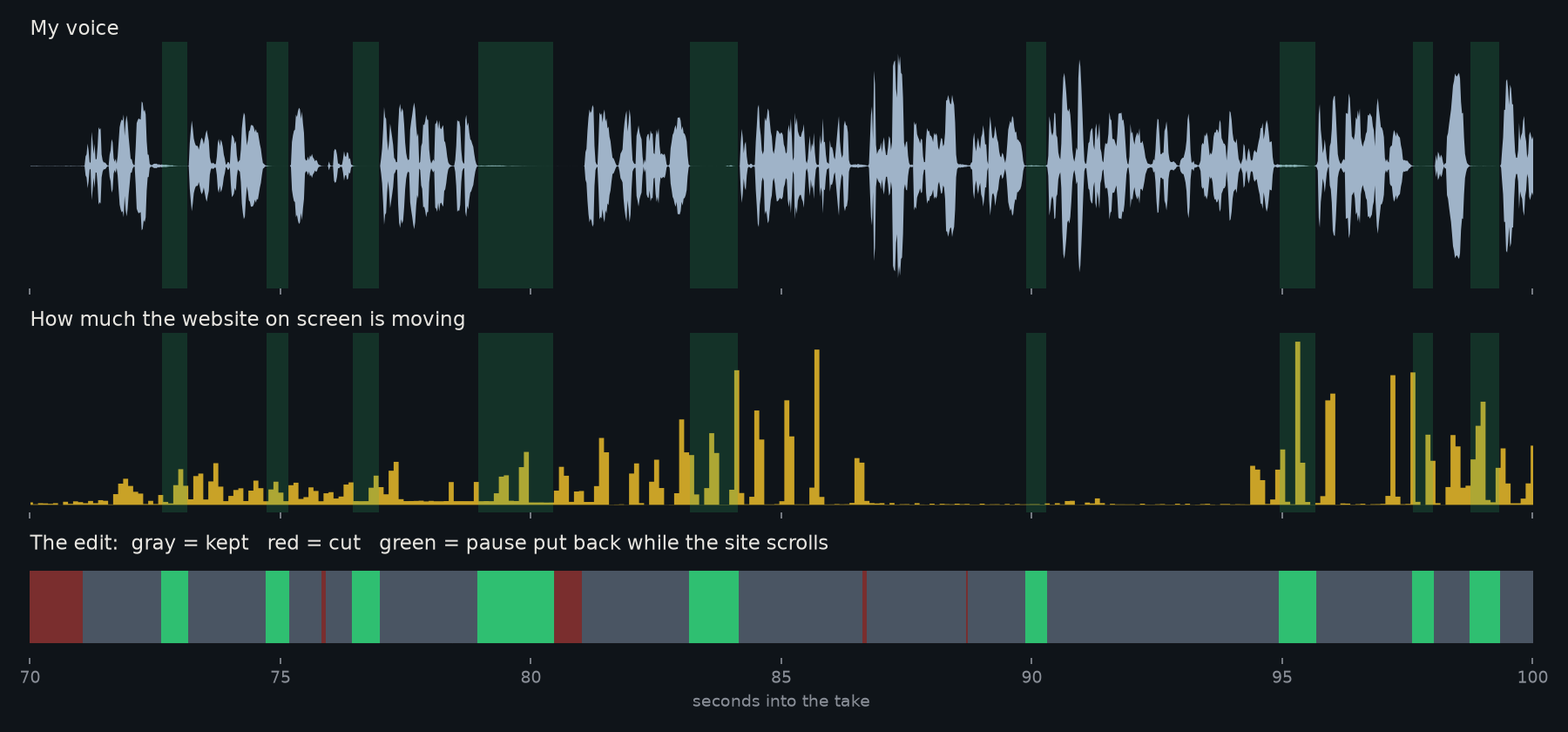
Again, this is just incredibly advanced sh*t that only Claude Opus 5.5 could think of. I mean, have I said how freaking wild this is?
To be clear, this is only for specific cases, when I'm previewing app builds. Everything else is still cut tight.
8. One review cut per section
Each edited take gets added to a single "REVIEW" sequence for that section. Then the Mac Mini Agent checks every audio and video link, saves, and writes a log line saying what it cut and why. Beautiful.
9. The cut comes back to me
When I'm done recording, my orchestrator agent runs a sync script that pulls the REVIEW sequence into my main Premiere project on my Mac Studio.
10. More advanced techniques
On some real projects, the Mac Mini Agent has gone way past the rough cut:
- Jump cuts: on a hard cut, it punches in to about 110–115% and moves the frame so my eyes stay at the same height across the cut. If the lighting changed between takes, it matches the exposure too.
- Lower thirds and quote cards: it renders them as video files with Python, then places them on the tracks above my footage, 2–3 seconds each.
- B-roll: it can find basically anything online, even pulling clips off YouTube with yt-dlp. Then it drops them on the track above me and scales them to fill the frame.
- Audio: it literally exports my voice, drags it into Adobe Podcast Enhance, uploads it, downloads the cleaned-up version and puts it back in the sequence, finished to −14 LUFS with a music bed underneath. Again, insane.
- Zoom-ins and text: it does smooth zoom-ins with eased keyframes, and adds on-screen text.
That's about it
I just give it a once-over pass. That's the 5% of the time I'm still editing, where I may cut out a few more pauses to my own liking, but this Opus version is more than good enough to go.
Can I just say one more time: what a freaking time to be alive, where we can save hundreds and hundreds of hours editing by outsourcing our rough cuts to Claude.
So if you're a video editor or content creator, or you're doing any kind of video, definitely put this to the test. Let me know any feedback you have, anything you'd add or any difficulty you run into. I'm happy to help.
Thanks for reading. If you can't tell, I'm fired up about all the time this saves.

Comments
Sign in to join the conversation.