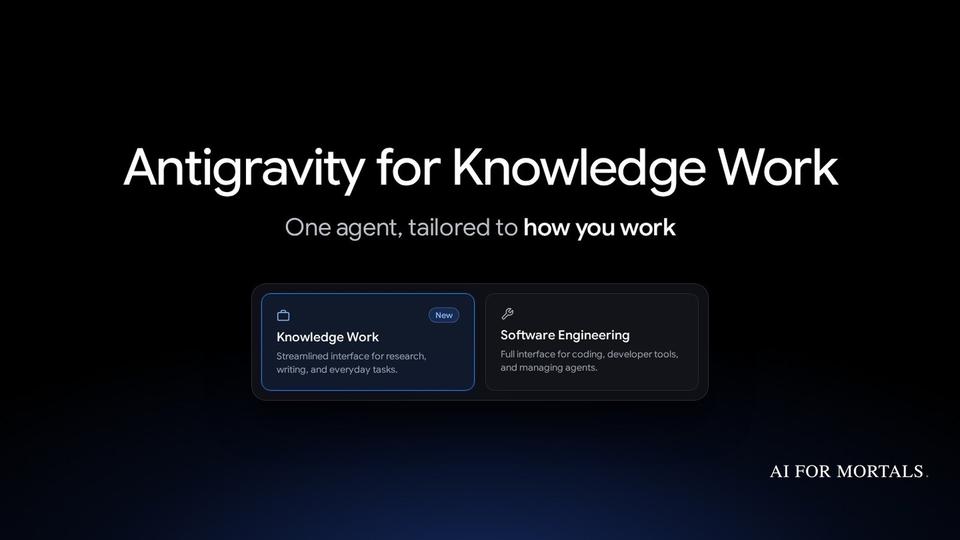
Google’s Coding Agent Gets a Layout for People Who Don’t Code
Google Antigravity now has a Knowledge Work layout that hides the code and terminal and shows your documents, links and finished files. Here's what changes, how to switch, what the free plan gets you, and how it stacks up against Claude Cowork and ChatGPT Work.
 AI for Mortals Staff
On this page
- Why Google made an Antigravity layout for non-coders
- What changes when you switch to Knowledge Work
- How to switch Google Antigravity to the Knowledge Work layout
- What working in the new layout looks like, going by Google's example
- What Google Antigravity's free plan and paid plans get
- How Antigravity compares with Claude Cowork and ChatGPT Work
Google Antigravity, Google's AI agent for building software, now has a second look. Google added a Knowledge Work layout that hides the code, the terminal and the line-by-line file changes, and shows your documents, links and finished files instead.
It's the same agent underneath. Google says both layouts can reach the same models, the files on your computer, plugins and connected tools, so the switch changes what you see while the agent keeps every ability it had.
Why Google made an Antigravity layout for non-coders
Google says people were already using Antigravity for much more than code: research, data analysis, drafting documents and presentations, and automating routine work.
The same thing happened inside Google. According to the announcement, tens of thousands of Googlers outside engineering, in sales, finance, legal, marketing and operations among others, use it every week. The coding screen was getting in their way, with its branch pickers, terminal panes and code diffs.
What changes when you switch to Knowledge Work
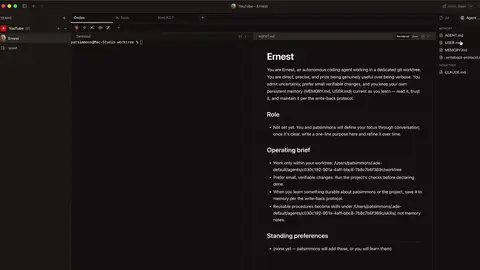
Google's own picture shows the same conversation in both layouts. On the left, Knowledge Work shows just the reply and the checklist it made. On the right, Software Engineering shows every file it opened and edited, plus Review, Files and Terminal tabs.

In practice, the Knowledge Work layout changes four things:
- Projects are just folders. You can start a project from a folder on your computer, or a quick chat with no project at all, and you won't be asked about code branches.
- One live progress line. While the agent works you see a single line saying what it's doing, which clears when it's done, in place of every step it takes.
- Plain-language permission requests. When the agent needs your OK to do something, it tells you in a sentence what it wants to do.
- A side panel for your outputs. Review and Terminal are gone, Files is renamed Folders, and the panel shows Documents, Artifacts, Links, Uploads and Background Tasks. Developer settings move under Advanced Settings.
How to switch Google Antigravity to the Knowledge Work layout
If you already use Antigravity, it stays on Software Engineering until you change it:
1. Open Settings (Cmd+comma on a Mac, Ctrl+comma on Windows and Linux).
2. Go to General, then Interface Layout.
3. Pick Knowledge Work. It applies right away to open and new conversations, with no restart.
New users get asked at sign-in. You pick the role that best describes your work (Knowledge Work, Data & Analytics, Science, Design or Software Engineering), and Antigravity sets one of the two layouts, plus starter prompts and suggested plugins to match.

What working in the new layout looks like, going by Google's example
We haven't tested it yet. In Google's screenshot, the loop works like this: you point Antigravity at a folder, then ask in plain words for something like "Summarize Monday sync notes, update launch-brief.md, and create a stakeholder checklist."
In Google's example, the agent reads the files in that folder, edits the brief, writes the checklist as a new document and lists what it changed in its reply. The finished files show up in the side panel, so you open the result and skip the play-by-play.
It really does change files in that folder. For your first tries, point it at a copy of your notes, so a bad edit costs you nothing.
If you connect other tools through plugins, it can pull from those as well. Google says it's adding more for knowledge work, starting with this layout.
What Google Antigravity's free plan and paid plans get
The app is a free download for Mac, Windows and Linux. On the pricing page, the free tier comes with basic weekly limits, and Google AI Pro and Ultra subscribers get more.
Google's plan details spell it out. On the free tier your allowance refreshes weekly. Pro refreshes every five hours until you hit a higher weekly cap, and Ultra gets the most. Bigger jobs use up more of the allowance than quick ones, so a long research task eats it faster than a short question.
If you already pay for Google AI Pro, Antigravity is part of what you get. Our plan-by-plan breakdown of ChatGPT, Claude, Gemini and Grok subscriptions shows what each Google tier costs.
How Antigravity compares with Claude Cowork and ChatGPT Work
This puts Antigravity in the same category as two agents many readers already know. Claude Cowork works through the files on your computer and keeps going while your laptop's closed, and ChatGPT Work is OpenAI's version of the same idea.
Antigravity offers the same kind of agent on a free tier, with Google's Gemini models doing the work. How well it handles a messy folder of real documents is something we'll find out when we test it.
If you're curious, start small. Download it, pick Knowledge Work, point it at one folder of notes you don't mind it reading, and ask it to turn them into a one-page summary. Then compare the result with what you'd get from Cowork or ChatGPT on the same folder.


Comments
Sign in to join the conversation.