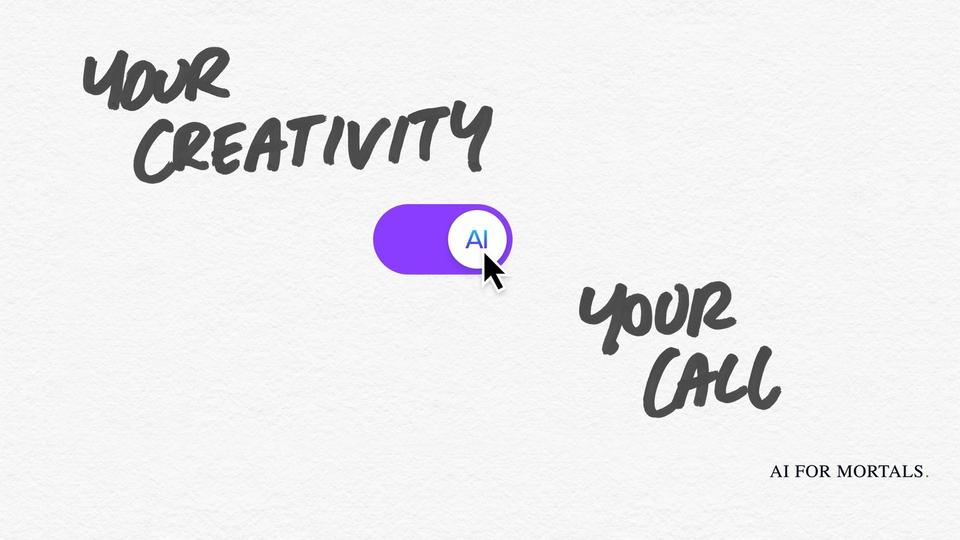
Canva Adds a Switch to Turn Off Its AI
Canva Free and Pro accounts get a switch that hides generative AI tools and a setting that shows fewer AI-made templates and graphics in search.
 AI for Mortals Staff
Canva added two AI Controls on Thursday. One is a switch that hides its generative AI features, and the other is a setting that shows fewer AI-made images and graphics in its library.
Both are free on Canva Free and Canva Pro. Canva's help page says the two settings are rolling out gradually, so they may not be in your account on day one.
How to turn off Canva AI features
Canva's help page gives four steps:
- Select your profile icon.
- Select Settings.
- Under "Controls and permissions", select Permissions.
- Turn off Enable generative AI features.
Generative AI features are on by default, so nothing changes in an account until its owner turns the switch off. With it off, those tools are hidden across Canva, and switching it back on brings them back.

A note on that screen says designs you already made with the AI tools aren't deleted when you change the setting.
Any generative AI feature Canva adds later will follow the same switch. The setting doesn't carry over if an account moves from Free or Pro to a team or school plan, or back.
Which Canva AI tools the switch hides
The help page lists 21 features that stop working with the switch off. The best known are Canva AI, Magic Write, Magic Design, Magic Edit, Magic Media, Magic Layers, Dream Lab, Canva Code, AI Shapes, AI Charts and Image to Video.
Canva AI Music and Sound Effects, Translate designs, Transform into Doc and the Help Assistant's AI design advice are on the list too.
The Canva editing tools that stay on
Background Remover and Magic Grab keep working with the switch off. Background Remover cuts the background out of a photo in one click, and Magic Grab lets you select an object in an image and move it somewhere else in the design.
Canva's reasoning is that these tools edit what's already in a design and generate nothing new.

The same reasoning decides how a design is labeled once it leaves Canva. Canva says using these tools doesn't add the metadata that marks a design as AI-generated, so social platforms that read that tag won't label your post as AI-made because you removed a background.
The help page adds that AI tools outside the generative group can still draw on your plan's AI allowance when Canva counts them as Standard, Premium or Ultra AI tools.
How to see fewer AI-made templates and graphics in search
The second control lives in a different menu:
- Select your profile icon.
- Select Your account.
- Select AI personalization.
- Turn off AI-generated content.
That toggle is on by default, and turning it off tells Canva to show fewer of the templates and elements it has tagged as AI-generated.
Canva says a small portion of its library is AI-generated, such as abstract backgrounds and illustrated graphics, and that those items carry a tag in their metadata. The rest comes from designers and illustrators, who are paid each time their work is used in a design.
The help page spells out what the setting does and doesn't cover:
- It lowers the number of AI-made results, and some may still appear.
- It applies to search results and recommendations on the homepage and in the editor, and it has no effect inside Canva AI or third-party apps.
- It leaves Brand Templates and searches of your own uploads and designs as they are.
- It doesn't remove or change AI-made content already in your designs.
- It applies to your account alone, and it works separately from the generative AI switch.
What team, business and school accounts get instead
Both new controls are for Canva Free and Canva Pro. On Canva Teams, Business, Enterprise and Education, an owner or admin already decides who can use each AI feature, under Settings, then Permissions, then Magic and AI.
The starting point differs by plan. On Teams and Business accounts the AI features are on for every member, and on Education accounts they start with admins and teachers, with Magic Media, Dream Lab and Magic Insights the three features enabled for students.
Why Canva built an off switch seven months after betting on AI
In April, Canva launched Canva AI 2.0, and co-founder Cliff Obrecht described the change this way: "Until now, Canva has been a design platform with AI tools. Now we become an AI platform with design tools."
By August, the cost of running those AI features had cut Canva's expected revenue growth by a third, to 20%. CEO Melanie Perkins said demand for the new AI features had "significantly exceeded" expectations, and that Canva slowed the rollout while it brought down the cost of each AI task.
On November 3, in a post announcing changes that affect 1,271 people, 22% of the company, Canva wrote that "our growth has slowed for the first time in a decade."
The request for an off switch came from customers. Announcing the controls on LinkedIn, Perkins quoted one of them: "I'd love to see more options for users who prefer not to use AI. Please consider adding more granular AI controls... We should be able to choose which AI features we use."
Canva is still building AI. Its announcement says its AI tools have been used more than 38 billion times and that it will keep investing in them. Last month it released Canva Craft, its own image model, and Brush, its own model for editing designs.
The off switch is still a step back from April's bet. With growth slowing, Canva can't afford to lose the customers who never wanted the AI.
Sources
- Introducing AI Controls: Your creativity, your call (Canva, November 19, 2026)
- Turn generative AI features off and see less AI-generated content (Canva Help Center)
- Change access to Magic and AI features (Canva Help Center)
- Canva adds an AI 'off' button (The Verge, November 19, 2026)
- Melanie Perkins on the new AI Controls (LinkedIn, November 19, 2026)
- 'Biggest transformation yet': Canva launches Canva AI 2.0 (Capital Brief, April 16, 2026)
- AI was supposed to power Canva's next act. It also exposed software's most expensive problem (Fortune, August 12, 2026)
- An important update on our team (Canva, November 3, 2026)



Comments
Sign in to join the conversation.