Midjourney Niji V8 Brings Back Consistent Characters, With a New Edit Feature
Midjourney's new anime model can keep one character the same across scenes and change a single detail without redrawing the picture.
 AI for Mortals Staff
On this page
- What's new in Niji Journey V8
- How to turn on Niji 8 in Midjourney
- How to get a consistent character in Niji 8
- Change one detail without redrawing the picture
- Make a simple comic page from one prompt
- Short prompts explore, long prompts lock it in
- Niji 8 vs Midjourney V8.2: which one to use
- What Niji Journey costs
- Prompts to try with Niji 8 for work
- What people are saying about Niji 8
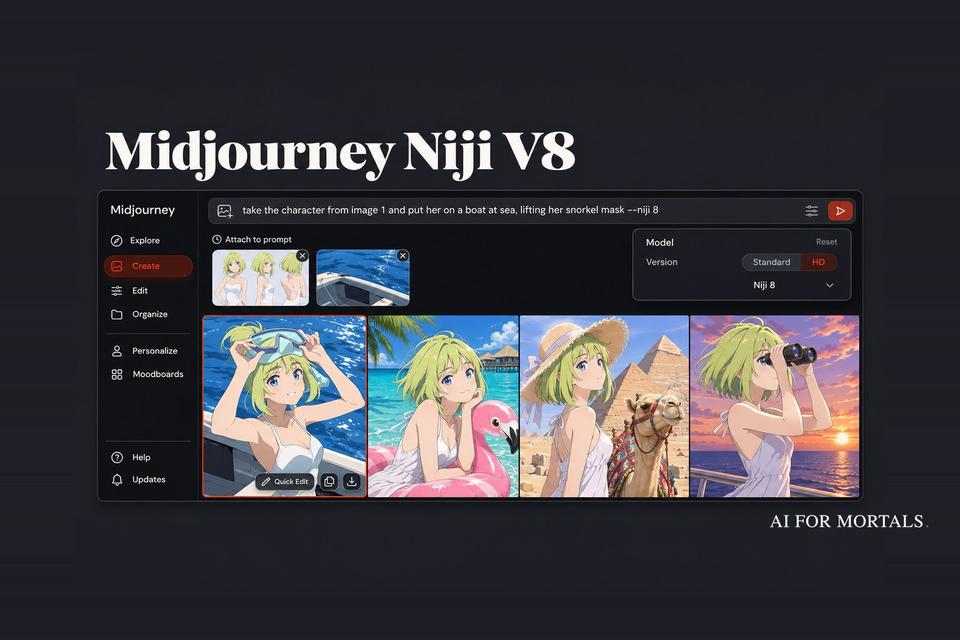
Niji Journey V8 is out. Midjourney and Spellbrush, the anime studio it builds the Niji models with, released it on November 24, and the headline feature is one people have asked for since Niji 7: you can keep the same character across different pictures again.
It does that with a new edit feature. You hand it a picture of your character and a background, describe what you want, and the character turns up in the new scene looking like itself. The same feature can change one small detail, like adding a hair bun, and leave the rest of the picture alone.
That's useful well beyond anime fans. A mascot for your slides, a recurring character for social posts or a children's story all need one face that stays the same from picture to picture.
We haven't run our own tests yet, because Niji 8 is only a few hours old and it runs only inside Midjourney. Everything below comes from Spellbrush's launch post, Midjourney's announcement and its help docs, and we'll add our results once we've put it through the same jobs.
What's new in Niji Journey V8
Midjourney's own post lists precise prompting, consistent characters, better coherence and "a dedicated editing model." What that means in practice:
- Consistent characters are back. Niji 6 had a feature that held a character steady across pictures, and Niji 7 didn't have one. Niji 8 replaces it with the edit feature, which takes a character sheet and a background and combines them.
- Small edits. Ask for one change to a finished picture, like an accessory or a new pose, and the rest stays put.
- Better at following long prompts. It keeps track of more objects, colors and positions in one picture, enough to lay out a simple three-panel comic page from a single prompt.
- More variety from the same words. Typing the same short prompt twice now gives you different characters, the way Niji 6 did. Niji 7 tended to give you the same face every time.
- Faster, with an HD option. Spellbrush calls it the fastest Niji model yet and recommends turning on HD for sharper pictures.
Niji V8 is now live! This is our latest anime model with precision prompting, consistent characters, best in class coherence, a dedicated editing model and more. Have fun!
Midjourney on X, November 24, 2026
How to turn on Niji 8 in Midjourney
On the Midjourney website, click the settings icon to the right of the prompt bar and choose Niji 8 from the Version menu. The same panel has the Standard and HD switch. In Discord, type --niji 8 at the end of your prompt.
Niji 8 sits in the same Version menu as Midjourney V8.2, the general-purpose model that's been the default since July. You switch between them depending on the look you want, and your subscription covers both. Our Midjourney V8 guide covers what V8.1 and V8.2 changed.

How to get a consistent character in Niji 8
The edit feature works best with two pictures: one of your character and one of the place you want them. Spellbrush's example uses a character sheet, which is the same character drawn from the front, side and back, plus an empty background of a boat on the water.

Here's how to do it:
- Make your character first, ideally as a character sheet, and keep the picture sharp. Spellbrush warns that blurry or pixelated pictures make worse results.
- Open the finished picture and click Quick Edit in the bottom-right corner.
- A panel opens above the prompt bar. Attach your background picture there.
- Describe what you want and refer to the pictures by number.
take the character from image 1 and put them into image 2, sitting on the edge and waving
You can also skip the background and describe the scene in words. Spellbrush gets the most control from two pictures, though, because the background picture sets the style and layout as well as the place.

To keep a whole set of pictures in one visual style as well, Spellbrush says style references and moodboards were improved for Niji 8. Those keep the look consistent, and the edit feature keeps the character.
Change one detail without redrawing the picture
The edit feature also handles small touch-ups. Spellbrush's example adds one hair bun to a finished picture, and the face, the pose, the binoculars and the sky all come back unchanged.

For a mascot, that's how you'd change an outfit for a holiday post or add a prop to match a product. Ask for one change at a time and say what should stay.
give this character a red knitted scarf, keep the face, hair, pose and background exactly the same
Make a simple comic page from one prompt
Niji 8 follows long, specific prompts much more closely than Niji 7. Spellbrush's test asks for a woman with short lime-green hair packing a white sundress into a teal suitcase on a bed, with a pink flamingo float in the background, and every one of those details shows up.

That's enough control to describe a whole comic page panel by panel. This is the prompt Spellbrush used for the page below.
manga panel of girl with short hair on a trip. top panel the air plane lands, middle panel the wheels on her suitcase, bottom panel she looks pleased, the airport is in the background

Combine that with the edit feature and you can keep the same character across several pages, which is what comics, storyboards and picture books need.
Short prompts explore, long prompts lock it in
Niji 8 deliberately gives you more range than Niji 7. Spellbrush describes it as Niji 7's look with Niji 6's variety, so typing "girl" or "cat" gets you a different character each time.
That changes one old habit. On Niji 7, people kept a character by pasting the same description into every prompt, and Spellbrush says that no longer works on Niji 8.
How much variety you get depends on how much you write. A short prompt leaves the model room to surprise you, and a long, detailed one narrows the results down. So write short while you're looking for a design, then pick the one you like and use the edit feature to carry it into new scenes.
Niji 8 vs Midjourney V8.2: which one to use
Pick Niji 8 for anything anime, manga or illustrated: mascots, comic pages, stickers, cute characters. Pick V8.2 for photos, realistic product shots and Midjourney's broader range of art styles.
V8.2 got its own edit model in July, which takes up to four reference pictures and replaced Midjourney's older character and object reference tools. Midjourney's help docs haven't been updated for Niji 8 yet, so they don't say whether Niji 8's edit feature has the same four-picture limit or which other tools work with it.
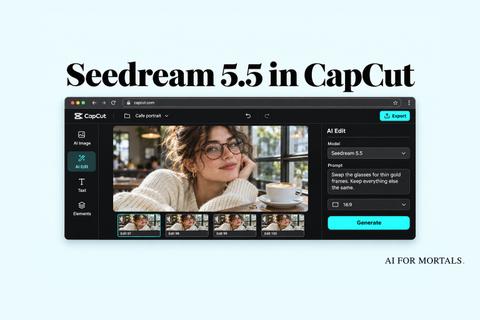
If you're choosing an image tool rather than a style, our AI image generator comparison tests ChatGPT and Nano Banana on more than 50 prompts, and our Seedream 5.5 test covers editing one picture over and over.
What Niji Journey costs
Niji 8 comes with every Midjourney plan, and there's no separate charge for it. Midjourney has no free plan on its website or in Discord.
| Plan | Monthly | Fast hours |
|---|---|---|
| Basic | $10 | 3.3 a month |
| Standard | $30 | 15 a month |
| Pro | $60 | 30 a month |
| Mega | $120 | 60 a month |
Paying for a year up front takes 20% off. Standard and above add unlimited pictures in the slower Relax mode, and only Pro and Mega can keep your pictures private, which matters if your mascot is for an unreleased product.
You own what you make, and you can use it commercially. A company that brings in more than $1 million a year needs Pro or Mega for that. Our Midjourney pricing guide has the full breakdown.
The niji・journey phone app for iOS and Android offers a limited free trial. Spellbrush's post doesn't say whether Niji 8 is in the app yet, so check the version menu there before relying on it.
Midjourney hasn't said how much GPU time a Niji 8 picture or edit uses. HD pictures cost more than standard ones on V8.1 (1.3 minutes of fast time against 0.8), so expect HD to use up a Basic plan's hours faster.
Prompts to try with Niji 8 for work
These are the jobs we'll test first. Copy them into Midjourney with Niji 8 selected and swap in your own details.
Start with a character sheet, so the edit feature has a clean picture to work from.
anime character reference sheet of a friendly round orange fox mascot wearing a small green backpack, front view, side view and back view, plain light gray background, clean lines
Then put the mascot into a scene with your product. Attach the character sheet as image 1 and a photo of your product or a background as image 2.
take the character from image 1 and put them into image 2, holding the coffee cup in both paws and smiling at the camera
For a slide deck, ask for a wide picture with room for your headline, then use the edit feature to put the same mascot on the other slides.
wide anime illustration for a presentation title slide, the orange fox mascot with a green backpack standing on a hill at sunrise looking at a city skyline, lots of empty sky on the left for a headline --ar 16:9
For a poster or sticker with words on it, keep the text short and put it in quotation marks. Spellbrush's post doesn't mention lettering at all, so check the spelling before you print anything.
anime style sticker of the orange fox mascot giving a thumbs up, bold rounded lettering underneath that says "Ship it!", white border, plain background
What people are saying about Niji 8
It's too early for much. Midjourney's post was a few hours old when we wrote this, and nobody had posted careful side-by-side tests yet.
The one change likely to annoy long-time users is the extra variety. Spellbrush's own post admits it expects people to find that their old Niji 7 prompts no longer give them the same character, which is why it held the launch until the edit feature was ready.
If you're new to AI pictures altogether, here's our walkthrough of more than 50 real uses for ChatGPT's image model. Most of them, like product shots, slide art and stickers, work as tests for Niji 8 too.
Sources
- Welcome to Niji 8! (niji・journey blog, Nov 24, 2026)
- Midjourney on X: Niji V8 is now live (Nov 24, 2026)
- Version (Midjourney docs, V8.2 and the Niji version chart)
- Edit Model (Midjourney docs)
- Comparing Midjourney Plans (Midjourney docs, updated Nov 3, 2026)
- Free Trials and Using Images and Videos Commercially (Midjourney docs)
- What is niji・journey? (Spellbrush and Midjourney)

Comments
Sign in to join the conversation.