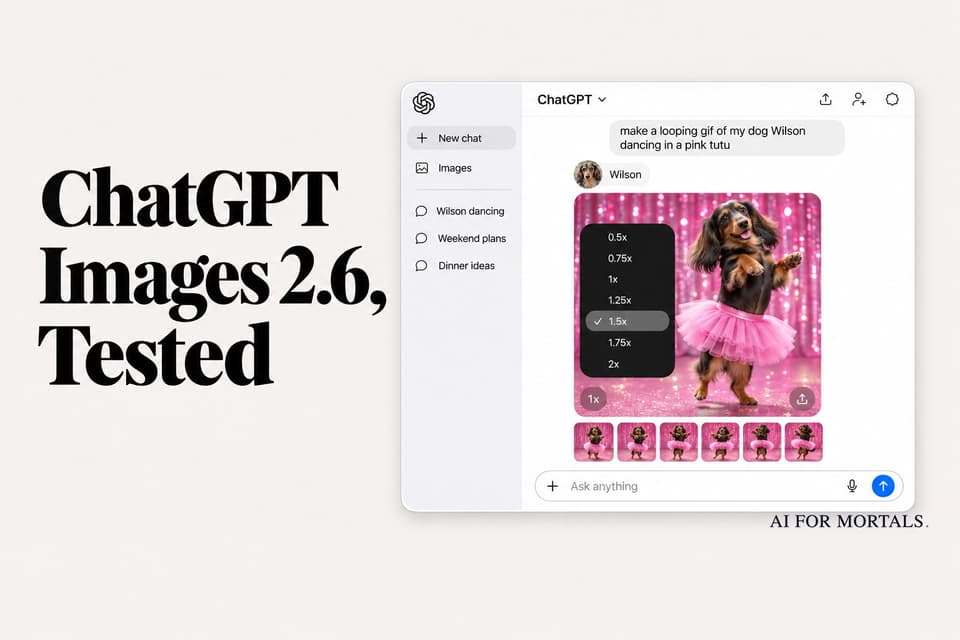
ChatGPT Images 2.6, Tested: GIFs, Reference Images and Precise Edits
OpenAI's new image model is live on every ChatGPT plan. We put it through five real jobs: a product shot reused across three scenes, a one-detail photo edit, a chart slide, and two looping GIFs. Here is what held up, what didn't, and the prompts we used.
 AI for Mortals Staff
On this page
- What's new in ChatGPT Images 2.6
- How we tested it
- Test 1: Reuse a reference image for product shots
- Test 2: Change one detail in a photo and leave the rest alone
- Test 3: A slide with readable text and a chart
- Test 4: Make a looping GIF from your own photo
- Test 5: A cartoon GIF for a Slack reaction
- How to make a ChatGPT GIF yourself
- What we couldn't test, and what people are saying
The ChatGPT image generator got an upgrade on November 4. Images 2.6 makes animated GIFs, lets you save reference photos of yourself, your pet or a character to reuse later, and OpenAI says it generates images 50% faster than before.
OpenAI says it's live today on every ChatGPT plan, on the web, desktop and phone apps, and in Codex. We ran it through five jobs a normal person might actually give it, and it did better than we expected on four of them.

What's new in ChatGPT Images 2.6
Three things change for anyone using ChatGPT.
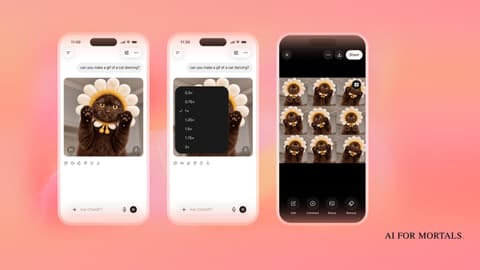
GIFs. You can ask for a GIF in plain words, or upload a photo and ask ChatGPT to animate it. Under the result sits a speed button (half speed up to double speed), and you can open the GIF to edit or remove single frames before you share it.
Saved reference images. You save a photo once, give it a name like "Wilson" and a label (Me, Pets, Friends, Family, Spaces or Other), then call it up in any later prompt without uploading it again. OpenAI's example is "a selfie of Wilson and Me floating in space."

Faster, steadier edits. OpenAI says the model keeps characters, products and brand details consistent while you edit, and that it's faster across the board.
If you build with the API, there are now two models to pick from: GPT-Image-2.6 Flare, which OpenAI says can return an image in as little as six seconds at low quality, and GPT-Image-2.6 Sunburst for more detail and steadier edits. Both cost the same per token as the 2.5 versions on OpenAI's pricing page. The API also picks up image markup (draw on the spot you want changed) and SVG export.

How we tested it
We ran every test through Codex on a ChatGPT subscription, which OpenAI says now runs Images 2.6 on every plan. Codex chose the quality setting by itself (low or medium for these), and each image took between 20 and 39 seconds, including the moment Codex spends reading the request.
For the photo tests we used one real starting picture: a plain cup of black coffee on a dark table, a free-to-use photo by Julius Schorzman (CC BY-SA 2.0). Every prompt below is the exact one we sent.
Test 1: Reuse a reference image for product shots
The job: take one product photo and put the same cup in three different ad scenes, the kind of thing a small café or shop owner would want for a menu, an Instagram post and a holiday promo.
Use the attached photo as the reference product: this exact white cup, saucer and spoon. Keep the cup shape, handle, saucer and spoon identical. Product shot for a cafe menu: the same cup on a light oak counter next to a croissant, soft window light, square.
We ran it three times, swapping only the last sentence (a marble table at a Paris café, then a red wool blanket with pine branches and fairy lights).

This is the strongest result of the lot. The cup's shape, the thick rounded handle, the saucer's rim and the spoon's angle carry over in all three, and the second one even kept the window reflection on the coffee from the original photo.
If you sell something and have one decent photo of it, this is the feature to try first. In the app you can save that photo as a reference once and stop re-uploading it.
Test 2: Change one detail in a photo and leave the rest alone
Precise editing is the part OpenAI talks up most, so we asked for one change and nothing else.
Edit this photo. Change only one thing: replace the black coffee with a cappuccino that has a simple heart of latte art on the foam. Keep everything else exactly the same: the cup, saucer, spoon, table, lighting, framing and angle.

It did exactly that. The cup, the spoon, the shadow and the blue-grey table look the same, and the framing didn't shift.
Older image models often redrew the whole picture when you asked for a small fix, so a face or a logo would drift a little with every edit. This one left everything we didn't mention alone, which is what you need for touching up a product photo or a headshot.
Test 3: A slide with readable text and a chart
Text inside images used to be where AI image tools fell apart. We asked for a simple sales slide with four labeled bars and a footnote.
A clean presentation slide, 16:9, white background, dark navy text. Title at top: "Q3 Coffee Sales by Region". Below it a simple horizontal bar chart with four bars labeled exactly: North 42%, South 31%, East 18%, West 9%. Under the chart a footnote in small text: "Source: internal sales data, July to September 2026". Spell every word exactly. No other text.

Every word came out right, including the footnote. We also measured the bars, and they're in proportion: the North bar is about 4.6 times the length of the West bar, against 42% to 9%.
That makes it fine for a quick header image or a one-off slide. For anything with real numbers you'll update next quarter, a chart from your spreadsheet is still easier to change.
Test 4: Make a looping GIF from your own photo
In ChatGPT you can just ask for a GIF. OpenAI also published the method behind it: the model draws the frames as one grid (a "sprite sheet"), and those frames play in order. We used that same method so we could see the raw frames.
Create a single animation sprite sheet for a seamless looping GIF from the attached photo. Keep this exact cup, saucer, spoon, dark table, lighting and camera angle in every frame. The only motion: soft white steam rising and curling up from the coffee, drifting slightly left then right. Exactly 6 sequential frames in a precise 3-column by 2-row grid, read left-to-right then top-to-bottom, every panel identical in size and framing. Sixth frame transitions smoothly back to the first. Photorealistic. No captions, no words, no numbers, no borders, no gutters.
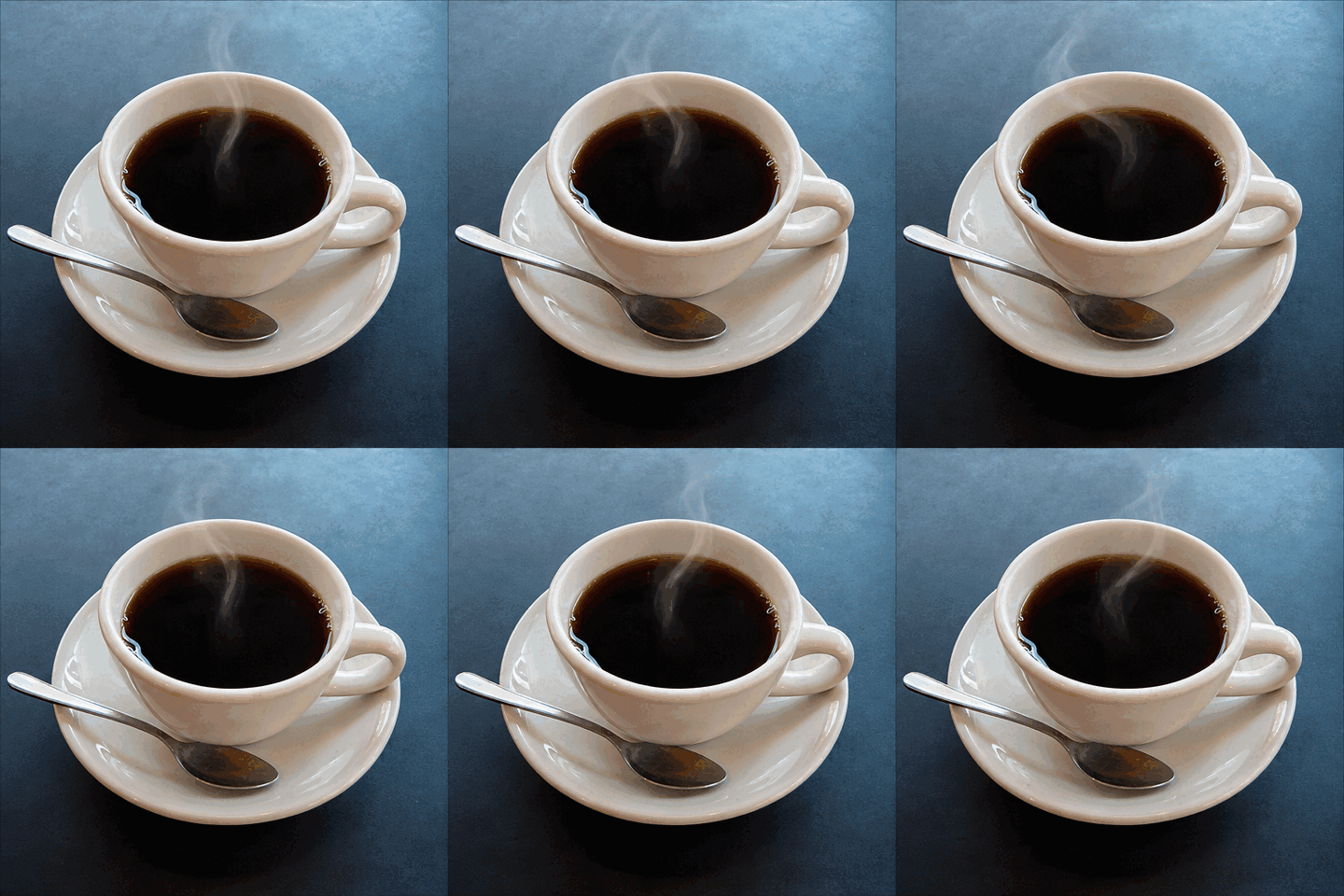
The cup, spoon and table stayed put in all six frames, and the last frame leads back into the first without a jump. The steam is faint, though, and the cup shifts by a few pixels between two of the frames, so you see a slight shiver on a big screen.
For a newsletter or a Slack message at small size, it's fine. Ask for "thick, clearly visible steam" if you want the motion to read.
Test 5: A cartoon GIF for a Slack reaction
The second GIF started from nothing: a cartoon coffee cup that notices its steam and waves.
Create a single animation sprite sheet for a seamless looping GIF. A small cartoon white coffee cup with a happy face and tiny arms sits on a saucer. The sequence: steam rises, the cup notices it, smiles wider, waves hello with one arm, then lowers the arm back to the starting pose. Exactly 6 sequential frames arranged in a precise 3-column by 2-row grid. Every panel has identical dimensions. Fixed front camera, same character, same plain cream background in every panel. Sixth frame transitions smoothly back to the first. Flat friendly cartoon style with clean outlines. No captions, no words, no numbers, no panel labels, no borders, no gutters.

The character stays on model across every frame, and the expression changes read clearly. Two things didn't go to plan. We asked for a plain cream background and got a transparent one instead, which is handy if you want a sticker but means one more step if you don't. And the waving arm comes out of the handle side, so it reads more like a twitch than a wave.
People in the launch threads spotted the same thing in OpenAI's own examples: the frames hold together for a short loop, but small details drift from one frame to the next. If one frame looks off in the app, that's what the frame editor is for.

How to make a ChatGPT GIF yourself
You don't need the sprite-sheet wording in the app. Type what you want, like "make a looping GIF of my dog doing a happy dance", or attach a photo and say "animate this." We walked through every button in How to make a GIF in ChatGPT.
What made our prompts work, in plain terms:
- Describe the motion step by step (notices, smiles, waves, lowers the arm). One vague verb gives you one vague movement.
- Say what must stay the same in every frame: the character, the outfit, the background, the camera.
- Ask for the last frame to lead back to the first, so the loop doesn't jump.
- Keep it short. Six frames is plenty for a reaction GIF.
GIFs may reach some accounts a little later than the rest of Images 2.6. If you ask for a GIF and get a flat picture, try again in a day or two.
What we couldn't test, and what people are saying
We wanted to run the same prompt on Images 2.5 and 2.6 side by side. Neither ChatGPT nor Codex lets you choose the older version anymore, so that wasn't possible. The closest outside check is Image Arena, where people vote between pictures without knowing which model made them: GPT-Image-2.6 Sunburst took the top spot on launch day, ahead of 2.5 Sunburst.
OpenAI also hasn't published how many GIFs or images each plan gets, so the limits are still unclear.
The reaction in the r/ChatGPT and Hacker News threads is mostly curiosity about GIFs and SVG export. The most common complaint carried over from earlier versions: a faint grainy texture that shows up in photorealistic images, which people hoped this release would fix.
If you're choosing between image tools, our ChatGPT Images vs Nano Banana comparison runs them on 50+ prompts, and our Nano Banana 2.1 breakdown covers what Google's model costs and who gets it free.
Here's OpenAI's own walkthrough of the two new models:
Images 2.6 also runs inside Codex now, and Pat used Codex to build animated motion graphics from scratch in this video:
Sources
- Introducing Images 2.6 (OpenAI)
- Images 2.6 announcement thread: GIFs, saved references, Flare and Sunburst (OpenAI on X)
- GPT-Image-2.6 in Codex and the API, and the Image Arena ranking (OpenAI Developers on X)
- API pricing: image generation (OpenAI)
- GPT-Image-2.6: Faster image generation with Flare and Sunburst (OpenAI on YouTube)
- Introducing Images 2.6 discussion (r/ChatGPT)
- Images 2.6 discussion (Hacker News)
- A small cup of coffee, the test photo (Wikimedia Commons, CC BY-SA 2.0)


Comments
Sign in to join the conversation.