How to Make and Edit PDFs, Docs and Sheets in Gemini Without Leaving the Chat
Gemini can now build a PDF, Google Doc, spreadsheet or slide deck and let you fix it right in the chat. Here's how to use it, what works on your phone, and what to check before you send the file.
 AI for Mortals Staff
On this page
- What the new Gemini file preview lets you do
- How to make a PDF in Gemini, step by step
- Can Gemini create Google Sheets? Yes, on the web
- Can Gemini edit Google Docs and slide decks?
- Export a Gemini chat to PDF without an extension
- Sign in first, or Gemini just gives you a table
- Gemini file editing on your phone vs the web
- Check these four things before you send the file
- How Gemini compares to Claude and Copilot for making files
Making a Gemini PDF used to end with a download. If one line was wrong, you either asked Gemini to make the whole file again or opened it in another app to fix it yourself.
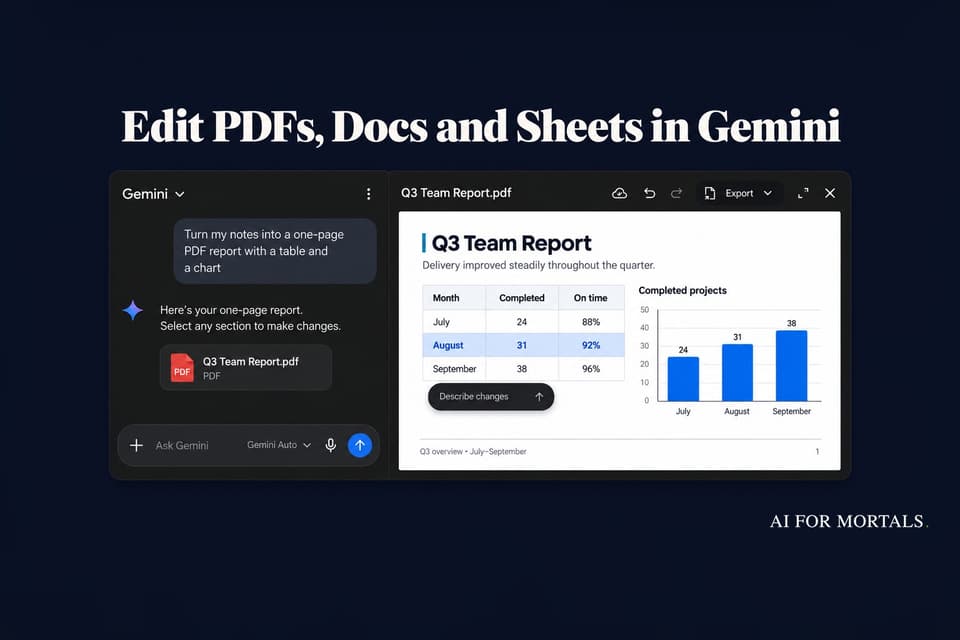
Since October 29, the file opens inside the chat instead. You can type over any line, highlight a table and ask Gemini to change just that part, then export the finished file as a PDF or save it to Google Drive.
It works for PDFs, Google Docs, Google Sheets, slide decks, Markdown, plain text files and code. Google says it's available to every Gemini user in every language the app supports, free accounts included.
We covered the news when it launched. This is the practical version: the prompts to use, where each file type works, and what to check before the file leaves your hands.
What the new Gemini file preview lets you do
Gemini has been able to make files since April, and it handed them over as downloads or exports to Drive. The new part is the preview window that opens next to your chat.

Inside it you can change the file three ways:
- Type your own edits. Click anywhere in the file, or expand it to full screen, and change the words yourself, the way you would in Google Docs.
- Highlight a part and ask for a change. Select a paragraph, a table or a chart, and a small "Describe changes" box appears. Gemini rewrites only what you selected.
- Highlight a part and ask a question about it. Handy when the file is a study guide or a report you're trying to understand.
Typing your own fixes matters more than it sounds. Changing one number or a misspelled name used to mean writing a whole prompt and hoping Gemini didn't rearrange the rest of the page.
How to make a PDF in Gemini, step by step
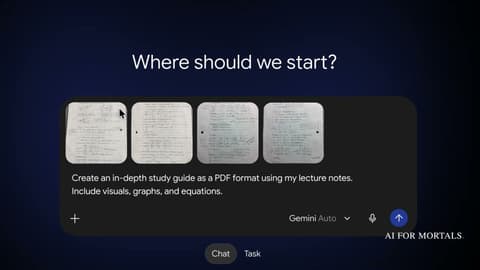
This is the flow Google shows in its demo, using photos of handwritten lecture notes. It works the same with a pasted outline, meeting notes or an uploaded document.
1. Sign in and open Gemini on the web at gemini.google.com. PDFs also work in the phone app, but the web gives you the most room to edit.
2. Add your material. Click the + button to attach photos or files, or paste your text into the box.
3. Ask for the file type by name. Gemini only makes a file when you ask for one (or when it offers). Google's demo prompt was simply:
Create an in-depth study guide as a PDF format using my lecture notes. Include visuals, graphs, and equations.

4. Fix it in the preview. Type over anything that's wrong. For bigger changes, highlight the part and describe what you want. In the demo, the student selects a table of study hours and types "show this as a graph instead," and Gemini swaps the table for a bar chart.

5. Export it. The Export button at the top of the preview saves the file as a PDF or sends it to Google Drive.
Here's Google's full 39-second demo:
If you'd rather fill in a template than write a prompt from scratch, this one works for most work documents:
Turn [my notes / this document / the conversation above] into a [1-page / 3-page] PDF [report / handout / checklist] for [who will read it]. Use clear headings, put any numbers in a table, and keep the tone [plain / formal / friendly].
Can Gemini create Google Sheets? Yes, on the web
Ask for a spreadsheet and Gemini builds it as a Google Sheet you can preview and edit in the chat, then open in Sheets. Google's help page also lists Excel (.xlsx) and CSV among the file types Gemini can make.
Spreadsheets, Docs and slide decks only open in the preview on the web for now. On your phone, stick to PDFs.
Trackers and simple planning sheets are a good place to start, because you can see at a glance whether the columns make sense:
Create a Google Sheet to track [what you're tracking, e.g. client invoices]. Columns: [column 1], [column 2], [column 3], and a status column with the options [paid / due / overdue]. Add 5 example rows and a total at the bottom.
Before you rely on any formula, click into a few cells and check what they actually calculate, the same way you would with a sheet a new coworker built.
Can Gemini edit Google Docs and slide decks?
Yes, as long as Gemini made them in the chat. Ask for "a Google Doc" or "a slide deck" by name, and the same preview, highlighting and Export menu apply.
Slide decks get a layout preview and export as PowerPoint or PDF, with the same click-and-type editing on each slide.
Google's announcement only covers the files Gemini creates. It doesn't say you can upload your own Doc, PDF or spreadsheet and edit that original in the preview.
So if you have a messy file of your own, upload it and ask Gemini for a cleaned-up copy in the format you want. You then edit the copy, and your original stays untouched:
Here's my [spreadsheet / PDF / document]. Make a cleaned-up copy as a new [Google Sheet / PDF / Google Doc]: [what to fix, e.g. remove duplicate rows, fix the date formats, add a summary at the top]. Don't change any numbers or names. List every change you made below the file.
The list at the end makes it quick to spot anything Gemini changed that you didn't ask it to touch.
Export a Gemini chat to PDF without an extension
Plenty of Chrome extensions exist just to save a Gemini conversation as a PDF. Now you can ask Gemini to turn the chat into a formatted document with headings:
Turn our conversation above into a clean PDF summary: the question I started with, the answer we landed on, and any steps or numbers as a short list. Leave out the back-and-forth.
Then edit it in the preview and use Export to save it as a PDF or put it in Drive.
Sign in first, or Gemini just gives you a table
You can use Gemini without a Google account, so we tried that first. We asked it for "a one-page PDF packing checklist for a 3-day work trip, with a table of items and a checkbox column."
It answered with a long table in the chat and no file. At the bottom it suggested copying the table into Word, Google Docs or Notion and exporting a PDF from there, and a banner asked us to sign in "to connect to Google apps."

That matches Google's help page, which says signed-out use covers simple text and leaves out "advanced capabilities." Sign in with any Google account, free or paid, and the file tools appear.
Gemini file editing on your phone vs the web
| File type | Phone app | Web |
|---|---|---|
| Yes | Yes | |
| Google Docs | Not yet | Yes |
| Google Sheets | Not yet | Yes |
| Slide decks | Not yet | Yes |
| Markdown, TXT, code | Not yet | Yes |
"Yes" means you can preview the file and edit it in the chat. The web version is gemini.google.com.
Work accounts get the same feature. Google's Workspace update says there's no separate admin switch for it, so if your company has the Gemini app turned on, you have it.
Check these four things before you send the file
The numbers in every chart. When Gemini turns a table into a graph, it redraws the chart from its own reading of the data. Compare a few bars against the original numbers.
Anything it read from handwriting or photos. Google hasn't said what Gemini does with handwriting it can't read, so check names, dates and figures against your notes, especially in math and formulas.
Facts it researched for you. If you asked Gemini to research a topic and put it in a PDF, the layout will look finished whether or not every fact is right. Click through to its sources for anything you'd be embarrassed to get wrong.
The export itself. Open the exported PDF, or the file in Drive, before you send it. That's the version your reader sees.
Early testers like skipping the copy-and-paste step, and some are asking for more editing buttons of their own, like layout controls, so fewer changes need a prompt.
How Gemini compares to Claude and Copilot for making files
Every big assistant is moving into the documents you make at work this month.
Claude opened its docs, slides and design tools to every plan, and it can also work inside Google Docs, Sheets and Slides directly. Microsoft put Word, Excel and PowerPoint inside Copilot.
Gemini's edge is Google Drive. If your work already lives in Google's apps, it's the shortest path from a rough idea to a file your team can open.
To see how the model behind Gemini's paid plans holds up on real tasks, Pat put Gemini 4 Argon through a full test:
The written version is here.
Sources
- You can now generate, preview, and edit documents, PDFs, presentations, spreadsheets, and more directly in Gemini (Google blog)
- Create, preview, and edit files directly in the Gemini app (Google Workspace Updates)
- Generate files from your chats: supported file formats (Gemini Apps Help)
- Generate, edit, and preview files in Gemini (Google Gemini on YouTube)
- Gemini design refresh and file generation upgrade (9to5Google)



Comments
Sign in to join the conversation.