
How to Get the Most Out of the New ChatGPT App
OpenAI rebuilt ChatGPT into a work app and folded Codex into it. Here is what it does and how to actually use it.

Last week, alongside the GPT-5.6 release, OpenAI folded its separate Codex app into ChatGPT and rebuilt the whole thing around getting work done, turning ChatGPT into a kind of super app. The centerpiece is an agent called ChatGPT Work, and it is OpenAI's answer to Claude Cowork. I have been running my own knowledge work through it for the past week, and I already prefer it. This is the full walkthrough: what it does, where to find it, and how to actually put it to work.
What it does
Regular ChatGPT chats with you and searches the web. ChatGPT Work does the job. You hand it a goal and it runs the whole thing from start to finish, then hands back the finished deck, spreadsheet, or doc.
The word people use for this is "agentic." All it means is that you give it a goal and it works through the steps on its own instead of waiting for your next message. It opens your files, reads your email, and takes real actions inside the apps you already use. Underneath, it runs on the same engine as Codex, so it is built to carry a job all the way to a finished file.
If you have used Claude Cowork, this is the same idea from OpenAI. And the desktop app is free, so almost anyone can try it.
How to find it
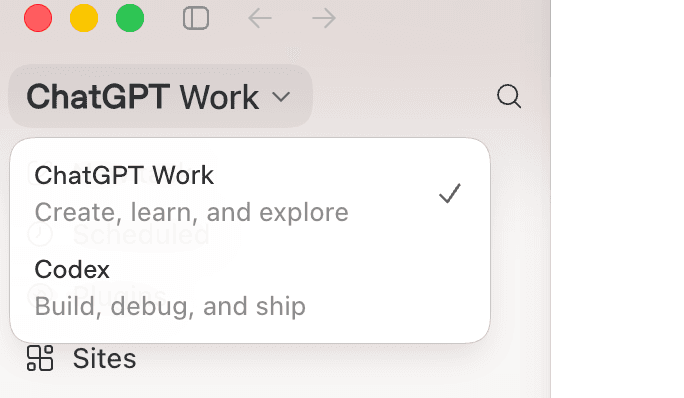
Open ChatGPT and click the dropdown in the top left. You get a toggle: Chat or Work. Switch it to ChatGPT Work and the app changes shape, with a sidebar down the left that holds everything the agent can do.
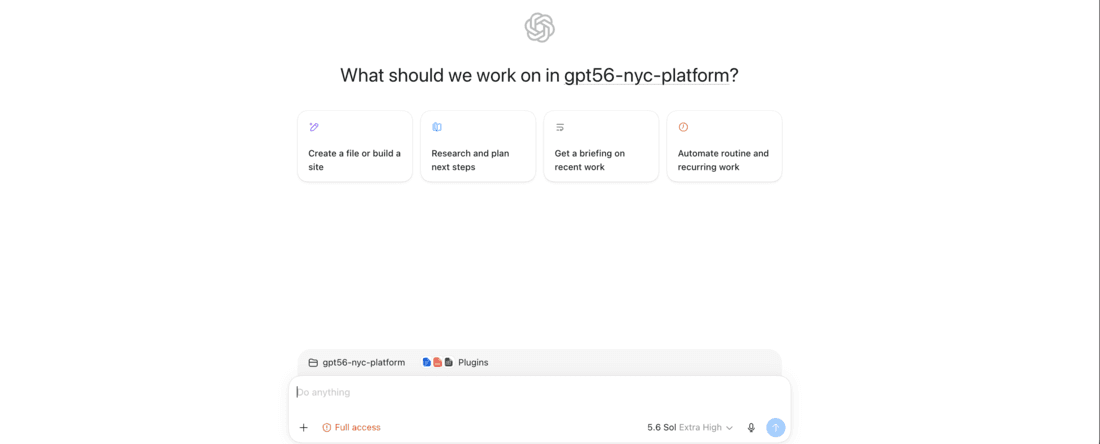
New chat vs New task
A chat is a normal back and forth. You ask something, it answers, you ask again. A task is different. You hand over a whole job and the agent runs it on its own from start to finish, then hands you the result. A task can run once, or you can set it to run on a schedule.
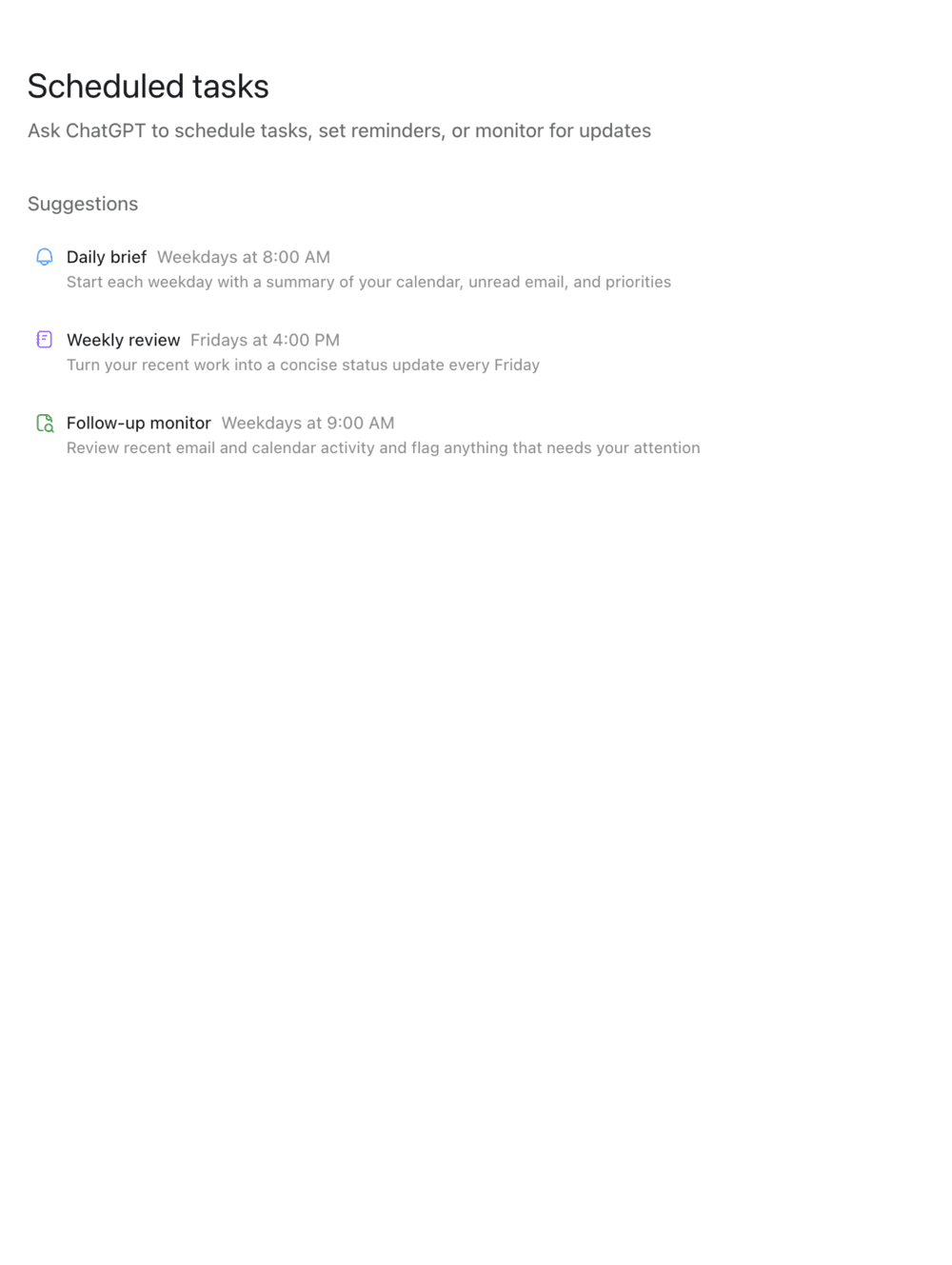
Scheduled
This is where your recurring jobs live. Set a task to run every Monday morning, or every night, and it shows up here so you can watch it run, pause it, or edit it. One thing to know so you don't go hunting: there is no "Automations" tab. This is formerly what Codex called automations.
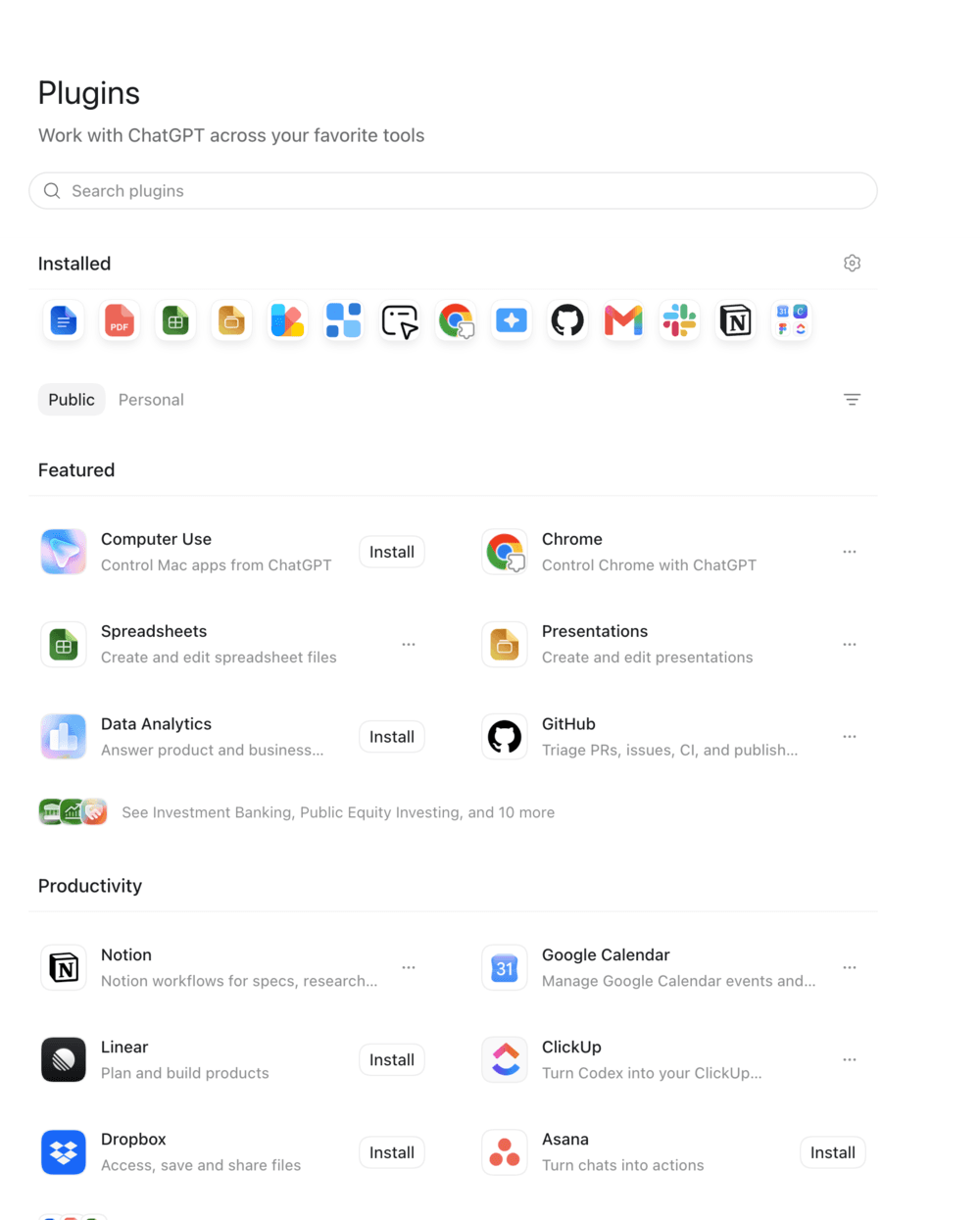
Plugins
Plugins are the connectors to your apps. This is where you link ChatGPT Work to the tools where your work already lives. The list is long: Notion, Google Drive, Slack, Gmail, Google Calendar, Canva, Figma, Dropbox, GitHub, Asana, Linear, ClickUp, plus role packs like Data Analytics and Sales. The agent is only as useful as what it can see, so this is the first thing to set up.
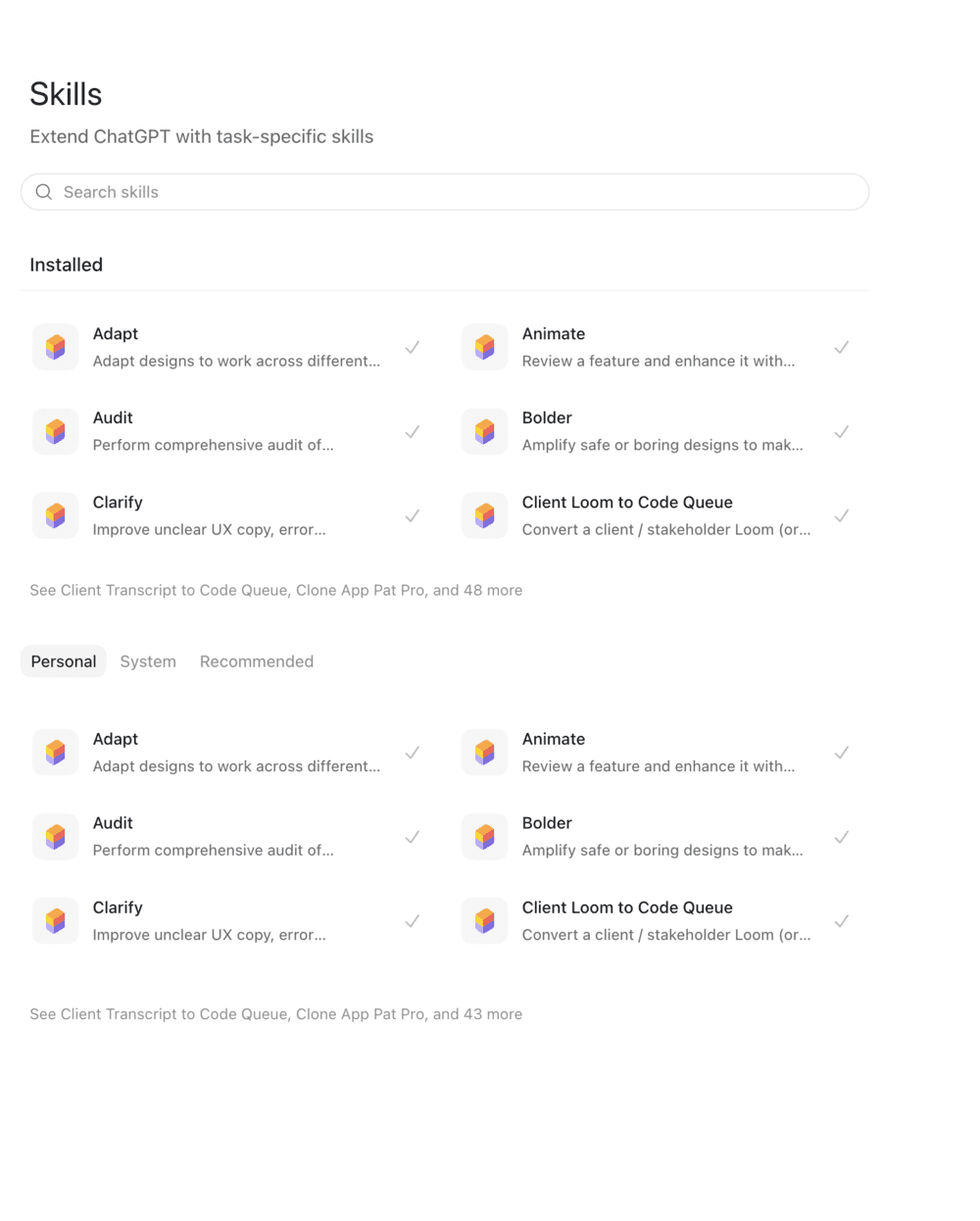
Skills
Skills sit on the same screen as Plugins, on a second tab. A skill is a saved workflow. The app describes them as "instructions that extend ChatGPT's capabilities." Once you have shown the agent how you want a job done, you save those steps and rerun them any time.
There are three ways to make one. Hit the "+" and write it out. Do the task once and tell Work "turn this into a skill." Or record yourself doing the task by hand, with "Record a skill," and it writes the steps for you. To run one, type "/" and then its name.
Clean way to hold the two tabs: Plugins connect your tools, Skills save your workflows.
Projects vs Tasks
This is the part that clicks once you see it. A task is one job. A project is the folder that job lives in.
You create a project, name it, and give it instructions: who you are, what the goal is, how you want your answers. You add reference files. From then on, every chat and task you start inside that project uses all of that automatically. You stop re-explaining yourself every time. It is the same idea as a project in Claude Cowork. On desktop, a project can even point at a real folder on your computer.
This is why tasks show up nested under a project. A task started inside a project runs against that project's files and instructions. So the project is the context, and the tasks are the jobs you run inside it.
How to set up your first project
Here is the concrete version. Pick one thing you do over and over.
- Create a new project and name it for the work ("Weekly client report," "Q3 planning").
- Write the instructions. Say who you are, what you are trying to do, and how you want answers ("I run marketing for a 20-person agency. Keep answers short and in plain language.").
- Add your reference files: the brand doc, last quarter's numbers, the template you always reuse.
- Connect the apps this work touches over in Plugins (your Drive, your Slack, your inbox).
- Start a chat or a task inside the project. It already knows your context, so you can get straight to the ask.
The setup takes a few minutes and it pays off every time you come back.
What you can use it for
Here are four real jobs, with prompts you can copy and adapt.
Turn your notes into a deck. "Turn these meeting notes from @Granola into an eight-slide client update, a summary slide first, then one slide per theme, in plain language."
Build a comparison you can decide from. "Pull the pricing and main features for these five tools into a spreadsheet, one row each, and add a column for which you'd pick and why."
Work straight from your inbox. "@Gmail find last month's invoices, list what we're paying for each software tool, and put it in a spreadsheet."
Set a recurring summary. "Every Monday at 8am, check our shared drive and Slack for anything new on the launch and send me a one-paragraph summary of what changed."
That last one is a scheduled task, so it lands in the Scheduled tab and runs every week without you.
How to get the most out of it
After a week of running real work through it, here is what actually makes the difference.
Hand it the job you have been dreading, not a toy task. The instinct is to test it on something small and safe. It actually shines on the big, annoying, multi-step stuff, the quarterly report, the inbox you never clear, the deck you keep putting off. Give it the thing you avoid.
Spell out what "done" looks like. Tell it the format, the length, who it is for, and when to stop. The clearer you are about the finish line, the less back-and-forth it takes to get there.
Let it run, then steer. The mistake is babysitting it one step at a time like a normal chat. Give it the whole goal, let it work, and correct course when it checks in. It asks first before anything with real consequences, like sending an email or deleting a file, so you stay in control while you learn where to trust it.
Chain the work in one go. Ask it to research first, then build straight from what it finds, all in the same task. You end up with a finished deck or sheet, not just notes you still have to act on.
I keep reaching for it over Claude Cowork, mostly because everything lives in one place and setting up a new tool or job is just a conversation.
If you want to go deeper, I have made two full guides on getting the most out of Codex. Codex has technically been folded into this new ChatGPT app now, but those same knowledge-work principles carry straight over:





Comments
Sign in to join the conversation.