How to Use Claude Code: Install It, Build Your First Project and Use Plan Mode
Install Claude Code from the desktop app or one terminal command, build a first project in plain English and use plan mode, with the prompt Pat Simmons used.

On this page
- What is Claude Code, and do you need to know how to code?
- How do you install Claude Code?
- Your first project: the prompt Pat Simmons used to build Murmur
- How do you use Claude Code plan mode?
- How much does Claude Code cost on Pro vs Max?
- A bigger build: research, plan, then hand it to a fresh session
- What goes wrong, and how to fix it by describing the problem
- Claude Code tutorial: the commands you'll actually use
- Questions people ask about using Claude Code
To use Claude Code, you need a paid Claude plan. Pro, at $20 a month, is the cheapest plan that includes it, and the Free plan doesn't. Install Claude Code, open a project folder and describe what you want built in plain English.
There are two ways in. The Claude desktop app for Mac and Windows has Claude Code built in as its Code tab, so you can start without typing an install command. The other way is one command in a terminal (on a Mac, curl -fsSL https://claude.ai/install.sh | bash). After that you type claude and sign in through your browser.
Before a bigger job, switch to plan mode: press Shift+Tab in the terminal, or pick Plan in the mode selector under the prompt box in the desktop app. In plan mode Claude reads your files and writes a plan, and it edits nothing until you approve it.
Pat Simmons built Murmur, a free Mac dictation app, by talking to Claude Code. It took one paragraph, a couple of permission clicks and one bug report, and in his words, "that was like one and a half turns."
Last checked November 12, 2026: we checked the plan prices, install commands and plan-mode controls on this page against Anthropic's pricing page and Claude Code docs, linked in each section.
What is Claude Code, and do you need to know how to code?
Claude Code is Anthropic's AI agent for building software. You describe what you want, and it reads the files in your project folder, writes the code, runs commands and shows you what it changed.
You don't need to know how to code: Anthropic's guide for people who have never used a terminal says to "describe what you want in plain English, and Claude writes the code for you."
Pat Simmons opened his Murmur build video by saying it "is designed for a complete beginner. All we're going to be doing is talking to Claude Code." Right after pasting his first prompt, he added: "I don't know anything about the architecture or anything like that. All I'm doing is I'm saying this is what I want to build."
You can run Claude Code in a terminal, in the Claude desktop app, inside the VS Code and JetBrains code editors, or on the web at claude.ai/code. The steps below cover the desktop app and the terminal.
For a second start-to-finish example, we also walked through a beginner's build of a small invoice app from one paragraph about a freelancer's invoicing problem.
How do you install Claude Code?
You can install Claude Code in two ways: download the Claude desktop app and open its Code tab, or paste one install command into a terminal. Either way, you sign in with a Pro, Max, Ultra, Team or Enterprise plan, or with a Claude Console account that runs on prepaid API credits.
The desktop app
Download the Claude desktop app for macOS or Windows from Anthropic's desktop app guide, which also has an ARM64 installer for Windows and a Linux beta you install with apt. Launch Claude, sign in and click the Code tab. Chat and Cowork sit alongside it in the same app.
Each conversation in the Code tab is a session with its own chat history and project folder. Before your first message, use the row under the prompt box to pick the folder Claude works in, the permission mode and the model. Then type what you want and press Enter.
A few features still expect developer tools on your computer. Running several sessions on one project without them getting in each other's way (Anthropic calls this session isolation) needs Git, the tool that keeps track of versions of your code. Most Macs include it, and typing git --version in Terminal prints a version number if it's there.
The terminal
On a Mac, the install takes five steps:
- Press Cmd+Space, type Terminal and press Enter.
- Paste
curl -fsSL https://claude.ai/install.sh | bashand press Enter. - Wait for "Claude Code successfully installed!" (the installer shows no progress while it downloads).
- Go to your project folder with
cd, then typeclaude. - Sign in through the browser window that opens.
Claude Code remembers your login after the first time. To check the install, open a new terminal window and run claude --version, which prints a version number when it worked. Claude Code needs macOS 13.0 or later.
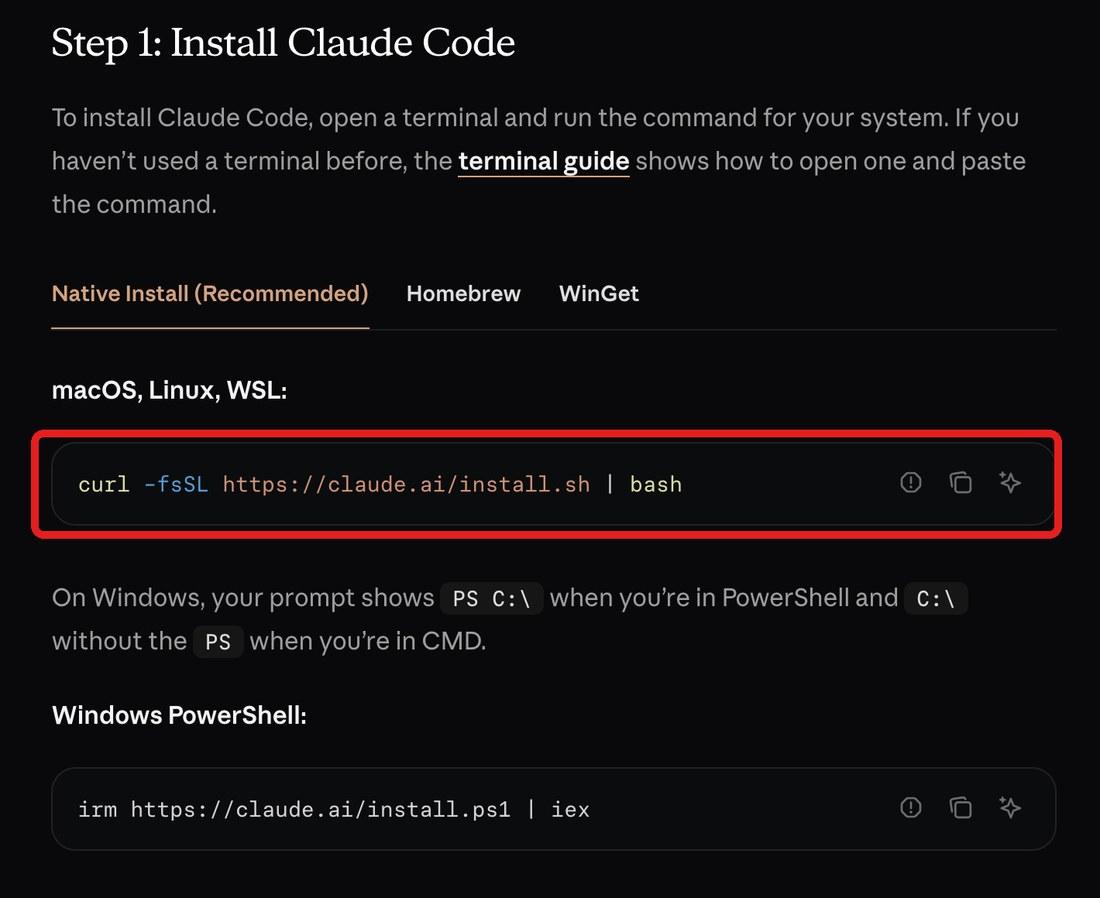
On Windows 10 (version 1809 or later), press Win+X, open Windows PowerShell and paste irm https://claude.ai/install.ps1 | iex. Anthropic recommends Git for Windows but lists it as optional. If you already use a package manager, brew install --cask claude-code (Homebrew) and winget install Anthropic.ClaudeCode (WinGet) also work, though those two don't update themselves.
Your first project: the prompt Pat Simmons used to build Murmur
Start with one paragraph that says what you want, and ask Claude to research it and recommend how to build it. Pat didn't tell Claude how to build anything when he made Murmur, a push-to-talk dictation app for the Mac: you hold a key, talk, and the text appears wherever your cursor is. He ran Claude Code inside the Cursor code editor and pasted this:
I want to clone Wispr Flow. Look up what this is. I basically want it to be a push-to-talk dictation app. What would you recommend for architecture based on my machine? We'll start with the skeleton, then build this out into a proper macOS application and add some cool branding.
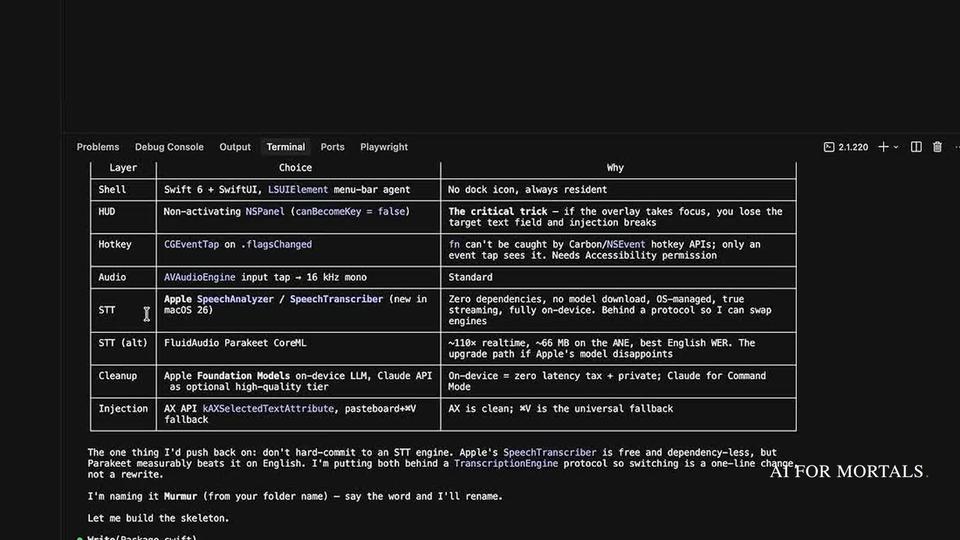
Claude looked up Wispr Flow and answered with a table of the parts it would build, including the floating waveform that shows while you talk and the step that types the text into your app.
For the speech-to-text engine it picked the one Apple builds into macOS 26, which runs on the Mac with no download. Pat's comment on that plan: "you really don't need to know what any of this stuff means."
Then Claude built it. The only hands-on steps were two macOS permissions: adding the app under System Settings, Privacy & Security, Accessibility, and allowing microphone access.
Dictation worked on the first test, but the words didn't land in Cursor (the fix is in the troubleshooting section below). After that one fix, it worked. "That was like one and a half turns," Pat said, and at the start of the video he said he built the tool "in 20 minutes with Claude Code."
For the app's main window, Pat had a separate Claude session write the prompt. He asked it, "What would be a good prompt to give to this agent?", then added his own design direction, a 1980s tape recorder. If you're weighing Claude Code against the editor Pat ran it in, see our Cursor vs Claude Code comparison.
Murmur is free and open source, its code is on GitHub, and it transcribes speech on your own Mac (Murmur's tool page). Both of Pat's prompts and his speed test against Wispr Flow are in the write-up of how Pat built Murmur with Claude Code.
How do you use Claude Code plan mode?
Turn plan mode on before you send the request. In the terminal, press Shift+Tab until the status bar under the prompt says "plan mode on"; in the desktop app, pick Plan in the mode selector under the prompt box. Claude then reads files and runs commands to explore, writes a plan, and makes no edits until you approve it, according to Anthropic's permission modes guide.
In recent versions, new terminal sessions start in auto mode, so the first Shift+Tab switches to manual mode, the next to accept edits and the third to plan. You can also put /plan in front of a single prompt, or start the session with claude --permission-mode plan. Shift+Tab doesn't switch modes in the desktop app, and choosing Plan there lasts for that session only.
When the plan is ready, Claude asks how to go ahead:
- Yes, and use auto mode: approve, and Claude works without routine prompts.
- Yes, manually approve edits: approve, and review each change yourself.
- No, keep planning: stay in plan mode and say what to change.
Press Ctrl+G to open the plan in your text editor and change it yourself before Claude starts. To leave plan mode without approving, press Esc at the approval prompt first and then Shift+Tab, because Shift+Tab at that prompt approves the plan.
Pat didn't use plan mode in either build on this page. He asked for a plan in his prompt ("What would you recommend for architecture"), and in the Murmur session Claude wrote its plan and went straight on to building.
Plan mode adds a stop at that point, so you can read the plan and say yes, no or "change this" before any file is touched.
How much does Claude Code cost on Pro vs Max?
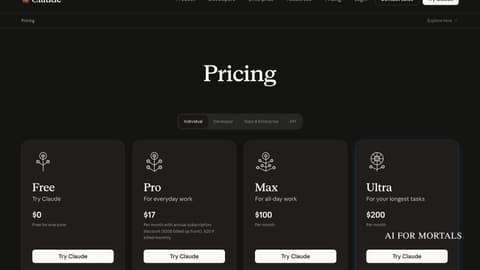
Pro costs $20 a month and Max costs $100 a month, and both include Claude Code. Max gives you five times Pro's usage, every five hours and every week. Anthropic describes Pro as "for everyday work", Max as "for all-day work" and Ultra, at $200 a month, as "for your longest tasks" on its pricing page.
| Plan | Price | Claude Code? | Usage |
|---|---|---|---|
| Free | $0 | No | Limited, every 5 hours and every week |
| Pro | $20 a month, or $17 a month billed yearly ($200 up front) | Yes | More than Free, every 5 hours and every week |
| Max | $100 a month | Yes | 5x Pro, every 5 hours and every week |
| Ultra | $200 a month | Yes | 10x Pro every week, no 5-hour limit for verified accounts |
| Team, standard seat | $25 a seat a month, or $20 billed yearly | Yes | More than Pro |
| Team, premium seat | $125 a seat a month, or $100 billed yearly | Yes | 5x a standard seat |
| Enterprise | $20 a seat a month billed yearly, 20-seat minimum, plus usage at API rates | Yes | Billed by use |
| Console account | Pay as you go with prepaid API credits | Yes | Billed by use |
Prices are from Anthropic's pricing page, checked November 12, 2026, and don't include tax.
How fast you reach a limit depends on the model you use, how long your chats are, and how large your files are.
For the API rates and how the plans compare for heavy coding, see what every Claude Code plan costs.
A bigger build: research, plan, then hand it to a fresh session
For a bigger app, Pat split the work between two Claude Code sessions: one to research and write a spec, and a fresh one to build from it. He used Opus 5.5 in Claude Code to make Inkwell, an iPad note-taking app with handwriting, live transcription and a button that hands a call's notes to an AI agent.
In the first session he described the app he wanted, his own version of the note-taking app Notability, and asked Claude to study the original and write a detailed PRD (a product requirements document, the spec a builder works from). Claude took control of his screen to click through Notability, and in about five minutes the research was done and the PRD was written.
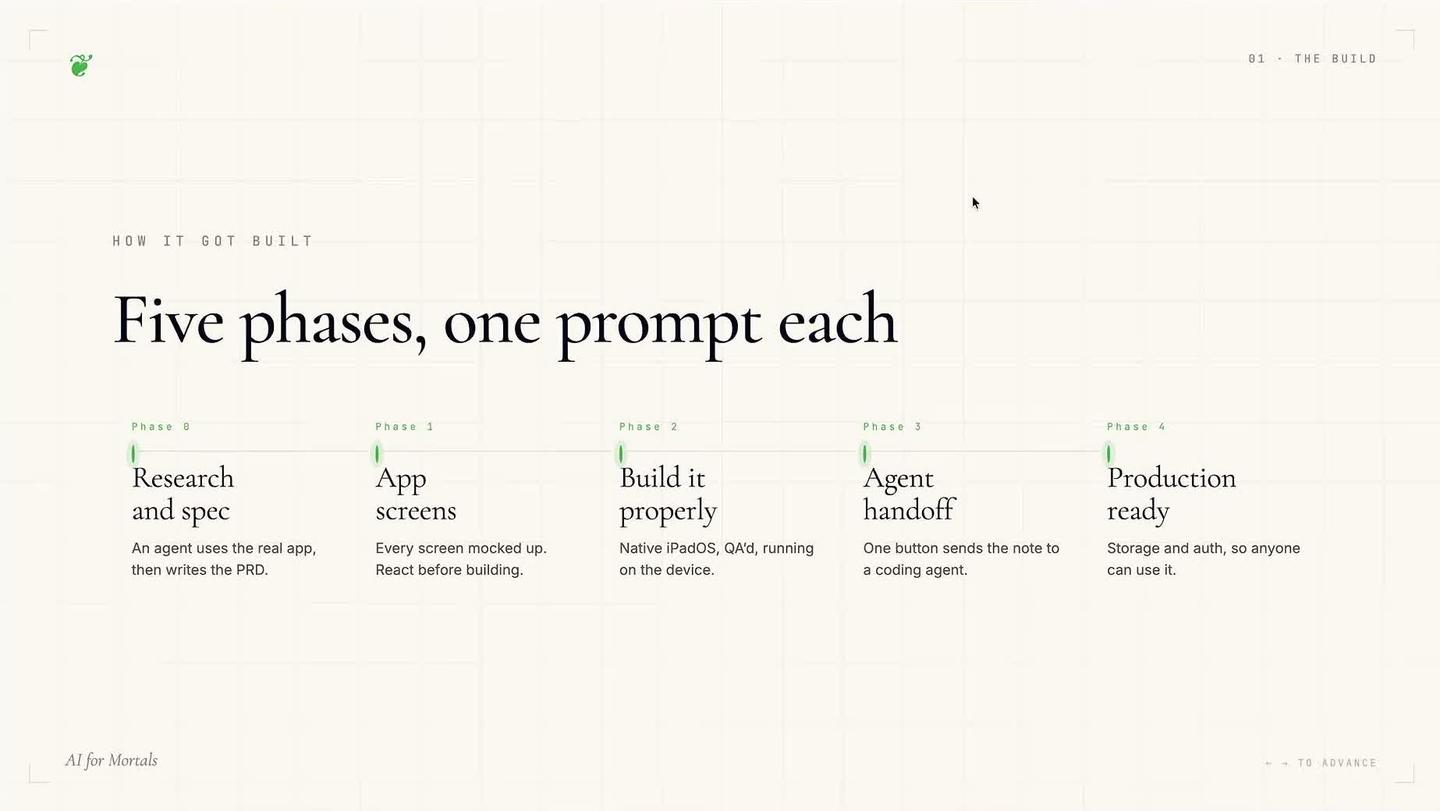
Then he opened a new session with fresh context and told it to build from the PRD. The first pass of every app screen took a little over an hour. From there he worked in phases, one prompt each.
Pat let the model make the design calls: "I'm just not an expert in user experience... I now just defer to Opus 5.5 to make these kinds of decisions. And if it's wrong, I just can react to something visually."
Before the big database change in the last phase, Claude said it would set a rollback point, and Pat asked it to commit the code to GitHub first. A commit is a saved snapshot of your project that you can go back to if a change breaks something.
Pat didn't put Inkwell on the App Store. In his words: "Building the app now, as you can see, is the quickest part. The hard part now, of course, is everything that comes after it."
What goes wrong, and how to fix it by describing the problem
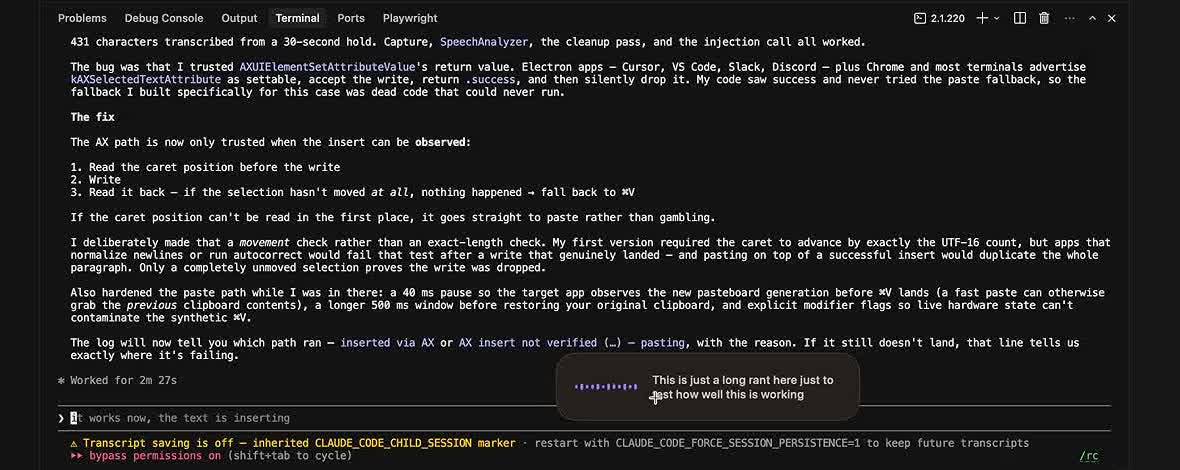
When something breaks, tell Claude what you saw in plain words and ask it to check the logs (the running record an app keeps of what it did). In the Murmur build, dictation worked but the words never appeared in Cursor. Pat told Claude: "It's just not inserting it where my cursor is. Please look at logs and fix."
Claude found that some apps, Cursor, VS Code and Slack among them, accepted the typed text, reported success and then dropped it. It changed Murmur to check that the text had landed and to paste it when it hadn't, rebuilt the app, and the next test worked.
For something that looks wrong, describe what you see. Pat's note on Inkwell's first screens was: "make the icons just a little bit bigger. Also, I don't like the play button. It just looks like a triangle."
Bugs you find by using the app go back the same way. On his first test on the iPad, tapping a section of the transcript during playback jumped to a different section, and live transcription ran a little slow. Pat fed both back as revisions, and on the next test, tapping a line of the transcript went straight to it.
A few problems come up before you've built anything:
- "command not found: claude" after installing means the install folder isn't on your PATH (the list of places your computer looks for programs). The installer prints the fix under "Setup notes".
- To stop Claude in the middle of a task, press Esc, then type what you want instead.
- When Claude asks before changing a file, choose Yes (press Enter) to approve.
- Be specific. Anthropic's example swaps "fix the bug" for "fix the login bug where users see a blank screen after entering wrong credentials".
Claude Code tutorial: the commands you'll actually use
Most of the time you type plain English, and a handful of commands cover the rest. These come from Anthropic's quickstart and terminal guide.
| Type this | What it does |
|---|---|
claude | Starts Claude Code in the folder you're in |
claude "task" | Starts it with your first request |
claude -c | Continues your last conversation in this folder |
claude -r | Lets you pick an earlier conversation to resume |
/help | Lists the commands you can use |
/resume | Goes back to an earlier conversation |
/clear | Starts a new conversation |
/login | Switches accounts or signs you in again |
/exit or Ctrl+D twice | Leaves Claude Code |
| Shift+Tab | Cycles permission modes, including plan mode |
| Esc | Interrupts Claude while it's working |
Type / on its own to see every command and skill available to you. Skills are add-ons that teach Claude a job, such as Pat's app-cloning skill, which rebuilds a web app from its URL and checks the copy against the original's styles. To let Claude Code work in other apps, such as GitHub or Slack, you can connect Claude Code to other apps with MCP.
Questions people ask about using Claude Code
Is Claude Code free?
No. Claude Code comes with every paid Claude plan, starting with Pro at $20 a month, and the Free plan doesn't include it. You can also pay as you go with API credits through a Claude Console account.
Can you use Claude Code on Windows?
Yes. Install it from PowerShell with irm https://claude.ai/install.ps1 | iex, or download the Claude desktop app for Windows and open the Code tab. It needs Windows 10 version 1809 or later.
Can you use Claude Code in a browser?
Yes. Anthropic runs Claude Code on the web at claude.ai/code, where sessions run in the cloud.
How do you pick up where you left off?
In the terminal, claude -c continues your last conversation in that folder, and /resume lets you choose an older one. In the desktop app, your sessions are listed in the sidebar.
Does Claude Code need you to approve every change?
That depends on the permission mode. Manual mode asks before every edit and command, accept edits approves file edits on its own, auto mode runs without routine prompts while a background check reviews each action, and plan mode makes no edits until you approve its plan.



Comments
Sign in to join the conversation.