Your Muse Now Talks Back, With a Face
Meta rolled out voice conversations and animated avatars in the Muse app for everyone in the US. Here's how to start a call, the three ways to show the avatar, how to make it your own, and what it's good for.
 AI for Mortals Staff
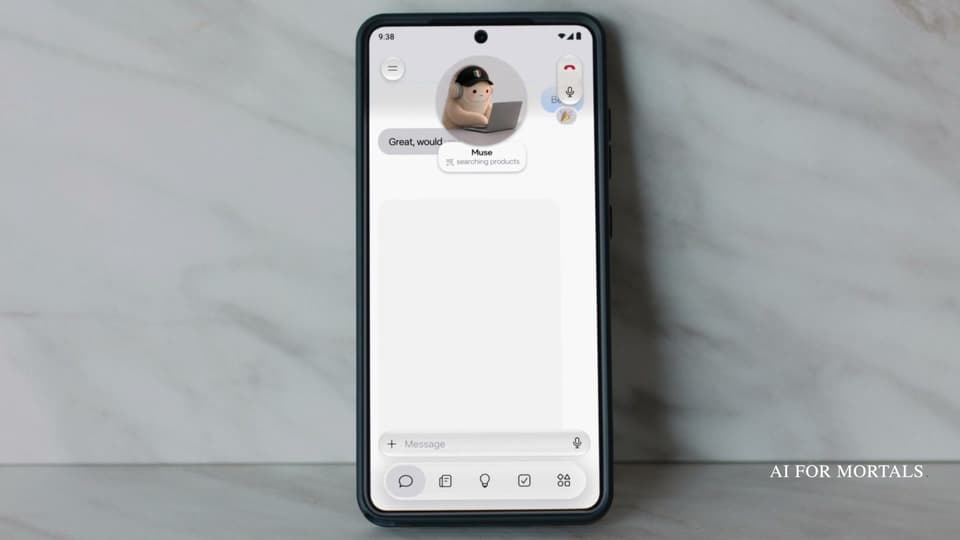
Meta rolled out voice conversations and animated avatars in the Meta Muse app. You tap the phone icon in the top-right corner and talk out loud with your Muse, and its avatar moves and reacts as it answers.
It's available to everyone in the US, on phones, the web and the Mac app. Meta first showed it at its Connect event in September.
How to start a voice call with your Muse
Open a chat in the Muse app and tap the phone icon in the top-right corner. Then just talk.

You can interrupt it mid-answer the way you would a person, and Meta says your Muse keeps working on things in the background while you talk. In an early hands-on, it answered quickly, with a short pause when it had to look something up.
It hears you but doesn't see you. The video only goes one way: you see the avatar, and Muse never uses your camera.
Voice only, beside the chat, or full screen
You choose how much of the avatar to show: voice only, the avatar beside the chat, or full screen. The avatar makes expressions and gestures that match the tone of the conversation, and it reacts while you're still talking.

Voice only is the one to pick when you're walking or cooking. The avatar views are for when you want something to look at, like when you're practicing a talk.
Make your Muse look and sound how you want
The default avatar is a round character Meta calls Jolly. You can change it to look like a person, an animal or a character, and there are hundreds of voices to pick from, like a New Yorker or a pirate. You can change the voice by asking your Muse or in the avatar settings, whenever you like.

How the avatar keeps up with the conversation
According to Meta's research post, the voice and the avatar are driven by the same stream of speech, which is what keeps the lips, the voice and the expression in sync. The video is made in short chunks, each built from the one before, so the face stays the same for as long as the call lasts.
Meta says a reply starts about 0.9 seconds after you stop talking. The model behind it can animate a photo, a drawing, an animal or an object, though Meta says not every kind is in the app yet, and every avatar video carries Meta's invisible watermark. Muse is for adults 18 and older.
Practice a job interview or a presentation out loud
ChatGPT and Gemini already let you talk out loud. The new part is a face that reacts to what you say.
Meta pitches two uses. One is thinking out loud about a half-formed idea, like planning a trip while you walk or cook. The other is rehearsing a job interview, a presentation or a pitch out loud. For that kind of practice, a face that reacts could actually make you better at the real thing. Try opening a call with:
"Play the hiring manager for a project coordinator job. Ask me five interview questions one at a time, and after each answer, tell me what to tighten."
In our test of Grok Bot, Meta Muse and ChatGPT Dots on the same jobs, Muse was the one Pat kept using most as a day-to-day assistant.
Muse on AI glasses and the Muse Charm
Meta says voice chats are coming soon to its AI glasses and to Muse Charm, a small wearable with a screen for your Muse that it plans to ship this year.
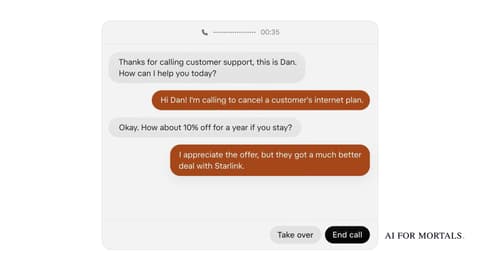
Voice is the latest piece of a fast few months for Muse. Meta's Muse Wonder model is now in the app for paid subscribers, and rival assistants are going the same way, with Grok Bot now able to make phone calls for you.
Sources
- Meta: Give Your Muse a Voice
- Meta AI research: Bringing your Muse to life
- AI at Meta on X: voice and avatars launch
- Alexandr Wang on X: Muse voice demo
- Muse on YouTube: Introducing Voice & Real-Time Avatars
- TechCrunch: Meta says US users can now video chat with their Muse AI avatar
- The Verge: Hands-on with Muse's voice mode and expressive avatar


Comments
Sign in to join the conversation.