What Are Gemini Gems? What They Do, What They Cost, and Google's Switch to Skills
A Gem is Gemini set up once with your own instructions and files, and Google is turning every personal-account Gem into a skill, read-only from November 17, 2026.

On this page
- What is a Gemini Gem?
- Are Gemini Gems free?
- What happens to Gems on November 17 and December 17
- How to make a Gem, or a skill, in Gemini
- What to write in a Gem's instructions
- Can you use a Gem as a teacher or tutor?
- How do Gems compare with custom GPTs and Claude skills?
- How to save your Gems before December 17
- Questions people ask about Gemini Gems
A Gem is a saved, custom version of Gemini. You give it a name and standing instructions, add files if you want, and it follows that setup every time you open it. Google launched Gems on August 28, 2024 for Gemini Advanced, Business and Enterprise users, and on March 13, 2025 it opened them to everyone at no cost.
Google is now replacing Gems with skills. For personal Google accounts of people 18 and over, Gems become read-only on November 17, 2026 and are removed from Gemini on December 17, 2026, according to Google's transition page. Google recreates each Gem as a skill automatically. Workspace business, enterprise and nonprofit accounts follow in March 2027, and education accounts in June 2027.
If your Gem holds audio, video, .zip files or old Office files (.doc, .xls, .ppt), download them before December 17, because those files don't carry over to skills.
Last checked November 16, 2026: Google's Gems help pages, its Gems-to-skills transition page, its skills help pages and its Google AI plans page, each linked where its facts appear.
What is a Gemini Gem?
A Gemini Gem is Gemini with your own instructions saved in advance, so you don't retype them for a job you do often. Google's own definition: Gems are "customized versions of Gemini that help you tackle repetitive tasks or get deep expertise in new areas."
Each Gem has a name, a box of instructions and an optional "Knowledge" section for files. Google's Gems help page lists three places those files can come from: your device, Google Drive or a NotebookLM notebook. Adding Drive files needs Keep Activity turned on and Google Workspace connected to Gemini, and the Gem always uses the latest version of a Drive file, so edits you make to the file show up in the Gem.
A Gem you make in the Gemini web app also appears in the Gemini mobile app and in the Gemini side panel in Google Workspace. Gems can't be used with Gemini Live.
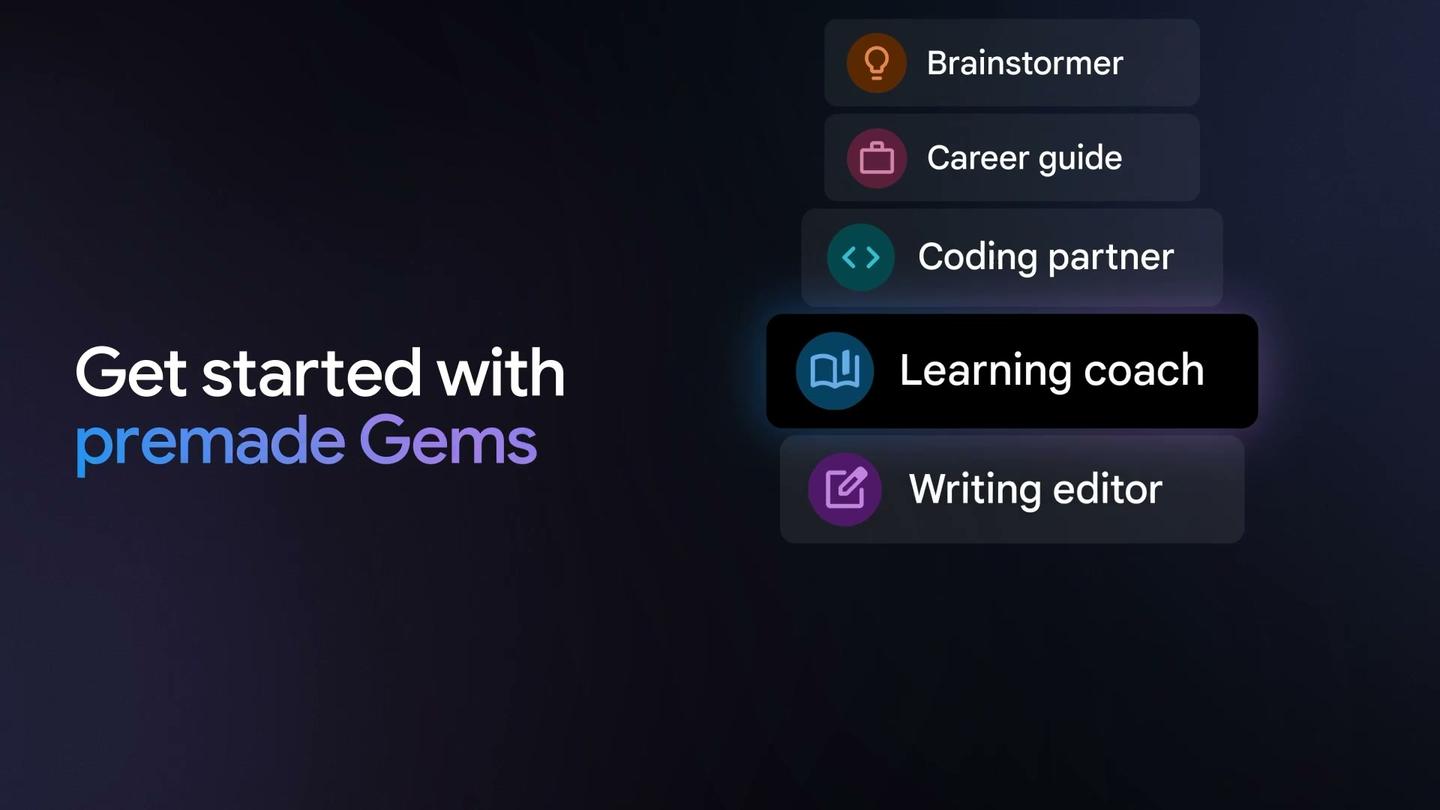
Google shipped five premade Gems at launch: Learning coach, Brainstormer, Career guide, Writing editor and Coding partner. You can also share a Gem with Viewer or Editor access, and anyone with access can see its instructions and any files you uploaded to it. A Gem someone shares with you shows up under "My Gems" only after you open it and use it.
For everything else that has changed in the app lately, see our page on Gemini updates and new features.
Are Gemini Gems free?
Yes. Since March 13, 2025, Google has offered Gems "for everyone at no cost in the Gemini app", in select languages and to users 18 and over. Before that date, making a Gem needed a paid Gemini Advanced, Business or Enterprise plan.
The skills that replace Gems don't need a paid plan either. Google's skills help page says "Skills are available without a Google AI subscription", and the Google AI plans page lists Skills among the features of the $0 Free plan in the US.
Paying raises your usage limits. On that plans page, Google AI Plus is $4.99 a month with double the Free plan's limits, Google AI Pro is $19.99 a month with four times the Free limits, and Google AI Ultra is $99.99 or $199.99 a month. Our pricing guide breaks down what Gemini's AI Plus, Pro and Ultra plans cost and what else each one adds.
What happens to Gems on November 17 and December 17
On November 17, 2026, Gems on personal accounts of people 18 and over turn into skills and become read-only: you can still open them, but you can't use them, edit them or create new ones. On December 17, 2026, Google removes Gems from Gemini, and you can no longer open them at all.
You don't have to do anything to keep the instructions. Google recreates every Gem as a skill automatically, and the sharing permissions carry over, so you don't need to reshare. Gems that other people shared with you appear on your Skills page under "All" as inactive until you accept them.
Here is Google's schedule by account type:
| Account | Gems become read-only | Gems removed |
|---|---|---|
| Personal Google account, 18 and over | November 17, 2026 | December 17, 2026 |
| Personal Google account, under 18 | Later; Google says it will share details | |
| Workspace business, enterprise and nonprofit | March 2027 | |
| Workspace education | June 2027 | |
Opal, Google's experiment for building mini apps, and Gems by Google Labs also end in November.
Google's stated reason is that skills work inside whatever chat you're already in, with no switching tabs, and that you can stack several skills in one chat. You call a skill by typing / and its name (Google says this will change to @), and Gemini can also apply a skill on its own when it fits your request. You can make as many skills as you want, with up to 100 active at a time.
Not everything in a Gem makes the move:
| Part of your Gem | What happens in the switch to skills |
|---|---|
| Name, description and instructions | Carried over |
| Sharing permissions | Carried over |
| Files, up to 100 MB in total | Carried over; above 100 MB, Google drops the largest files first |
| Audio and video files | Not carried over |
| GitHub files | Not carried over |
| Old Office files (.doc, .xls, .ppt) | Not carried over |
| Archives (.zip, .tar, .7z, .rar, .gz, .tgz) | Not carried over |
| Create video, Create music, Canvas, Deep research, Guided learning | Don't work with skills yet |
Google says skills will get the Gem features people used most "in the coming weeks", including sharing and adding files from Google Drive and notebooks. Skills already accept text files, PDFs and images.
How to make a Gem, or a skill, in Gemini
From November 17, 2026, a personal account of someone 18 or over can't create new Gems, so make a skill instead. Work and school accounts keep Gems until their own dates in 2027.
Make a Gem (while your account still has them)
Google's steps, on a computer:
- Go to gemini.google.com and open the sidebar.
- Click Gems. If you've never made one, click Settings and help, then Gems.
- Click New Gem.
- Enter a name and instructions.
- Optionally, under "Knowledge", click Add files.
- Click Save.
Before you save, you can type a test prompt in the preview box on the right to see how the Gem answers.
Make a skill
Skills are for people 18 and over, signed in to Gemini on the web, the Mac app or the mobile app. Google's steps for building one by hand:
- Go to gemini.google.com and click Customize in the sidebar (click More first if you don't see it), then Skills.
- Click Create, then Create manually.
- Enter a name, a short description of what the skill does, and its instructions.
- Optionally, click Add to attach files from your device, Google Drive, Google Photos or Notebooks.
- Click Create.
The Create menu also has "Create with Gemini", which walks you through it in a chat. You can skip the Skills page entirely and type in any chat: "Create a skill based on these instructions:" followed by your instructions. Skill names are all lowercase with hyphens between words, like plan-meal-from-recipe.
What to write in a Gem's instructions
Google's guide to Gem instructions names four things to cover: Persona (the role it plays), Task (what you want done), Context (background it should know) and Format (how the answer should look). You don't need all four, and Google's tips page says using a few of them helps.
Google's own premade Gems show what each part looks like in practice:
- Brainstormer, persona: "Your purpose is to inspire and spark creativity."
- Coding partner, persona: "Your purpose is to help me with tasks like writing code, fixing code, and understanding code."
- Writing editor, context: "Use clear, itemized bullet points for spelling and grammar edits."
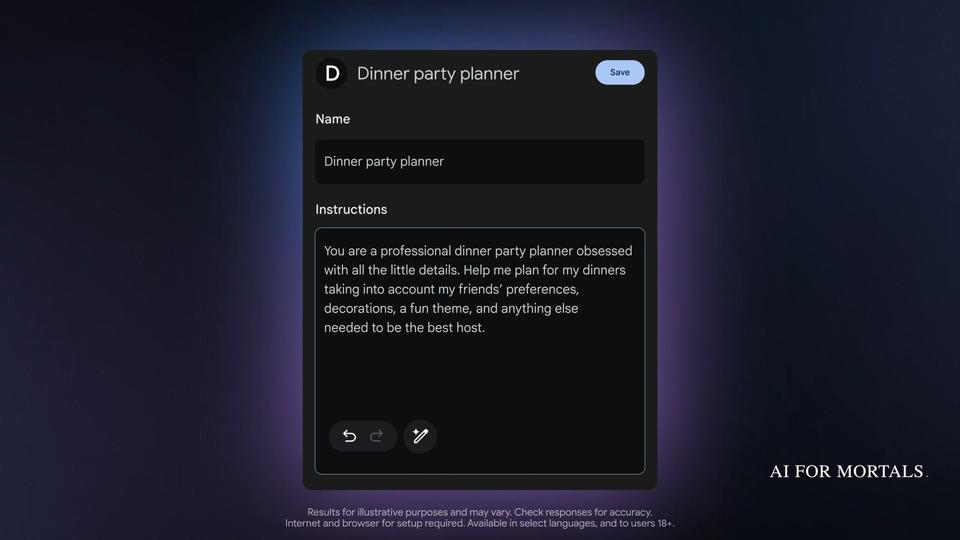
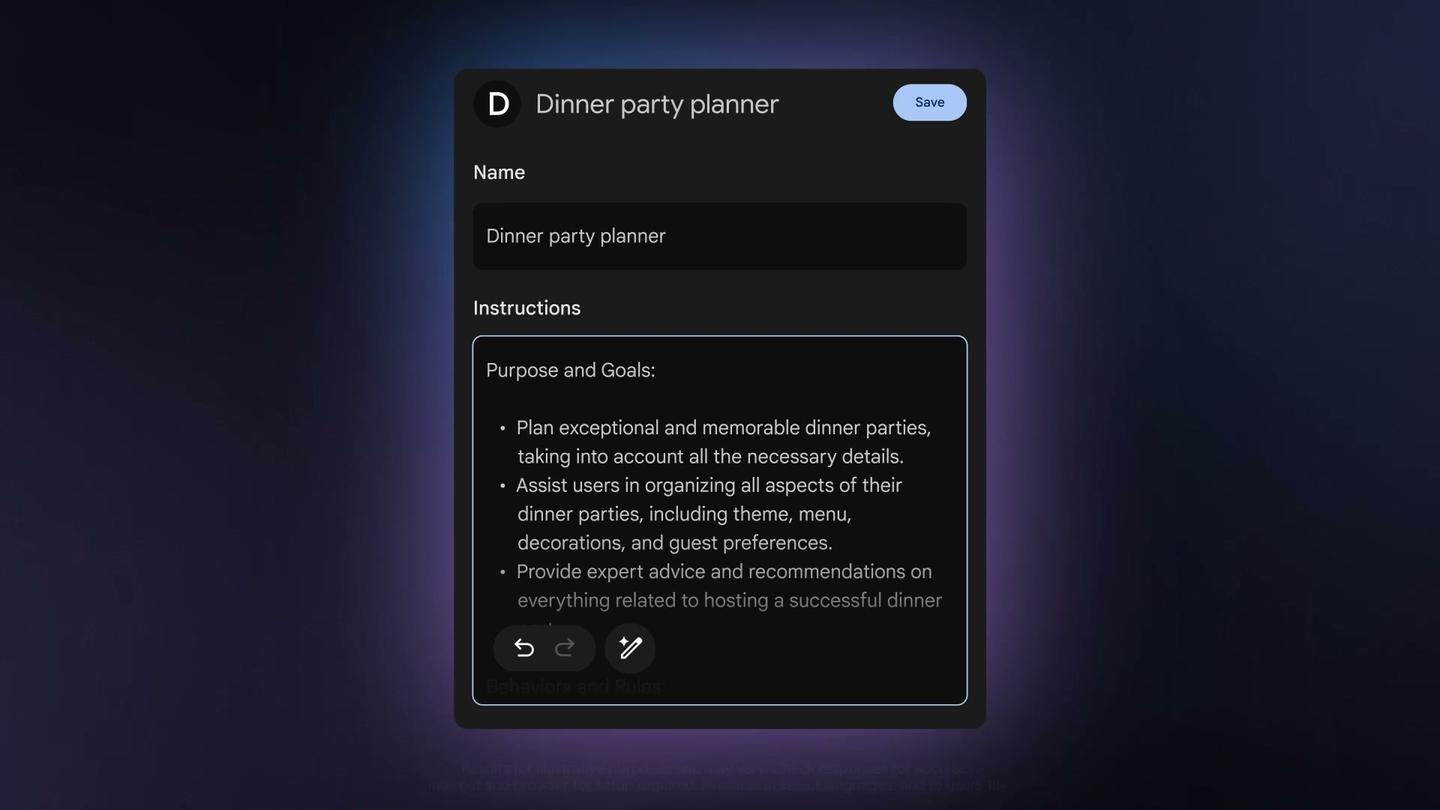
You don't have to write the whole thing yourself. After you type a few words, the "Use Gemini to re-write instructions" button turns a sentence or two into a longer, structured set of instructions that you can then edit.
Skills add one more thing to get right: the description. Gemini reads only a skill's name and description to decide whether to use it, then opens the full instructions when it does. Google's guide to writing skills says to start the name with a verb, start the description with what the skill does, list the situations it's for beginning with "Use when...", and keep the instructions short and focused on your own steps, formats and common mistakes to avoid.
The same habits that make a good Gem make a good prompt, and our guide on how to write a good AI prompt covers them in more depth.
Can you use a Gem as a teacher or tutor?
Yes. Learning coach, one of Google's five premade Gems, is built to break down complex topics so they're easier to understand, and Google's March 2025 announcement names a math coach as an example of a custom Gem you could make. Google's help page notes that Learning coach doesn't support language learning.
Skills can do the same job. One of Google's own skill examples is a writing-help skill for coursework that has instructions not to give the answers and can include your past papers, feedback and scores. Gemini's Guided learning tool doesn't work with skills yet, so a tutor skill relies on the instructions you write.
If you're a student weighing a paid plan, see Gemini's offer for students.
How do Gems compare with custom GPTs and Claude skills?
All three save a set of instructions, and usually some files, so an AI handles one recurring job the same way each time. They differ in where they live and how you call them up.
ChatGPT's version is the custom GPT. Our explainer on what a custom GPT is and how it compares covers how GPTs work and what is happening to them.
Anthropic calls its version skills too. Its help center describes them as "folders of instructions, scripts, and resources that Claude loads dynamically", available on Claude's Free, Pro, Max, Ultra, Team and Enterprise plans, and it publishes the skill format as an open standard. Gemini's skills page accepts uploaded SKILL.md files from other platforms. For a closer look at Claude skills, Anthropic's version of the same idea, see our guide.
Inside Gemini, the switch from Gems to skills changes how you use them day to day:
| Gem | Gemini skill | |
|---|---|---|
| How you start it | Open it from Gems in the sidebar, then chat | Type / and its name in any chat, or let Gemini pick it |
| Past chats | Listed on the Gem's own page | Listed in the normal side panel |
| Files | From your device, Drive or a NotebookLM notebook | Up to 100 MB, from your device, Drive, Photos or Notebooks |
| Minimum age, personal account | 13 (or your country's minimum) | 18 |
Whether Gemini or ChatGPT is the better assistant overall is a separate question, covered in our ChatGPT vs Gemini comparison.
How to save your Gems before December 17
Google turns each Gem into a skill for you, so the instructions move over without any action from you. To keep files that won't move, download any audio, video, GitHub, old Office or archive files before December 17, 2026. To download a Gem's files:
- Go to gemini.google.com and open Gems in the sidebar (click More first if you don't see it).
- Next to the Gem, click Edit.
- Under "Knowledge", click each file to open it, then click Download at the top.
Once the switch has happened, Google suggests opening the Gem and its new skill side by side and downloading whatever didn't transfer.
To move a Gem to a skill yourself before then, Google's manual route is:
- Download the Gem's files as above, into a new folder named exactly like the skill will be, in lowercase with hyphens (for example, sample-skill-name).
- In a new tab, go to Customize, then Skills, then Create, then Create manually, and paste in the Gem's name, description and instructions. Click Create.
- To add the files, click More options next to the new skill, then Download. Move the SKILL.md file from that .zip into your folder.
- Back on the Skills page, click More options, then Replace skill, and upload the folder. The folder name must match the skill name.
Keep the total under 100 MB. One more detail from Google's skills page: when you download a skill later, any Google Drive files and notebooks in it aren't included, because they stay linked to the live originals.
Questions people ask about Gemini Gems
Can I still use my Gem after November 17, 2026?
On a personal account at 18 or over, no. You can open it until December 17, 2026, but you can't chat with it or edit it. Use the skill Google made from it instead.
Do I need to reshare my Gems as skills?
No. Google says sharing permissions carry over from each Gem to its skill.
Is there a limit on how many skills I can have?
You can create as many as you want, but only 100 can be active at a time. Turn one off to switch another on.
Do skills work with Deep Research and Canvas?
Not yet. Google says they work with Connected Apps such as Workspace, but not with Canvas, Deep research, Create video, Create music or Guided learning.
Can I bring a skill I made somewhere else into Gemini?
Yes. Upload its SKILL.md file, or a folder or .zip with SKILL.md in the main folder, from the Skills page. For now, uploading works only in the Gemini web app and the Gemini app on Mac.
Sources
- Gemini Apps Help: About the transition from Gems to skills
- Gemini Apps Help: Use Gems in Gemini Apps
- Gemini Apps Help: Get started with Gems
- Gemini Apps Help: Tips for creating custom Gems
- Gemini Apps Help: Share a Gem
- Gemini Apps Help: Create and manage skills
- Gemini Apps Help: Write effective skills
- Google: New in Gemini, custom Gems (August 28, 2024)
- Google: New Gemini app features, available to try at no cost (March 13, 2025)
- Google AI plans (checked November 16, 2026)
- Claude Help Center: What are skills?

Comments
Sign in to join the conversation.