What Is a Custom GPT? How They Work, Gemini Gems, and What Replaces Both
A custom GPT is ChatGPT set up once for one job, with OpenAI retiring them December 11 and Google moving Gemini Gems to skills this month.

On this page
- How does a custom GPT work?
- How to create a custom GPT in ChatGPT
- Custom GPT examples: instructions you can copy
- How to use and share a custom GPT
- What is a Gem in Gemini?
- Gemini Gem prompts: what to write in the instructions
- Can you make a custom GPT in Claude?
- Custom GPT vs custom instructions vs a Gem
- Questions people ask about custom GPTs and Gems
A custom GPT is a version of ChatGPT set up once for one job. It has its own name, standing instructions, optional files to draw on and a chosen set of tools, and it follows that setup every time someone opens it. OpenAI's help center describes GPTs as "versions of ChatGPT configured for a specific purpose" that combine specific instructions, knowledge, and selected capabilities.
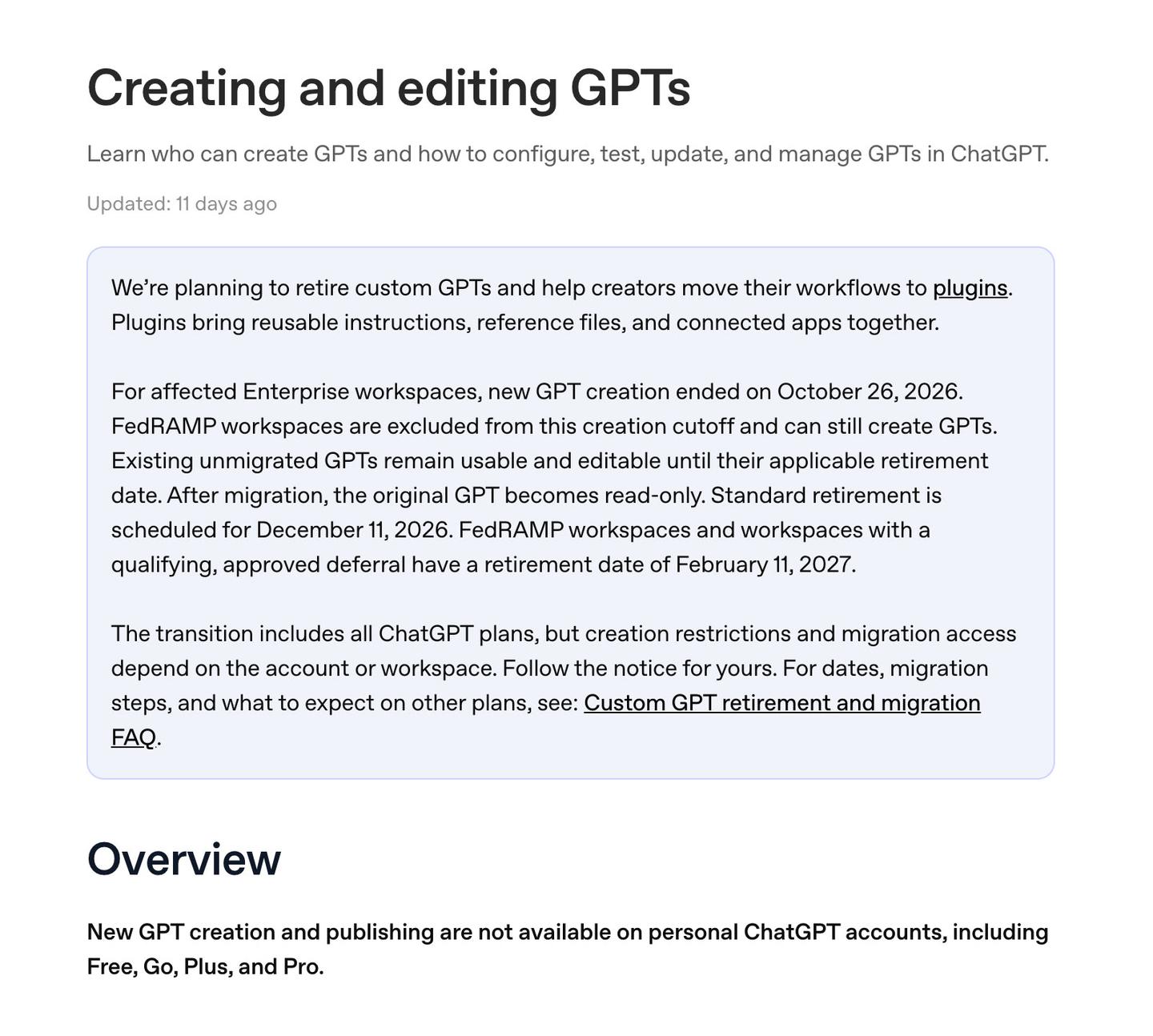
OpenAI is retiring custom GPTs. Its help center says they are scheduled to retire on December 11, 2026, and personal ChatGPT accounts (Free, Go, Plus and Pro) can no longer create or publish new ones. OpenAI points people to plugins and projects instead. Google's version, a Gem in Gemini, becomes read-only on November 17, 2026 for personal accounts of people 18 and over and turns into a Gemini skill.
This guide covers how custom GPTs work, how to build one where you still can, what to make instead, instruction templates you can paste into any of them, and what is happening to Gems.
Last checked November 14, 2026: OpenAI's GPT, plugin, project and retirement help pages, Google's Gems and Gems-to-skills help pages, and Anthropic's Projects page, each linked where its facts appear.
How does a custom GPT work?
A custom GPT works by loading the same setup into every conversation: its instructions, the files you gave it and the tools you switched on. You open the GPT, send a message, and it answers within that setup. OpenAI lists the parts a GPT can include:
- Instructions: its behavior, tone, goals and boundaries
- Conversation starters: example prompts people can click
- Knowledge: uploaded files it can use as reference
- Capabilities: tools such as web search or image generation
- Apps: outside services the user has connected
- Actions: connections to outside services that the builder defines
A GPT can use apps or actions, but not both at once. The capabilities on the builder's list are web search, image generation, Canvas for drafting and editing longer documents, and Code Interpreter & Data Analysis for calculations and charts.
A GPT starts fresh each time. OpenAI's FAQ says GPTs "do not use saved memory, custom instructions, or previous conversations."
How to train a custom GPT
Training a custom GPT, in the sense most people mean, is writing its instructions and uploading knowledge files. OpenAI's builder guide separates the two: instructions define how the GPT behaves, and knowledge files give it "source material to use during a conversation." It says rules, tone and workflow belong in the instructions, and reference material such as handbooks and guides belongs in knowledge.
You can attach up to 20 files to a GPT, each up to 512 MB. OpenAI suggests clear, text-forward files, since complex layouts make uploaded content harder for the GPT to use, and testing in Preview after you upload.
How to create a custom GPT in ChatGPT
On a personal ChatGPT account you can't create a new custom GPT anymore. OpenAI's help page says new GPT creation and publishing are not available on Free, Go, Plus or Pro accounts. Business, Enterprise and Edu workspaces can still create GPTs only where the workspace settings and your permissions allow it, and new GPT creation ended on October 26, 2026 for affected Enterprise workspaces, except FedRAMP workspaces.
If your workspace still allows it, these are OpenAI's steps. Creation works on the web only; the mobile apps let you use GPTs but not make them.
- Open Explore GPTs in the ChatGPT sidebar, or go to chatgpt.com/gpts.
- Select Create to open the GPT builder.
- Pick the conversational builder (describe what you want and ChatGPT drafts the GPT) or the configuration view (fill in the fields yourself).
- Add a name, a description, conversation starters and the instructions.
- Upload knowledge files and switch on the capabilities the job needs.
- Test it in Preview, then select Create.
Changes save to a draft while you edit. To change a GPT you already have, open Explore GPTs, select My GPTs, choose the GPT and select Edit GPT, then Update. The ••• menu in the editor holds version history, the GPT's link and Delete.
What to make instead: a plugin or a project
OpenAI names two replacements. A plugin bundles skills (reusable instructions), connected apps and other tools for one task. A project keeps related chats, files and instructions together, and the retirement FAQ suggests one for GPTs used for ongoing writing, research or planning.
To build a plugin, OpenAI's plugins help page says to install Plugin Creator from the plugin directory, start a chat with @plugin-creator and describe what you want. The plugin directory is open on every ChatGPT plan, but whether you can install or use a given plugin depends on your plan, workspace, role and region.
To set up a ChatGPT project instead, select New project in the sidebar, add your instructions under Project settings and upload your reference files. Project instructions apply only inside that project and override your ChatGPT custom instructions, which apply to every chat. Old chats with a GPT can't be moved into a project.
If you built a GPT, OpenAI's migration turns it into a plugin once migration reaches your account:
- Where: My GPTs, then Migrate to plugin
- Instructions: become a skill inside the plugin
- Knowledge files: copied into the plugin's reference files
- Connected apps: added to the plugin as apps
- Custom actions: don't transfer
- Selected model: doesn't carry over
Rebuilding a custom action may need a custom MCP server, which OpenAI says can take technical setup (our guide to MCP explains what one is). Migration uses the GPT's latest published version, and the original turns read-only afterward. Your past conversations with custom GPTs stay accessible after retirement.
Custom GPT examples: instructions you can copy
The three templates below are starting points built on OpenAI's advice for GPT instructions and Google's advice for Gem instructions. Nobody at AI for Mortals has tested them as GPTs. They work as text in any of the places that replace a GPT: a ChatGPT project's instructions, a skill you describe to Plugin Creator, or a Gemini skill.
OpenAI's builder guide recommends explicit steps for multi-step work ("When X happens, do Y"), positive instructions over long lists of prohibitions, brief examples of acceptable and unacceptable output, and headings so priorities stand out. Writing them is the same skill as how to write a good AI prompt, saved so you don't retype it.
For a small business: a helper that drafts replies to customer emails.
## Role
You draft replies to customer emails for [business name], a [what the business sells].

## Steps
1. When I paste a customer email, name the customer's main request in one line.
2. Draft a reply under 150 words that answers that request first.
3. When the email asks about refunds, prices or delivery dates, use only the policy file I uploaded and quote the line you used.
4. When the file doesn't answer the question, write [CHECK WITH TEAM] in the draft.

## Tone
Warm and plain. Use the customer's first name. Sign off as [your name].

## Example of a good opening
"Hi Sam, your replacement order went out today and should arrive by [date]."
For any office job: a meeting-notes summarizer.
## Role
You turn rough meeting notes or transcripts into a summary my team can act on.

## Steps
1. When I paste notes, start with three sentences on what was decided.
2. Then list every action item as: owner, task, due date.
3. When an action item has no owner or date, write "owner?" or "date?" so I can fill it in.
4. End with open questions nobody answered.

## Format
Headings for Decisions, Actions and Open questions. Bullet points under each. No intro and no sign-off.
For writing: an editor modeled on the jobs in Google's premade Gems, which include Brainstormer, Coding partner and Writing editor.
## Role
You are an editor for [type of writing, such as client reports or newsletters] written for [who reads them].

## Steps
1. When I paste a draft, list the three changes that would help the reader most, most important first.
2. Then give the edited draft with my wording kept wherever it already works.
3. Point out any sentence a reader could misread, and suggest a clearer one.

## Style
Short sentences, plain words, active voice. Keep my facts and numbers exactly as written; flag any that look wrong instead of changing them.
How to use and share a custom GPT
You can still use any custom GPT you have access to until it retires. GPTs are available to all ChatGPT users who sign in, including Free accounts. Open one from Explore GPTs, from a direct link, or from your workspace if a colleague shared it, then send a message.
On ChatGPT on the web, you can type @ in an ordinary conversation to bring a GPT in without starting a new chat. That doesn't work in the iOS or Android apps, where you open the GPT from the GPTs menu or sidebar instead. The person who built a GPT can't see your conversations with it.
Sharing is now limited. Personal accounts can't publish new GPTs. In Business, Enterprise and Edu workspaces, the options can include specific people, the whole workspace, a link, or the GPT Store when the workspace permits it. Migration doesn't carry a GPT's sharing settings over: a migrated plugin starts private, and in a managed workspace, Share Plugin can fill in the GPT's original audience for you to review.
If you rely on someone else's GPT, check the notice on it and its creator's plans for a replacement. Access to a GPT doesn't give you access to the plugin that replaces it. For more on where ChatGPT is going, see what's new in ChatGPT.
What is a Gem in Gemini?
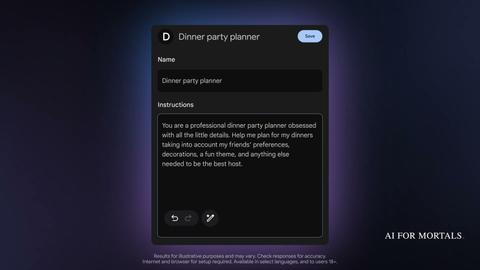
A Gem is a saved, customized version of Gemini. Google's help page says you "can create and save Gems to customize responses in Gemini Apps to your specific needs." You give it a name and instructions, and you can add files under Knowledge for it to draw on.
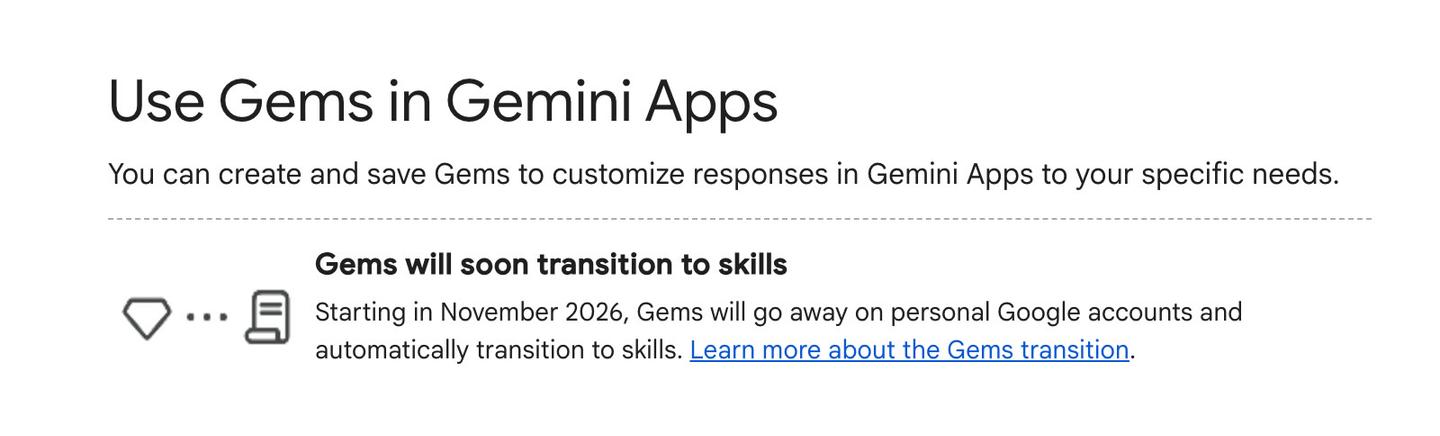
On personal accounts for people 18 and over, new Gems can be made until November 17, 2026. Google's steps on a computer:
- Go to gemini.google.com and click Open Sidebar.
- Click Gems (first time: Settings and help, then Gems).
- Click New Gem.
- Enter a name and instructions.
- Optional: under Knowledge, click Add files.
- Click Save.
Knowledge can come from files on your device, from Google Drive (with Keep Activity on and Google Workspace connected to Gemini) or from a NotebookLM notebook. You can switch off citations to those files. The preview panel lets you try a prompt before saving, but it doesn't save the Gem for you.
You must be 13 or older (or your country's minimum age) and signed in. Google says Gems can't be used with Gemini Live for now.
To share a Gem, click Share next to it and add people as Viewer or Editor, or copy a link. Google's sharing guide warns that anyone with access can see the Gem's instructions and uploaded files. A Gem shared with you shows up under My Gems only after you open it and use it.
When Gems turn into skills
Google is replacing Gems with skills, which it describes as "reusable custom instructions" you call up by typing / and the skill's name in any Gemini chat (Google says @ is coming). Gemini can also apply a skill on its own when it fits your prompt, and you can combine several in one chat. Skills are open to people over 18 on personal Google accounts.
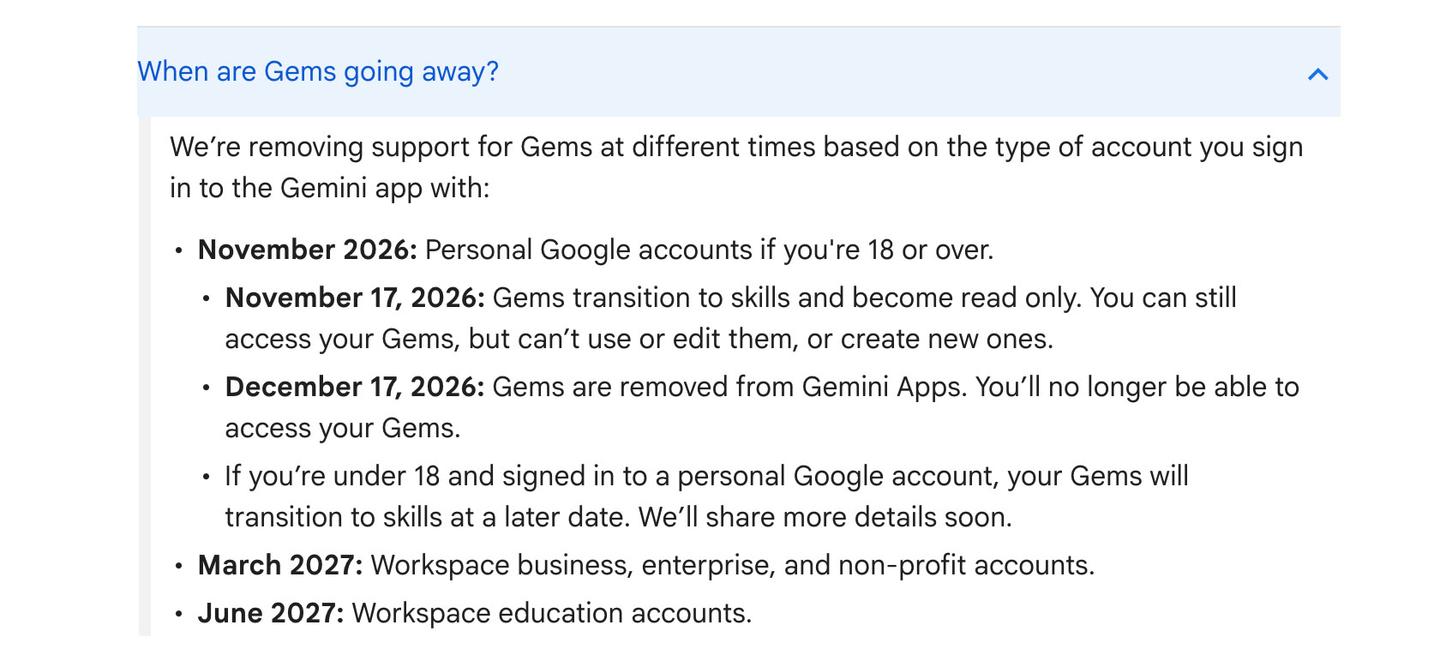
On personal accounts for people 18 and over, Gems become read-only on November 17, 2026: you can still open them but can't use, edit or create them. They are removed on December 17, 2026. Work accounts follow in March 2027 and education accounts in June 2027.
Google recreates each Gem as a skill automatically, and sharing permissions carry over. Some files don't make the move. Skills hold up to 100 MB of files, so Google drops the largest first from a bigger Gem, and audio, video, GitHub files, archives such as .zip and older Office formats (.doc, .xls, .ppt) aren't carried over. Download any of those before December 17.
Several tools that worked in Gems don't work with skills yet, including Create video, Create music, Canvas, Deep research and Guided learning. More Gemini changes are tracked on what's new in Gemini.
Gemini Gem prompts: what to write in the instructions
Google's advice for Gem instructions covers four areas, the same ones it gives for any good prompt, and says you don't need all four:
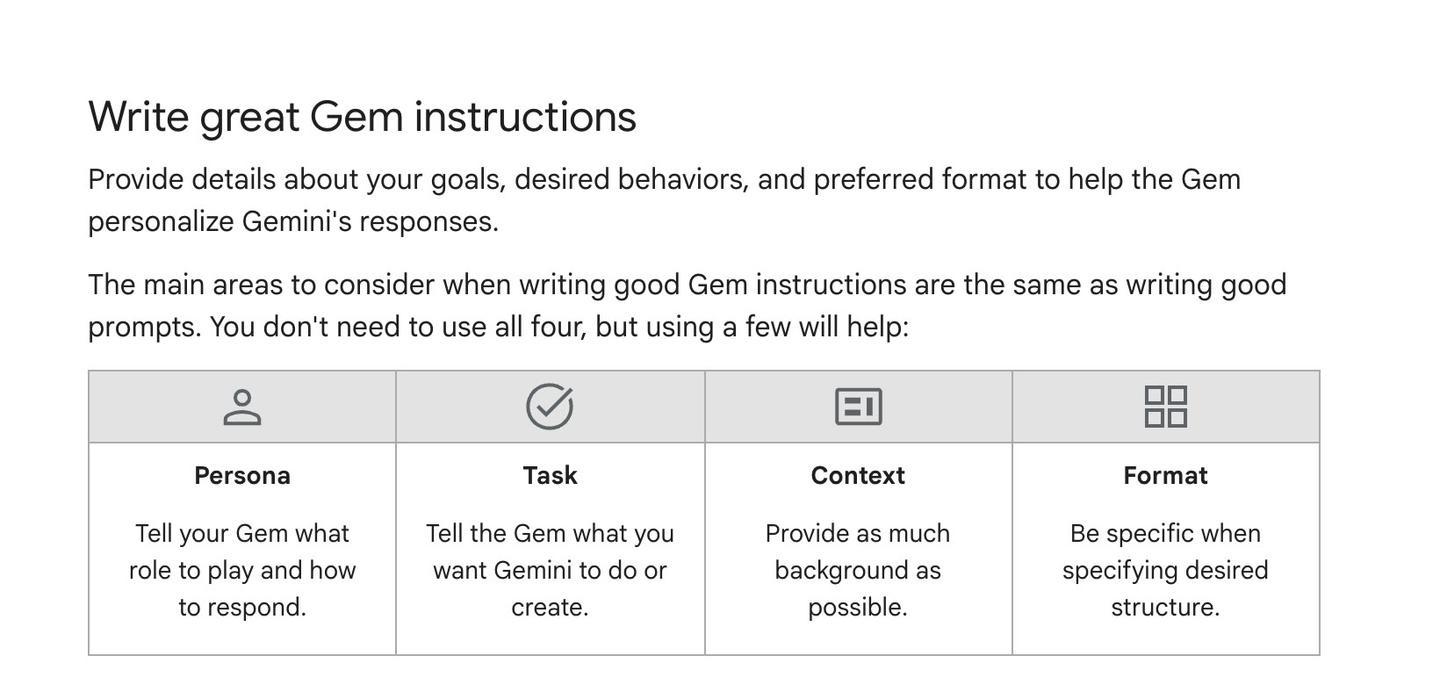
- Persona: the role the Gem plays and how it responds
- Task: what you want Gemini to do or create
- Context: as much background as you can give
- Format: the structure you want back
Google also offers a shortcut: write a sentence or two about your goal in the instructions box, click Use Gemini to re-write instructions, then edit what it produces.
The same instructions carry into a skill, since Google's manual move is copying the Gem's name, description and instructions across. For skills, Google adds three practices: describe the situations when Gemini should use the skill, keep the instructions to what is unique about the task, and include concrete examples of the output you want. This starting template follows those four areas and three practices:
When to use: whenever I ask for [the job, such as a weekly status update].

Persona: You are [a role, such as a project coordinator] who writes for [who reads it].

Task: Turn the notes I give you into [the output, such as a status update for my manager].

Context: [Your team, your project, the names and terms you use, what your reader cares about.]

Format: [The structure, such as three headings (Done, Next, Blocked), bullet points, under 200 words.]

Example of the output I want:
[Paste one short example you were happy with.]
Can you make a custom GPT in Claude?
Claude's closest match is a project. Anthropic's help center describes projects as "self-contained workspaces with their own chat histories and knowledge bases." You upload documents to the project's knowledge and write project instructions, such as asking for a formal tone or a particular role.
Projects are available to everyone, including free accounts, which can create up to five. Sharing a project with colleagues is limited to Team and Enterprise plans, with "can view" and "can edit" permission levels. Anthropic is also rolling out a new version of projects in beta, starting with Claude Code.
Claude also has skills. A Claude skill is a folder holding a SKILL.md file of instructions, which Claude reads when your request matches the job, and Google's transition page says Gemini skills use SKILL.md files too. The AI for Mortals skills page lists the Claude skills Pat Simmons built and uses, with links to install them. See what's new in Claude for the latest on both.
Custom GPT vs custom instructions vs a Gem
Custom instructions apply to every ChatGPT chat, while a custom GPT applies only when you open that GPT, and a GPT ignores your custom instructions. OpenAI's custom instructions page says they are available on all plans and take effect immediately across your chats. A Gem works like a GPT: its instructions apply only in chats with that Gem.
The table compares each option as of November 14, 2026, from the help pages linked in this guide.
| Option | What it holds | Who can make one now | Sharing | Status |
|---|---|---|---|---|
| ChatGPT custom instructions | One set of instructions | All plans | Not shared | Current; applies to every chat |
| Custom GPT | Instructions, knowledge files, capabilities, apps or actions | Not personal accounts; some Business, Enterprise and Edu workspaces | Workspace, people, link or GPT Store, where allowed | Retiring December 11, 2026 (February 11, 2027 for some workspaces) |
| ChatGPT project | Chats, files and instructions | Signed-in users, depending on plan | Project sharing, depending on plan | Current |
| ChatGPT plugin | Skills, connected apps and other tools | Through Plugin Creator; installing and using depends on plan | Within Business and Enterprise workspaces | Current; OpenAI's GPT replacement |
| Gemini Gem | Name, instructions, knowledge files | Signed-in users 13 and over; ends November 17, 2026 on personal accounts (18 and over) | Viewer or Editor access, or a link | Read-only November 17, removed December 17, 2026 (personal accounts, 18 and over) |
| Gemini skill | Reusable instructions and files up to 100 MB | People over 18 on personal Google accounts | Carries over from Gems; Google says sharing is coming | Current; replaces Gems |
| Claude project | Chats, knowledge files, instructions | All users (five on free accounts) | Team and Enterprise plans | Current; new version in beta |
Questions people ask about custom GPTs and Gems
Are custom GPTs free?
Using them is. GPTs are available to every signed-in ChatGPT user, including Free accounts. Creating new ones isn't available on any personal plan, free or paid.
Can I still make a custom GPT on ChatGPT Plus?
No. OpenAI says personal accounts, including Plus and Pro, can't create or publish new GPTs. You can still edit GPTs you made earlier if your plan allows it, until you migrate them or they retire.
When do custom GPTs go away?
December 11, 2026 is the standard retirement date. FedRAMP workspaces and workspaces with an approved deferral have until February 11, 2027. After retirement, GPTs and their pages can't be opened, but your past conversations with them stay in your history.
How many files can a custom GPT use?
Up to 20 files, each up to 512 MB.
Do custom GPTs use my memory or custom instructions?
No. Each conversation with a GPT starts fresh, without saved memory, custom instructions or past chats.
Are my chats with a GPT used to train OpenAI's models?
It depends on your plan. Business, Enterprise and Edu data isn't used for training by default. On Free, Go, Plus and Pro, it may be unless you've opted out in data controls.
Can I put a custom GPT on my website?
No. OpenAI says GPTs work inside ChatGPT only, and building an assistant into your own product or site takes the API.
What happens to my Gems on November 17?
On a personal account where you're 18 or over, your Gems move to skills and the Gems turn read-only: you can open them but can't use, edit or create them. Google removes them on December 17, 2026. If you're under 18, the move happens later.
Do I need to reshare my Gems after they become skills?
No. Google says sharing permissions carry over from each Gem to its new skill. Gems shared with you appear on your Skills page as inactive until you accept them.
Sources
- OpenAI help center: GPTs in ChatGPT
- OpenAI help center: Creating and editing GPTs
- OpenAI help center: Custom GPT retirement and migration FAQ
- OpenAI help center: Plugins in ChatGPT
- OpenAI help center: Projects in ChatGPT
- OpenAI help center: ChatGPT custom instructions
- Gemini Apps Help: Use Gems in Gemini Apps
- Gemini Apps Help: Tips for creating custom Gems
- Gemini Apps Help: Share a Gem
- Gemini Apps Help: About the transition from Gems to skills
- Claude help center: What are projects?


Comments
Sign in to join the conversation.