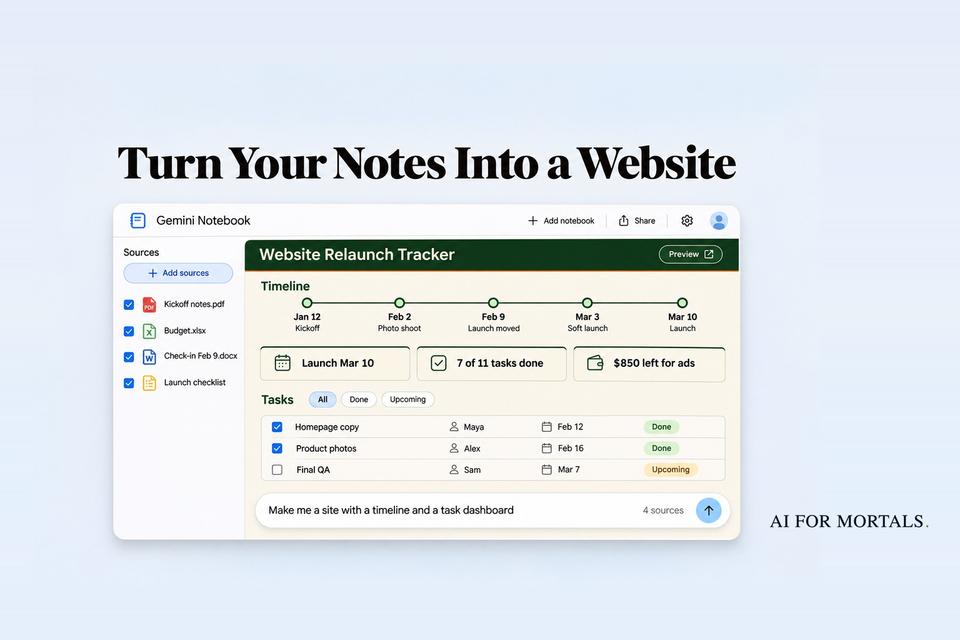
Turn Your Notes Into a Website: Gemini Notebook and 5 Alternatives
Six AI tools that turn meeting notes and research into a timeline, dashboard or study site you can share, with what each costs and what can go wrong.
 AI for Mortals Staff
On this page
- How we picked these tools
- The six tools at a glance
- We gave the same meeting notes to Claude and Gemini
- 1. Gemini Notebook sites: best for study guides from lots of sources
- 2. Gemini Canvas to Google Sites: the free way to publish a real site
- 3. Claude artifacts: the cleanest dashboard
- 4. ChatGPT Sites: the most complete website, from $20 a month
- 5. Gamma Sites: when you want it to look like a polished page
- 6. Notion Sites: the only one that updates itself
- Before you share a site built from your notes
Gemini Notebook, the tool most people still call NotebookLM, can now turn your notes into a website. You type "make me a site," and it builds a timeline, a dashboard or a study guide from the documents in your notebook.
It's free and it works well. It's also one of six tools that can do this now, and the best NotebookLM alternative depends on who has to open the page and what you want them to do there.
This guide covers all six, what each one costs, and a prompt to copy for each. We also gave the same set of messy meeting notes to two of the AI models behind these tools, to see what a site built from notes gets right and what you still have to check.
How we picked these tools
Every tool here had to pass three tests:
- It starts from your own stuff. You can paste notes or upload files, and the page is built from them.
- Someone else can open the result. It gives you a link, or a real website, without you touching any code.
- A beginner can do it in one sitting. No hosting setup, no app store, no developer account.
That rules out the AI app builders like Lovable and Replit. They're great for building software, and we compared them in Lovable vs Replit vs Bolt, but they're more than you need to share a project tracker.
The six tools at a glance
| Tool | To share | Best for |
|---|---|---|
| Gemini Notebook | Free | Study guides from many sources |
| Gemini Canvas | Free | A real Google Site |
| Claude | $20/mo | Clean dashboards |
| ChatGPT Sites | $20/mo | A site with its own address |
| Gamma | Free | Polished pages |
| Notion | Free | Notes that update the site |
Only Notion keeps the site in step with your notes. With the other five, the site shows your notes as they were when you built it, so you make a new one after big changes.
We gave the same meeting notes to Claude and Gemini
Before picking a tool, it helps to know what these sites are like when the notes are messy. So we wrote seven weeks of meeting notes for a made-up bakery relaunching its website.
The notes are full of the things real notes have. The launch date moves, a photo quote comes in $250 over budget, a task slips twice, and one job never gets an owner.
We gave the notes to Claude Opus 5.5 and Gemini 4 Argon with the same request:
Make me a site from my meeting notes below. I want two things on it: an interactive timeline of what happened and what we decided, and a dashboard showing every task with its owner and status, plus where the budget stands. My team will open it in a browser, so it has to work on its own.

[paste your notes here]
We ran this straight through each model, outside the Gemini Notebook app. That means our test can't show Notebook's "View sources" link, but it does show how well each model reads a pile of notes.
What both got right
Both sites got every number that mattered. Each one worked out that $850 was left for ads after the photographer and the developer went over, and each put the launch on March 10, the date it moved to halfway through the notes.
Both also flagged the job nobody took: updating the bakery's Google Business profile, which still pointed to the old menu.
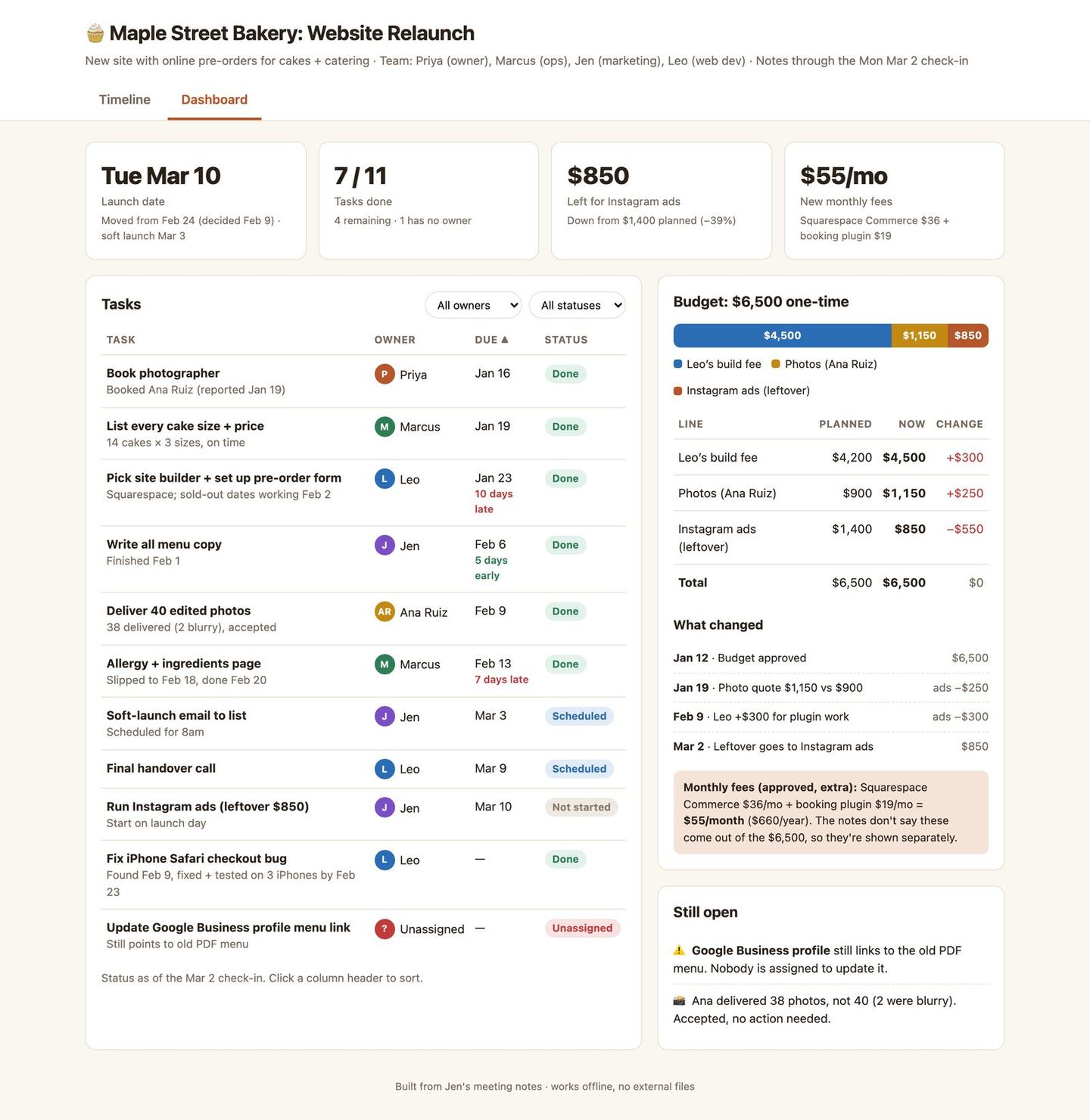
Claude also caught something we didn't ask for. Two monthly fees, $36 for the store plan and $19 for a booking plugin, appear in the notes, and Claude listed them separately, with a note that the notes never say whether they come out of the $6,500.
Where they differed
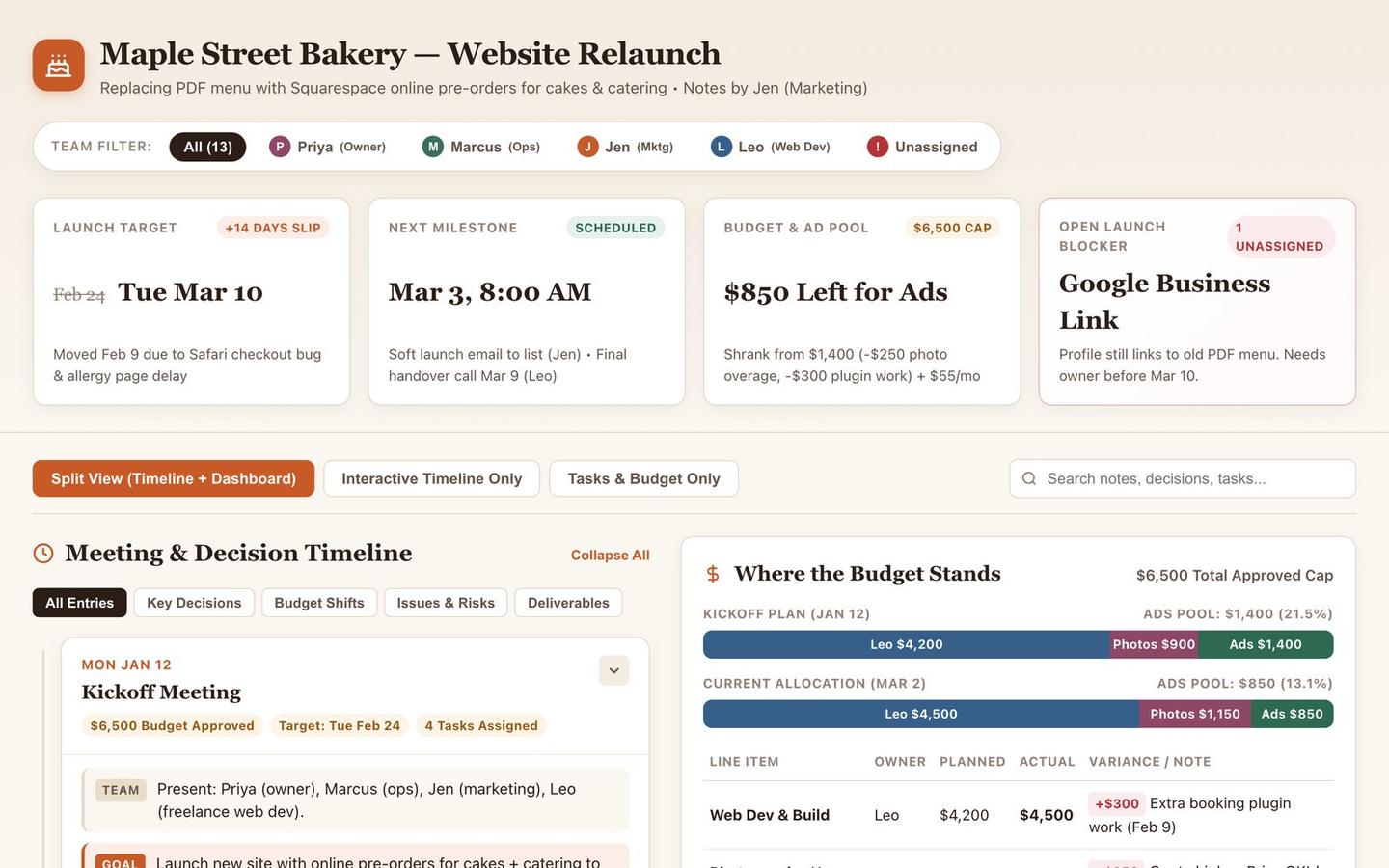
Gemini put everything on one long page: four headline cards at the top, the timeline on the left and the tasks on the right. It added a filter for each person on the team and put the unassigned task first, with a red "Needs owner" label.
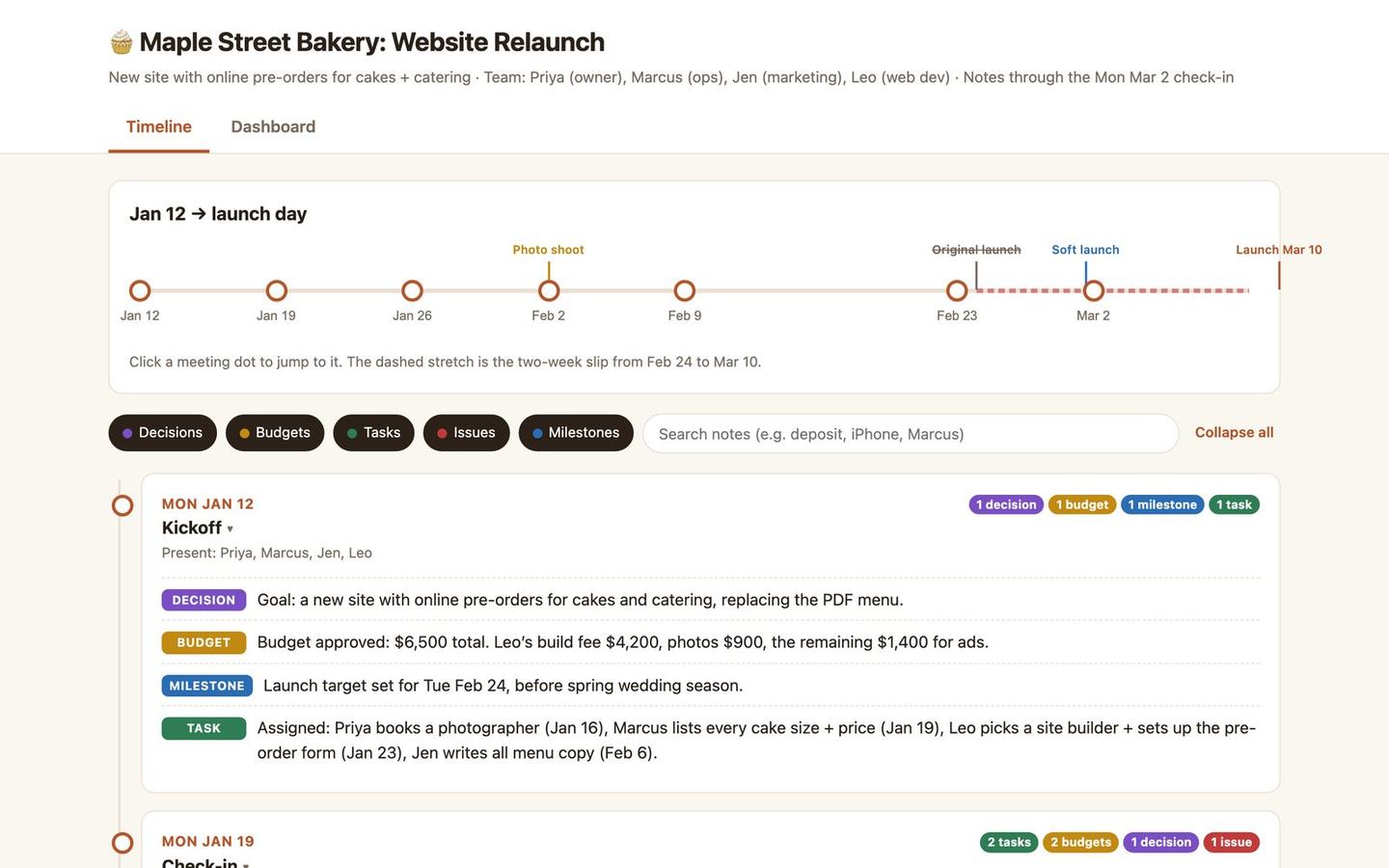
Claude split the timeline and the dashboard into two tabs. The page is calmer, but you have to click to see the tasks.
Claude also made one call we'd change. It marked the developer's first task "10 days late," because the form couldn't block sold-out dates until February 2. The notes say the form itself worked by January 26, so a teammate reading that label would get a harsher picture than the notes give.
That's the main lesson from the test. These sites get the math right, but they also make judgment calls, and the labels like "late" or "on track" are where you should look before you share.
On a phone, both pages scrolled sideways a little, by 15 pixels on Claude's and 28 on Gemini's. If your team reads on phones, ask for "make it fit a phone screen with no sideways scrolling" in your first prompt.
1. Gemini Notebook sites: best for study guides from lots of sources
Gemini Notebook is the pick when your material is already spread across a stack of PDFs, Docs, links and YouTube videos. A free notebook can hold 50 sources, and the site is built from all of them.
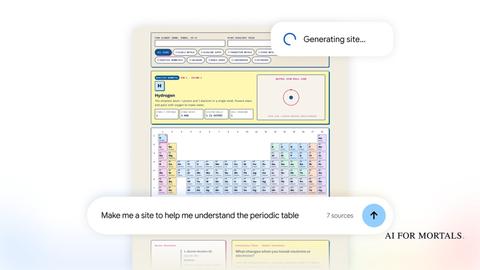
Google's examples are a periodic table study page with a quiz, a sales dashboard and a project tracker. Each site has a View sources button that shows which documents it came from.
How to make one:
- Go to notebook.google.com and open a notebook, or make one and add your notes and files.
- In the chat box, type "make me a site" and describe what it's for.
- When it's done, the site appears in the Studio panel. Click the three dots, then Open in new tab.
Make me a site that helps a new team member understand this project. Start with a one-paragraph summary, then a timeline of the key decisions, then a short quiz at the bottom so they can check they understood it.
What to know before you share it:
- Public sharing only works from a personal Google account. Work and school accounts can't share a site publicly.
- Anyone you share the site with needs access to the whole notebook, so they can also see every source in it. Make a separate notebook if some of your notes are private.
- The site doesn't change when your sources do. Google's help page says outputs made from a source "do not change" when you update it, so ask for a new site after big changes.
- Each visitor's ticked boxes and typed notes are saved for that visitor only. That's fine for a study guide, but it means the site can't be a shared team checklist.
- It's on the web only for now. You have to be 18 or older, and building a site counts against your Notebook usage limits.
We covered the launch, with Google's own demo sites, in Gemini Notebook can now turn your sources into a website. Notebook can also turn the same sources into an audio overview you listen to like a podcast.
2. Gemini Canvas to Google Sites: the free way to publish a real site
If you'd rather end up with a normal website, use Canvas in the regular Gemini app. Since October 19, you can send what you build there straight to Google Sites, and it stays interactive.
This works on free personal Google accounts, on the web and in the phone apps.
How to make one:
- In the Gemini app, click + and choose Canvas.
- Upload your notes with Add files and describe the page.
- When you like it, choose Export, then Google Sites. A private draft site opens.
- Add anything else you want, then click Publish in Google Sites.
Turn these meeting notes into an interactive project tracker. Show every task with its owner, due date and status, and let me filter by person. Put anything that has no owner at the top.
What to know: Canvas also has its own share link, separate from Google Sites. Google's help page warns that "anyone with that public link can view and edit data associated with the app," so use the Google Sites route for anything you'd mind strangers changing.
3. Claude artifacts: the cleanest dashboard
Claude's pages were the tidiest in our test above. Upload your notes, ask for a dashboard or tracker, and it opens beside the chat.
Free users can build one but can't share it. Since Claude rebuilt artifacts on September 16, sharing a new one by link needs Pro ($20 a month) or a higher plan.
Once you're on a paid plan, you can set a page to Anyone with the link, and most visitors can open it without a Claude account. There's no custom domain.
Here are my project notes. Build a one-page dashboard for my manager: the launch date, how many tasks are done, budget planned versus spent, and anything still open. Show me which notes each number came from, and don't label anything late unless the notes say it was.
If you share pages often, a few extra instructions make Claude's pages easier to read. We tested some in We added one GitHub link to our Claude prompts.
4. ChatGPT Sites: the most complete website, from $20 a month
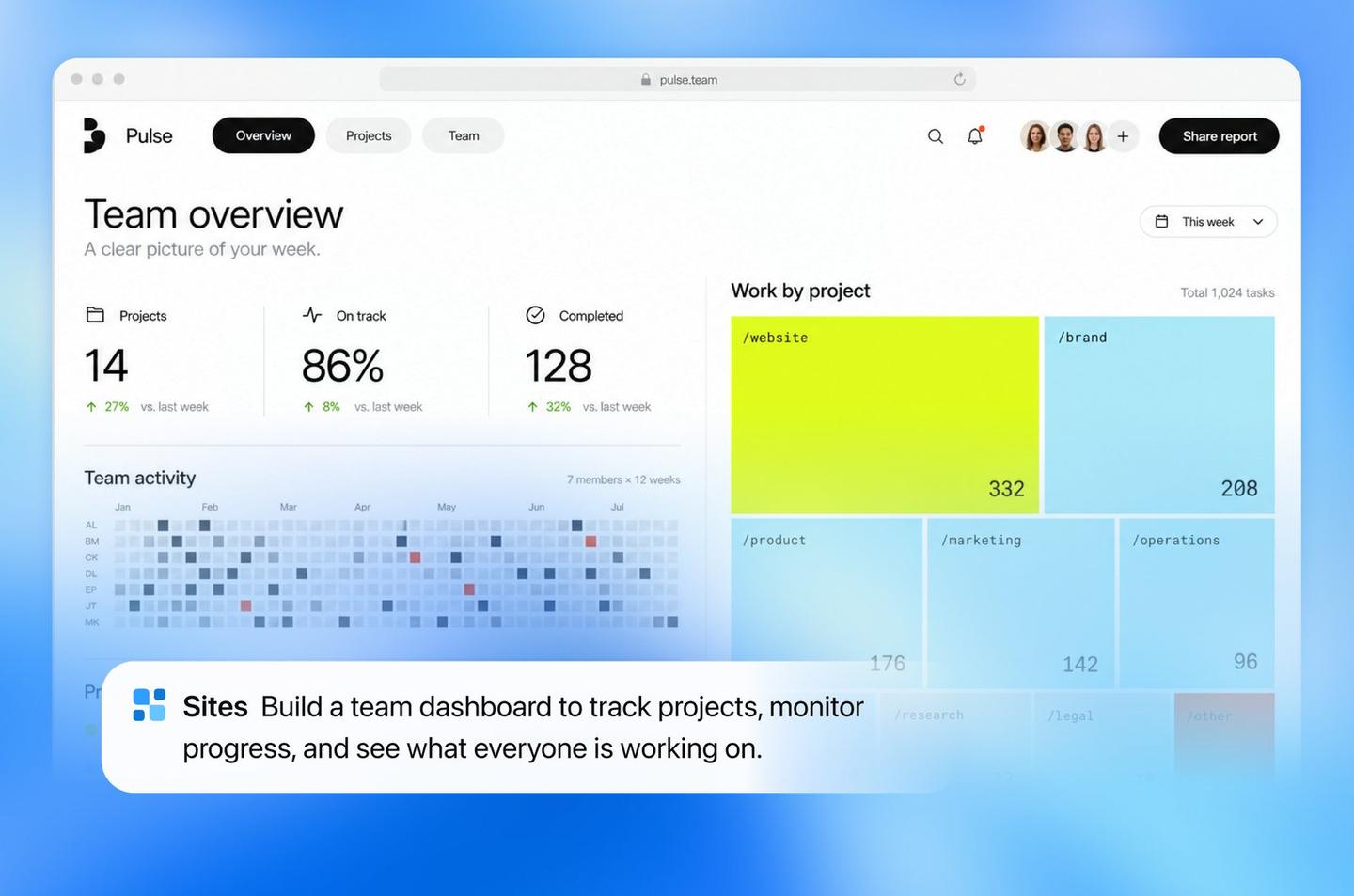
ChatGPT Sites is the closest thing here to a real website. It started in Codex in June, and it now builds, hosts and shares a full site from a chat, at its own chatgpt.site address.
You need Plus ($20 a month) or a higher plan; Free and Go don't have it. In return, you get the most sharing options of any tool here: just you, named people, your workspace, or anyone on the internet with no login.
How to make one:
- In ChatGPT on the web, choose Work, then type @Sites or include the word "website" in your request.
- Attach your notes, files or spreadsheets.
- Check the preview, ask for changes, then click Deploy. New sites start private.
- Click Share, pick who can see it and copy the link.
Build a website from these notes for our client. A home page with a short project summary, a timeline page, and a page of open questions. Use a copy of the notes, so the site doesn't change if I edit the files later.
What to know: Sites can use your own domain name, and they come with a simple visitor count. Hosting is free until December 31. From January 1, Plus gets 125 hosting credits a month, and OpenAI's proposed rates charge 25 credits a month for a site with a database and 25 for a custom domain.
Building and editing a site uses your Codex allowance. Pat tried the Codex version when it first came out:
5. Gamma Sites: when you want it to look like a polished page
Gamma is the pick when the page needs to look good more than it needs buttons and filters. Paste your notes or import a PDF or PowerPoint, and Gamma turns them into a designed page you can publish at a free gamma.site address.
How to make one: open the Sites tab, choose Create new, paste your notes and describe the site. Or open a page you've already made and choose Share, then Publishing & domains, then Publish.
Turn these research notes into a one-page site for people who weren't in the meetings. Lead with the three biggest findings, then the timeline, then the open questions. Keep each section short.
What to know: the free plan gives you 400 credits once, and free sites carry a "Made with Gamma" badge. Your own domain needs Pro, $18 a month billed yearly. Gamma's AI agent can't publish a site for you, so the last step is always a click in the editor.
6. Notion Sites: the only one that updates itself
Every other tool here gives you a snapshot. Notion is the exception, because your notes are the site. Publish a page, and every edit you make afterwards shows up on the live site automatically.
That makes it the best fit for a tracker you'll keep changing for months. It's plain pages and tables, though, so visitors can read and switch between table, board and timeline views, but they can't tick boxes or filter by person the way they can on the AI-built sites.
How to share one: open the page, click Share, choose the Publish tab, then Publish. It's free on a notion.site address, and your own domain costs $10 a month ($8 billed yearly).
What to know: published pages are open to anyone with the address, with no password option, and the pages inside it publish too. Notion's help page also warns that a published page can show the names, photos and email addresses of the people who worked on it.
Before you share a site built from your notes
A site built from your notes is easy to forward, so check it before it leaves your hands:
- Check the numbers against your notes. Our test sites got the math right, but a wrong total looks just as official as a right one.
- Read every label. Words like "late," "at risk" and "blocker" are the AI's opinion. Change any you don't agree with.
- Know who else can see your sources. On Gemini Notebook, sharing the site shares the whole notebook.
- Look at it on a phone. Ask for a phone-friendly layout if it scrolls sideways.
- Rebuild it when things change. Only Notion updates on its own; for the rest, the site shows the notes as they were when you built it.
Sources
- Transform notes, research, and sources into interactive sites with Gemini Notebook (Google, Nov 16, 2026)
- Generate sites in Gemini Notebook and Add or discover new sources (Gemini Notebook Help)
- Publish interactive apps from the Gemini app to Google Sites (Google Workspace Updates, Oct 19, 2026)
- What are artifacts and how do I use them? (Claude Help Center)
- Creating and using ChatGPT Sites (OpenAI Help Center)
- How to create a site (Gamma Help Center)
- Public pages and web publishing (Notion Help Center)




Comments
Sign in to join the conversation.