ChatGPT Custom Instructions: How to Set Them, What to Write, and Copy-Paste Examples
Custom instructions are a note ChatGPT considers in every chat, and every plan has them. Here are OpenAI's own steps for setting them, copy-paste templates for work, writing and learning, how to change ChatGPT's personality, and where Gemini and Claude keep the same setting.

On this page
- What are custom instructions in ChatGPT?
- How to add custom instructions to ChatGPT
- What to put in ChatGPT custom instructions
- ChatGPT custom instructions examples you can copy
- How to change ChatGPT's personality
- The 'based on everything you know about me' prompt
- Why is ChatGPT not following my custom instructions?
- Custom instructions in Gemini and Claude
- Questions people ask about ChatGPT custom instructions
Custom instructions are a standing note you write once and ChatGPT considers in every chat. OpenAI's help page puts it this way: they let you "share anything you'd like ChatGPT to consider in its response," and they're available on all plans on web, desktop, iOS and Android.
To set them on the web or desktop app, open Settings, select Personalization, make sure Enable customization is on, and type your note into the Custom Instructions field. In the iPhone and Android apps the menu is Settings, Customize ChatGPT. Changes apply right away, including to chats you already have open.
Below are the steps from OpenAI's own help pages, copy-paste templates for work, writing and learning, how to change ChatGPT's personality, and where Gemini and Claude keep the same setting. Last checked November 9, 2026.
What are custom instructions in ChatGPT?
Custom instructions are a text box in ChatGPT's settings where you tell it about yourself and how you want it to answer, and ChatGPT takes that note into account in every chat. OpenAI says the feature lets you share "anything you'd like ChatGPT to consider in its response", and you can edit or delete it at any time.
They're one of several personalization settings that sit on the same Personalization page. Memory is the one people mix them up with. You write custom instructions yourself, while Memory is what ChatGPT picks up from your chats and from things you ask it to remember. OpenAI's Memory page lists custom instructions as one of the sources Memory can draw on, next to past chats, saved memories, saved files and connected apps such as Gmail, depending on your plan and region.
The length you get depends on your plan. Free and Go users can save up to 1,500 characters, and Plus, Pro, Business, Enterprise and Education users can save up to 5,000.
How to add custom instructions to ChatGPT
Open Settings, go to Personalization on the web and desktop app (or Customize ChatGPT in the phone apps), turn on Enable customization and type into the Custom Instructions field. These are the steps from OpenAI's custom instructions article:
On the web and the desktop app
- Open Settings and select Personalization.
- Make sure Enable customization is toggled on.
- Type your instructions in the Custom Instructions field.
On iPhone and Android
- Open Settings and select Customize ChatGPT.
- Make sure Enable customization is toggled on.
- Type your instructions in the Custom Instructions field.
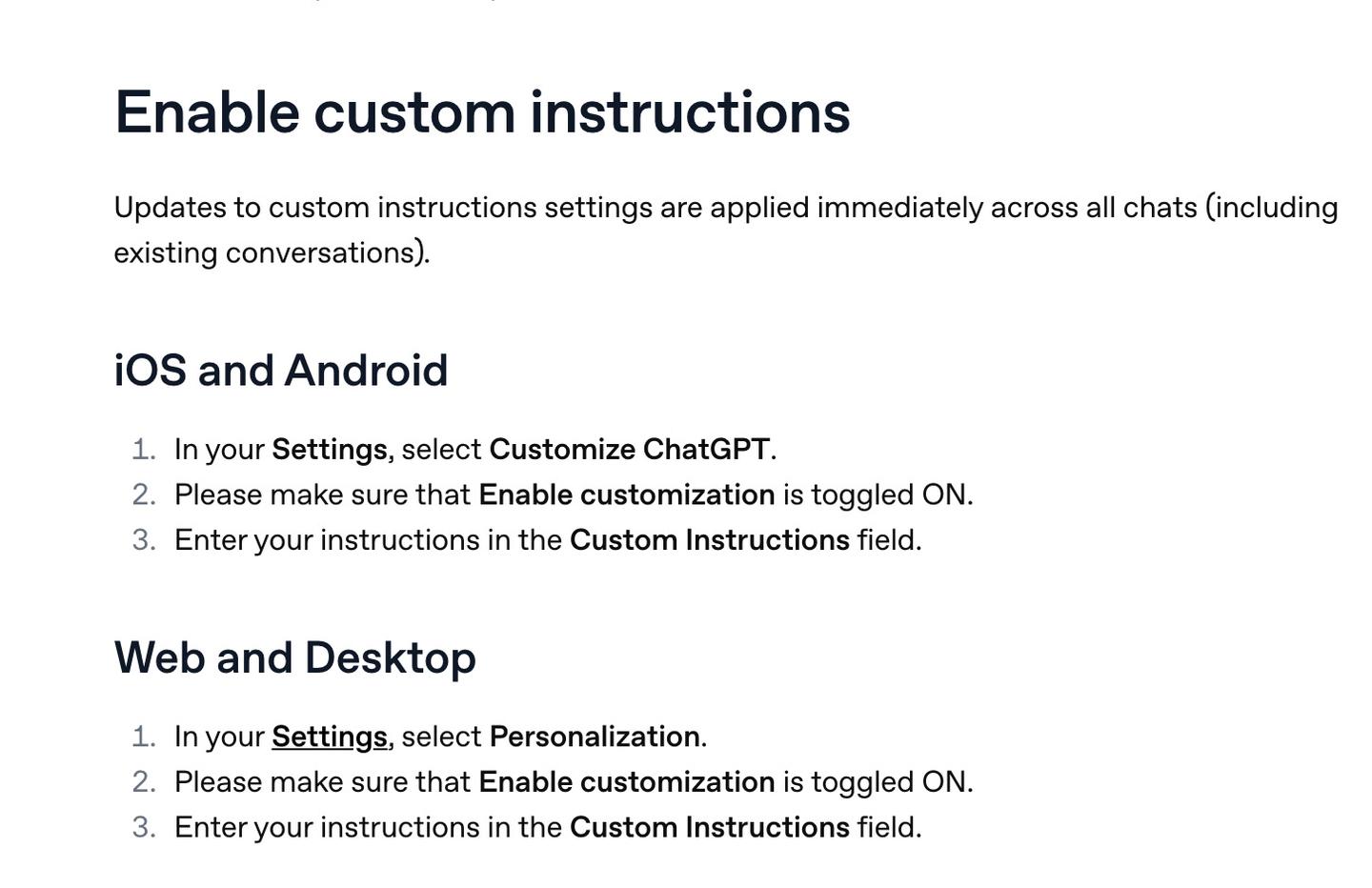
OpenAI says updates to custom instructions "are applied immediately across all chats (including existing conversations)." The same article adds that earlier versions of your instructions stay in the history of your older chats, and the way to remove them from a past chat is to clear that conversation.
To switch them off, go back to the same screen and toggle Enable customization off. Deleting the text from the field is optional. If you'd rather clear what ChatGPT keeps about you than close the account, our guide to deleting ChatGPT chats, memory and accounts walks through each option.
What to put in ChatGPT custom instructions
Put in the things you'd otherwise repeat at the start of every chat: who you are and what you do, who you usually write for, and how you want answers shaped (length, format, tone, words to avoid). OpenAI's custom instructions article doesn't list what to include, so the structure below comes from Anthropic's and Google's help pages, which do.
Anthropic suggests Claude's version of the setting hold your preferred approaches or methods, common terms or concepts you use, typical scenarios you encounter, and general communication instructions. Google's examples for Gemini are short, direct rules such as "Start all responses with a short summary" and "From now on always include Rotten Tomatoes scores when recommending movies".
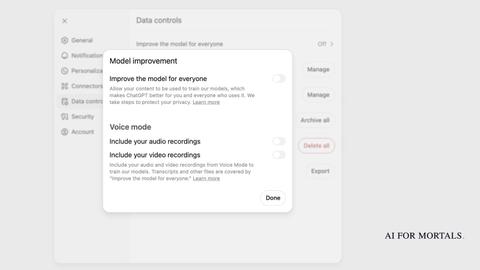
Two things to leave out. OpenAI says information from custom instructions is also used to improve its models unless you opt out, so skip anything you wouldn't type into a normal chat; what ChatGPT keeps about you and how to lock it down shows the setting that stops training on your chats. And if you use third-party plug-ins, OpenAI warns the model may pass relevant information from your instructions to those plug-in developers.
ChatGPT custom instructions examples you can copy
The templates below are starting points to edit, written for this page. Swap the bracketed parts for your own details and delete any line that doesn't fit how you work. Each one fits inside the 1,500-character limit on the Free and Go plans.
For work and business
I'm a [job title] at a [type and size of company]. Most of my questions are about [main tasks, e.g. client emails, reports, planning].

Lead with the answer, then the reasoning in a few short points.
Write emails and messages ready to send, in a friendly, professional tone, and keep them under 150 words unless I ask for more.
When you're not sure about a fact, a number or a date, say so plainly.
Use [US or UK] spelling.
Ask me one clarifying question when my request is missing something you need.
If you run a small business, add a line on your brand voice, for example "We sound warm and plain-spoken, and we never use exclamation marks," so drafts for customers come back in that voice.
For writers and story writing
I write [newsletters / short stories / a fantasy novel] for [audience].

When I share a draft, edit it before you rewrite it: point out what's unclear, repetitive or slow, and quote the exact lines.
Keep my voice. Don't add new ideas, facts or jokes unless I ask.
Words and habits I don't want in my writing: [list them].
For fiction, keep track of the names, places and timeline I give you, and flag anything that contradicts what I've already written.
Show changes as before and after so I can choose.
For a longer project like a novel, the same text works better as project instructions (covered below), so it stays with that one manuscript. How to use ChatGPT for writing covers the rest of the editing workflow.
For learning something new
I'm learning [subject] and I'm a beginner.

Explain new terms in plain words the first time you use them.
Start with the short answer, then one example from everyday life.
After explaining something, ask me one question to check I understood it.
If I get something wrong, tell me directly and show me where my reasoning went off.
For a shorter, plainer ChatGPT
Answer in as few words as the question needs.
No introductions, no summaries at the end, and no follow-up offers.
Use plain paragraphs unless I ask for a list or a table.
No emojis.
If you'd like ChatGPT to draft a first version for you, paste this into a normal chat and copy its answer into the Custom Instructions field:
Interview me, one question at a time, about my job, who I write for and how I like answers formatted. After about eight questions, write custom instructions for ChatGPT based on my answers, under 1,500 characters, as short direct rules.
How to change ChatGPT's personality
Pick a preset personality from the Base style and tone dropdown on the Personalization page. On the web, OpenAI's steps are to select your profile icon, select Personalization, and use the dropdown next to Base style and tone; in the phone apps you open Settings from your profile icon and go to Personalization. Like custom instructions, the change applies across all chats, including existing ones.
OpenAI lists Default ("clear and neutral") plus six others:
- Professional: polished and precise
- Friendly: warm and chatty
- Candid: direct and encouraging
- Quirky: playful and imaginative
- Efficient: concise and plain
- Cynical: sarcastic and dry
A personality changes how ChatGPT sounds and leaves what it can do untouched. OpenAI says it "does not change what ChatGPT can or cannot do, or the safety rules it follows," and it doesn't necessarily set the tone of things you ask it to write: an email draft or a résumé follows your instructions and the context instead.
For finer control, the same page has Characteristics. OpenAI's Characteristics article lists four (Warm, Enthusiastic, Headers & Lists, and Emojis), and you can push each one toward "more" or "less."
If none of the presets fits, describe the personality you want in the Custom Instructions field. This template is a starting point to edit:
Talk to me like a straight-talking colleague who knows [field] well.
Be direct, skip the compliments, and tell me when an idea of mine has a weak spot.
Keep a light sense of humor, but never at the expense of the answer.
Match my language: casual when I'm casual, formal when I'm writing for work.
The 'based on everything you know about me' prompt
The "based on everything you know about me" prompt only has something to work with when Memory is on. With Memory enabled, OpenAI says ChatGPT can remember preferences and details from your chats and other sources: past chats, saved memories, your custom instructions, saved files and connected apps, depending on your plan and region. To check the setting, open Settings, select Personalization, then Memory.
OpenAI's Memory page also notes that you "can also ask ChatGPT what it remembers about you," and that Memory doesn't keep every detail from every conversation. These prompts, written for this page, use that:
Based on everything you know about me, what do you remember about my work, my goals and how I like answers? List it, and mark anything you're unsure about.

Then, based on that, suggest three things you could help me with that I haven't asked about yet.
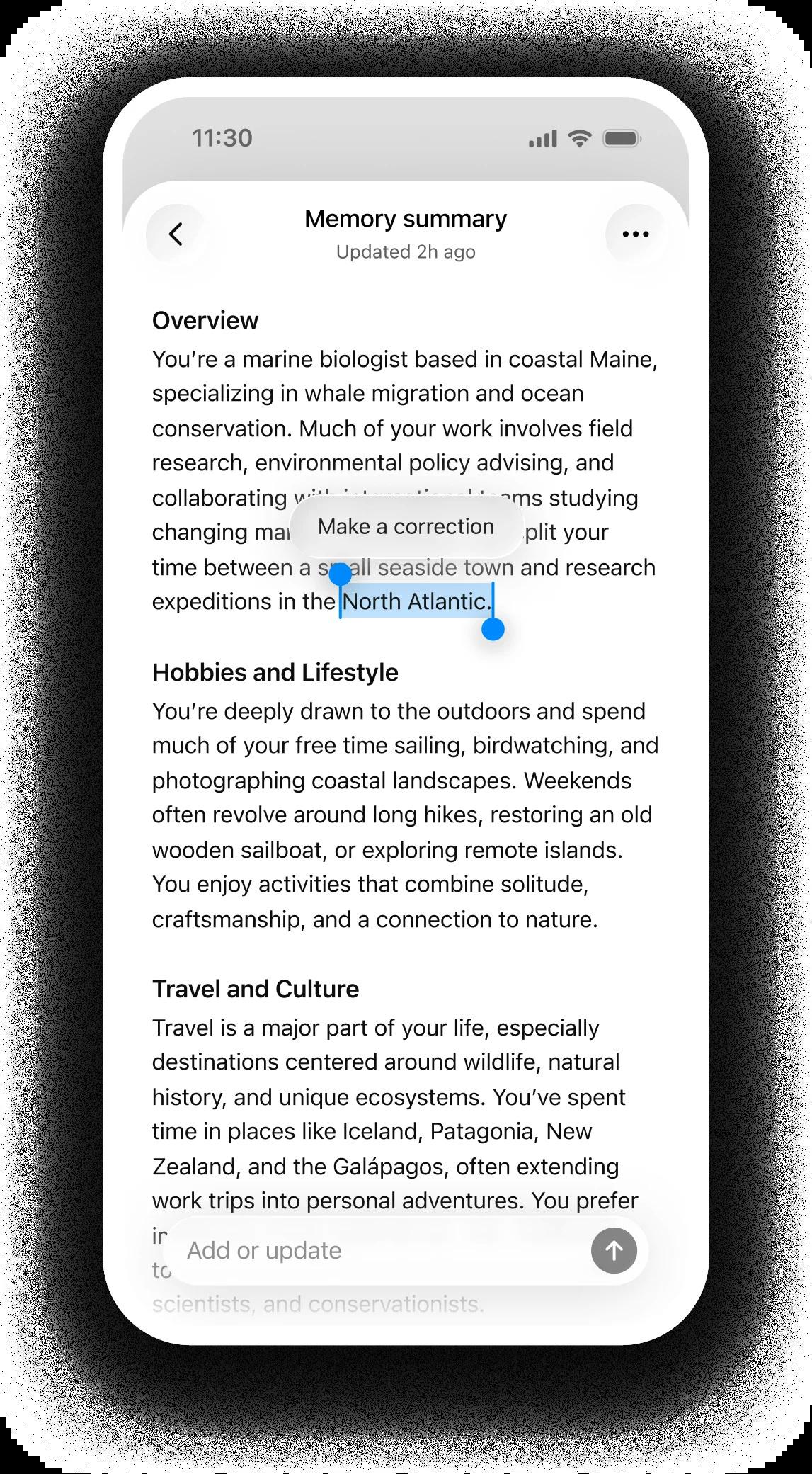
If the answer gets something wrong, you can fix it. When the memory summary is available, OpenAI says you can type a correction, highlight text to correct it, or delete the summary and turn Memory off, which doesn't delete your past chats.
Why is ChatGPT not following my custom instructions?
OpenAI's help pages document four reasons: a setting that's switched off, a project's own instructions taking over, an unpersonalized temporary chat, or a saved memory that conflicts with the style you picked.
Enable customization is off
Your text can sit in the field while Enable customization is off, and then ChatGPT doesn't use it. OpenAI's steps for turning custom instructions off are the same toggle, so check that it's on.
You're inside a project
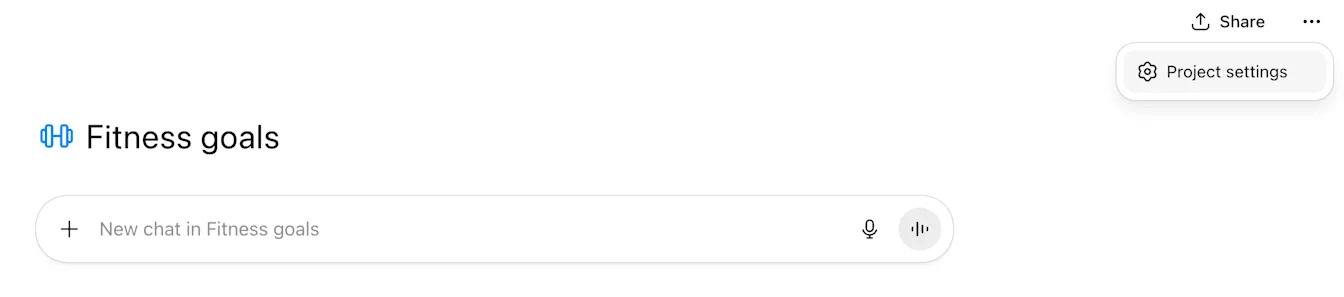
OpenAI says project instructions apply only within that project and override your global custom instructions. You set them from the project's more options menu (•••), under Project settings.
You're in an unpersonalized temporary chat
Before a temporary chat starts, you choose whether it uses your existing memories, custom instructions and plugins. OpenAI says that if you select Unpersonalized, it doesn't use them, and you can't change the choice once the conversation has started.
A saved memory or a chat message says something different
Your personality setting works alongside your saved memories and custom instructions. OpenAI says a saved memory that conflicts with a personality's style may override or reduce that style, and that instructions you give during a conversation can also adjust it. If ChatGPT keeps answering in a style you've ruled out, Settings, Personalization, Memory is where to look for an older saved preference that says otherwise.
Custom instructions in Gemini and Claude
Gemini calls its version Instructions for Gemini, and Claude calls its version Instructions (Instructions for Claude in the older settings layout). Both work like ChatGPT's: a note you write once that applies across your chats. The table shows where each company's help pages say to find the setting.
| Assistant | Setting name | Where to find it | Who gets it | Applies to | Length limit |
|---|---|---|---|---|---|
| ChatGPT | Custom Instructions | Settings, Personalization (web and desktop); Settings, Customize ChatGPT (iOS and Android) | All plans | All chats, including existing ones | 1,500 characters on Free and Go; 5,000 on Plus, Pro, Business, Enterprise and Education |
| Gemini | Instructions for Gemini | Settings, Personal Intelligence, Instructions for Gemini (at gemini.google.com) | All users can add instructions; personal Google Accounts only, not work or school accounts | Every chat; each instruction lasts up to 18 months | Not stated |
| Claude | Instructions | Your initials (lower left), Settings, Your Claude (or Account in the older layout) | Not stated | All your conversations | Not stated |
Gemini: Instructions for Gemini, and Gems becoming skills
On a computer, go to gemini.google.com, click Settings at the bottom, then Personal Intelligence, then Instructions for Gemini, click Add +, enter your instruction and click Submit. The same screen has a switch at the top to turn all of them off or on.
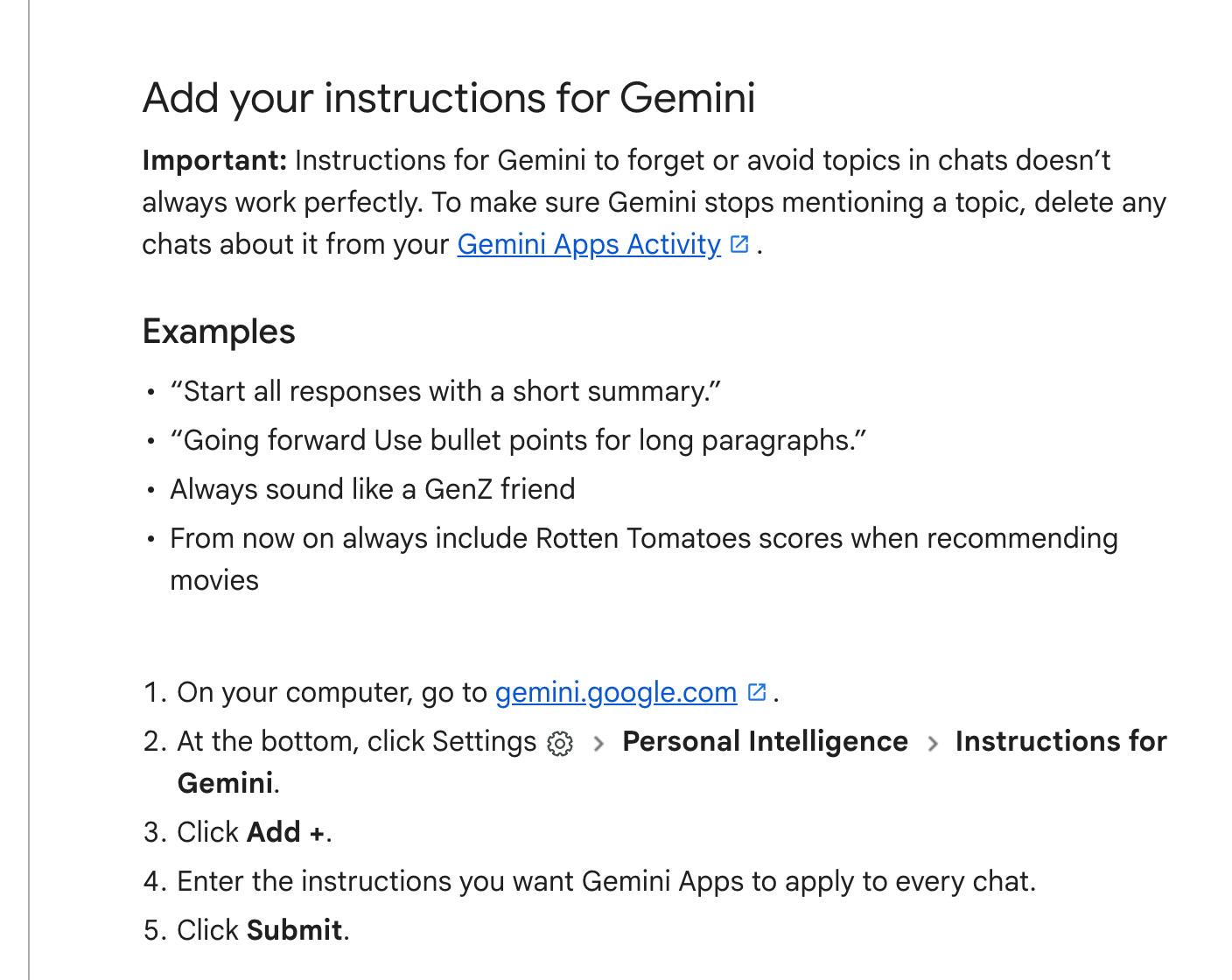
Google adds a warning that instructions telling Gemini to forget or avoid a topic don't always work perfectly. To make Gemini stop bringing a topic up, it says to delete the chats about it from your Gemini Apps Activity. Having Gemini remember facts about you is a separate feature that, per Google's Gemini Apps Help, needs a Google AI plan, an account holder over 18 and Memory switched on.
For instructions you only want for one kind of task, Gemini has had Gems: you click New Gem, give it a name and instructions, and save it. Google says that starting in November 2026, Gems will transition to skills for personal Google Accounts, and in 2027 for work and school accounts, and it will recreate your existing Gems as skills automatically. Google describes skills as "reusable custom instructions" you call by typing / and the skill's name in any chat.
Claude: Instructions, Project instructions and skills
Click your initials in the lower left corner, select Settings, then Your Claude, and write your note under Instructions. Anthropic says anything you add there applies to all of your conversations with Claude.
Claude also has Project instructions, which only apply to chats inside that project. Anthropic says Projects are available to all users, including free accounts, which can create up to five. For instructions that load only when a task calls for them, Claude has skills: Pat's Claude Skills page lists the skills he built and uses every week, free to install. If what you want is drafts that sound like you, how to teach Claude your writing style sets up rules built from your own edits to Claude's drafts.
Questions people ask about ChatGPT custom instructions
Are ChatGPT custom instructions free?
Yes. OpenAI says custom instructions are available on all plans, including Free. Free and Go accounts get up to 1,500 characters, and Plus, Pro, Business, Enterprise and Education get 5,000.
Do custom instructions work in old chats?
OpenAI's article says changes apply immediately across all chats, including existing conversations. Earlier versions of your instructions stay in the history of older chats until you clear those conversations.
How are custom instructions different from Memory?
You write custom instructions yourself, and they stay the same until you change them. Memory is what ChatGPT saves from your chats or from things you ask it to remember, and OpenAI says it can change as your context changes.
Can people I share a chat with see my custom instructions?
No. OpenAI says your instructions won't be shared with shared link viewers.
Are custom instructions in my ChatGPT data export, and what happens if I delete my account?
They're included in the data export. When you delete your OpenAI account, OpenAI says the custom instructions tied to it are deleted within 30 days.
Is there a custom instructions setting in the API?
No. OpenAI says there will be no API for custom instructions and points developers to system messages in the Chat Completions API for a similar effect.
Is there a custom instructions generator?
The interview prompt in the examples section above has ChatGPT draft yours. Gemini's Gem editor has a Use Gemini to re-write instructions button that expands what you've typed.
Can I use custom instructions in a temporary chat?
Yes, if you choose Personalized before the chat starts. OpenAI says you pick Personalized or Unpersonalized first, and temporary chats don't create or update memories either way.
Sources
- OpenAI Help Center: ChatGPT Custom Instructions
- OpenAI Help Center: Customizing Your ChatGPT Personality
- OpenAI Help Center: Characteristics in ChatGPT
- OpenAI Help Center: Memory in ChatGPT
- OpenAI Help Center: Projects in ChatGPT
- Gemini Apps Help: Manage what Gemini remembers about you and customize responses
- Gemini Apps Help: Get personalization in Gemini Apps
- Gemini Apps Help: Use Gems in Gemini Apps
- Gemini Apps Help: About the transition from Gems to skills
- Claude Help Center: Understanding Claude's personalization features




Comments
Sign in to join the conversation.