How to Use AI at Work: The Tasks, the Tools and the Rules, by Job
Start with one weekly task in the AI already inside your work apps, keep work chats on a business plan, and check every fact, with guides for four jobs.

On this page
- How are people using AI at work?
- How does a beginner use AI at work?
- The AI already inside your work apps
- AI for your job: legal, healthcare, recruiting and project management
- What are the rules for using AI at work?
- Hand AI a whole job: agents, computer use and Codex
- Every AI-at-work guide on AI for Mortals
- Questions people ask about AI at work
The fastest way to start using AI at work is to pick one task you repeat every week, such as a status update, a first draft, a deck or a summary of a long document, and run it in the AI your work apps already have. Copilot now opens real Word, Excel and PowerPoint files beside its chat, Claude has a beta add-on that edits the Google Doc, Sheet or Slide you have open, and ChatGPT builds decks your team can edit together.
Tell the AI the task, who it's for, your facts and the format you want. Before you paste in work material, use your company's business plan, which OpenAI and Anthropic say doesn't train on your chats by default, or turn training off in your personal account. Then check every fact yourself, because these tools can be confidently wrong.
Plans and prices in this guide were checked on the vendors' own pages on November 28, 2026.
How are people using AI at work?
The everyday jobs AI handles at work are drafting, summarizing, building decks and spreadsheets, and research, and the newest tools add agents that carry out a whole task across several apps. Each of those jobs now has a tool built into the apps most offices already use.
- First drafts and rewrites: Copilot in Word, Claude in Google Docs
- Summaries of a long file: ask the AI about the document you have open
- Decks: ChatGPT Slides, ChatGPT for PowerPoint, Copilot in PowerPoint, Claude in Google Slides
- Spreadsheets: formulas, cleanup and models in Excel or Google Sheets
- Whole jobs: agents that click, type and fill in forms for you
Anthropic's help page lists what its Google add-on does in Sheets: it builds spreadsheet models, writes and fixes formulas, and cleans up data. When you ask it about an open document, it answers with citations to where in the file the answer came from. The sections below cover each tool, the plan it needs and what it can see.
How does a beginner use AI at work?
A beginner should start with one recurring task and give the AI five things: the task, who the result is for, your facts, the format you want and what to leave out. Then read the result as a draft, check it, and save the instructions that worked so you don't retype them next time.
Those five ingredients come from our guide on how to write a work prompt in ChatGPT, Claude and Gemini, which has templates you can copy. A short version of the routine:
- Pick a task you do every week.
- Open the AI inside the app where that file lives.
- Write the five ingredients into one message.
- Check every name, number and date in the answer.
- Save what worked as custom instructions or a skill.
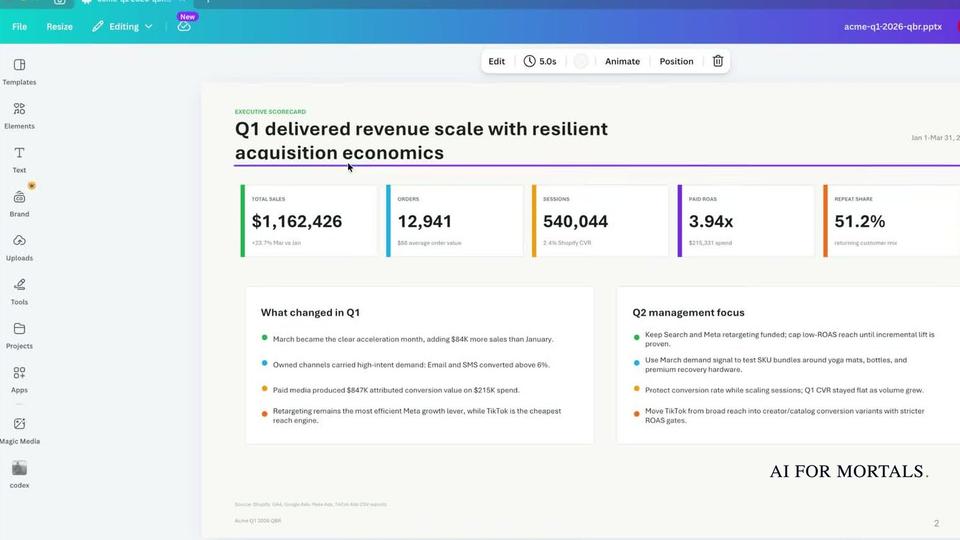
Pat Simmons uses the same ingredients in his May 2026 course on Codex for office work. At 18:50 in the video he asks for a reusable skill (saved instructions the AI follows every time) that writes his end-of-day email to his boss, and the request carries the audience, the format and what to leave out:
"My boss likes things to be really concise, thinks high-level. I don't need to get into the weeds. I just need to say what exactly I did, what the impact is on the project, and then what I'm planning to do tomorrow."
He describes skills at 17:50 as "standard operating procedures you give a new employee," and at 20:52 he says you don't need to write the perfect one the first time: when something is off, tell the AI what's wrong and have it update the skill.
The AI already inside your work apps
Four AI tools now build or edit work files right beside your chat: Copilot in Word, Excel and PowerPoint, Claude in Google Docs, Sheets and Slides, ChatGPT Slides, and ChatGPT for PowerPoint. Which one you can use depends on your plan and, for Copilot and the Claude add-on, on whether your company's admin allows it.
| Tool | Where it works | Which plan | What it can see |
|---|---|---|---|
| Copilot (Office in Copilot) | Word, Excel and PowerPoint files open beside the Copilot chat | A Microsoft 365 Copilot for Business license, and your company opted in to Microsoft's Frontier early-access program | Files are stored in OneDrive and keep their comments, sharing permissions and version history |
| Claude for Google Workspace (beta) | A sidebar in Google Docs, Sheets and Slides | Claude Pro, Max, Ultra, Team or Enterprise | The open file, plus any connectors you turn on |
| ChatGPT Slides | Decks built in ChatGPT that teammates edit together | Plus, Pro, Business or Enterprise, with Space access | Your chat, plus files and outlines you give it |
| ChatGPT for PowerPoint | An add-in inside PowerPoint | Every plan, with limited use on Free and Go | The presentation you have open |
Copilot with Word, Excel and PowerPoint built in
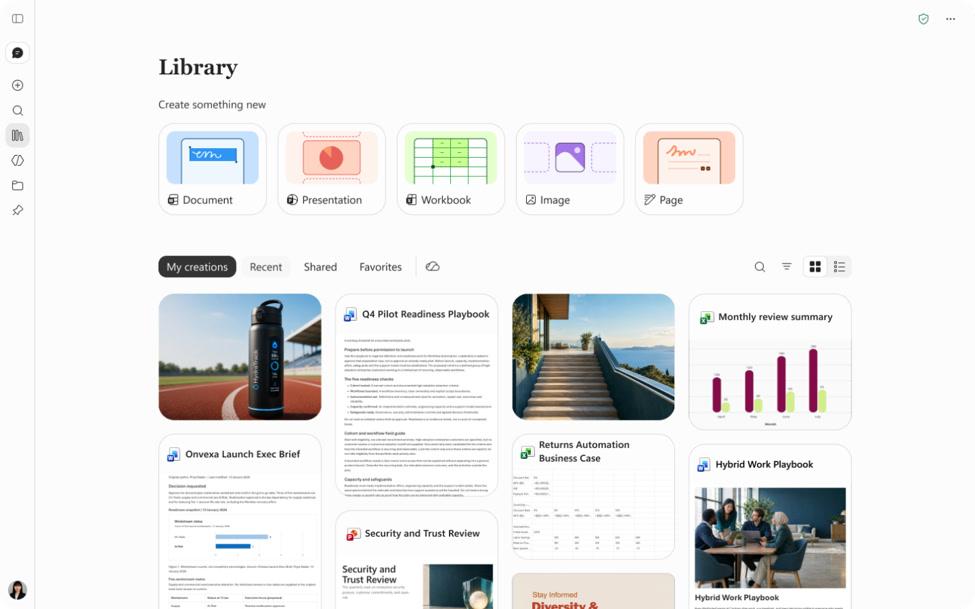
Microsoft started rolling out Copilot with Word, Excel and PowerPoint built in on October 9, 2026, first for companies in its Frontier early-access program, with no date given for everyone else. In Microsoft's announcement, you give Copilot a prompt such as "Turn these research notes into a customer-ready launch brief," and it creates a Word document that opens side by side with the conversation, so you can keep asking for changes.
Every file is stored in OneDrive and keeps its formatting, comments, sharing permissions and version history. To see it, Microsoft's Frontier page says you need an active Microsoft 365 Copilot for Business license, and your organization has to opt in to Frontier in the Microsoft 365 admin center. If you don't see it, your IT admin is the person to ask.
Claude inside Google Docs, Sheets and Slides
Anthropic's Claude inside Google Docs, Sheets and Slides is a beta add-on that reads the file you have open and edits it in place. Anthropic's help page says it works on the Pro, Max, Ultra, Team and Enterprise plans, and Claude Pro costs $20 a month billed monthly, or $17 a month billed yearly, on Claude's pricing page.
Setup takes about two minutes when your company allows Google Workspace Marketplace apps:
- Install Claude from its Google Workspace Marketplace listing.
- In a Doc, Sheet or Slides file, open Extensions, then Claude, then "Open Claude."
- Allow the two Google permissions it asks for.
- Sign in with your Claude account in the sidebar.
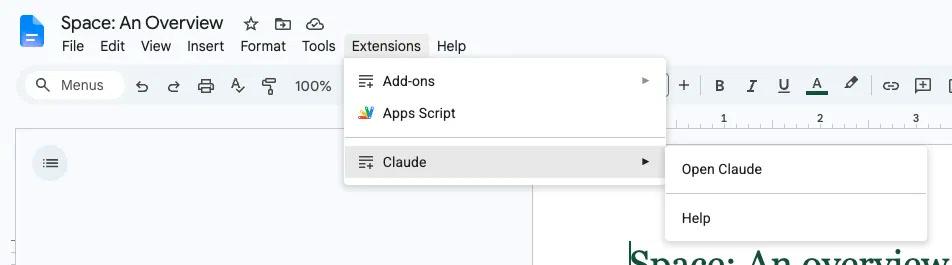
By default the sidebar shows what it is about to change and waits for you to click "Allow," and Google records its edits under your name in the file's version history. Anthropic says that, apart from any connectors you turn on, it "cannot see other files in your Drive, your email, or your calendar." Use Chrome, Edge or Safari, since Firefox isn't supported in the beta.
ChatGPT Slides and ChatGPT for PowerPoint
ChatGPT Slides lets your team edit decks together: ChatGPT builds a presentation, and you and your teammates edit it directly, ask ChatGPT for changes and discuss them in shared comments. OpenAI's help page says Slides works on Plus, Pro, Business and Enterprise accounts that have Space access, and that people on Free can't open shared presentations. Plus costs $20 a month, per OpenAI's Plus page.
If your company's decks have to stay in PowerPoint, ChatGPT for PowerPoint is an add-in that works inside the program. OpenAI lists it for Free, Go, Plus, Pro, Business, Enterprise, Edu and K-12 users, with limited use on Free and Go.
Google's NotebookLM can also turn the documents you load into a narrated vertical video about a minute long (our NotebookLM write-up is in Sources).
AI for your job: legal, healthcare, recruiting and project management
In each of these four jobs AI drafts, summarizes and organizes, and each job has its own rules on what you can paste in and what you must check by hand. Each has a full guide on AI for Mortals.
Lawyers and legal teams
Lawyers use AI to summarize, draft and find research leads, then check every citation themselves. Our guide to AI for legal work with ChatGPT, Claude, Harvey and CoCounsel covers the general chatbots and the legal-specific tools.
Healthcare workers
Healthcare workers can use AI to draft letters, handouts and notes, while patient details stay on plans covered by a HIPAA business associate agreement (the contract a vendor signs to handle patient data). The guide to AI for healthcare workers covers the tools and the patient-data rules.
Recruiters and HR
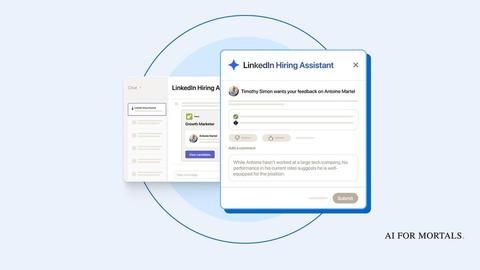
Recruiters can use ChatGPT or Claude to draft job ads, outreach messages and interview questions, and should check the rules before any AI tool screens a candidate. Our guide to AI for recruiting covers both the chatbots and the HR tools.
Project managers
Project managers can use ChatGPT, Claude or the AI built into Asana, Monday, ClickUp, Jira and Notion to draft status updates, risk lists and plans. The AI for project managers guide covers each of them.
What are the rules for using AI at work?
The five rules below are ours, built from the vendors' own privacy and accuracy pages: use the plan your company approves, switch off training on personal accounts, assume your employer can read work chats, check every fact, and follow your field's rules for sensitive data. Our guide to what's safe to paste into AI at work goes plan by plan, including Copilot and Gemini.
1. Use the business plan your company approves
Use the plan your company pays for when it has one. OpenAI's enterprise privacy page says "We do not train our models on your data by default" for ChatGPT Business, Enterprise and Edu, and Anthropic says the same for Claude for Work, unless you send feedback with the thumbs up or down buttons.
2. On a personal account, turn training off first
Personal ChatGPT accounts share your chats for training by default. On Free, Plus or Pro, OpenAI's data controls page says to open Settings, then Data controls, and turn off "Improve the model for everyone," which keeps your chat history. On personal Claude plans (Free, Pro and Max), Anthropic's settings page puts the switch under Settings, then Privacy, then "Help Improve our AI models."
3. Assume your employer can read work chats
On ChatGPT Business, OpenAI says workspace admins can "view, access, export, and delete" the conversations in the workspace. Write work chats as you'd write a work email.
4. Check every fact before it leaves your desk
OpenAI's help page on whether ChatGPT tells the truth says it "can produce incorrect or misleading outputs," and that it can sound confident even when it's wrong. Have a person check anything that goes to a client, a manager or a public page, starting with names, numbers, dates and quotes.
5. Follow your field's rules for sensitive data
Some jobs carry extra rules. Patient details belong only on plans covered by a HIPAA business associate agreement, recruiters should check the law before an AI tool screens candidates, and lawyers check every citation an AI gives them. The four job guides above cover each in detail.
Hand AI a whole job: agents, computer use and Codex
The newest AI tools carry out a task for you across apps, clicking, typing and filling in forms, on paid plans or in early access. Claude computer use can click, type and open apps on your Mac or Windows PC on the Pro ($20 a month), Max ($100 a month) and Ultra ($200 a month) plans. Computer use in the Gemini app for Mac does the same across apps and websites in a background window, for paying Google AI subscribers. Instinct's agent can join a group text to agree on a plan and book it, in early access, and the people in the chat don't need an account. Our write-ups of all three are listed in Sources.
Codex for office work, from Pat's full course
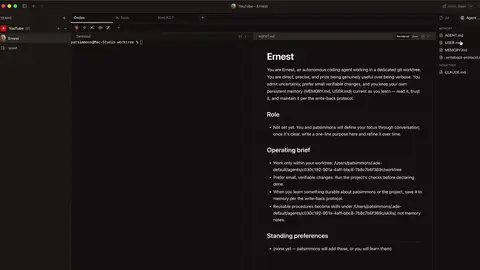
Codex is OpenAI's coding platform, and Pat's May 2026 course, "Master 95% of Codex for Office Work (FULL COURSE)," uses it for office jobs instead. At 1:00 he explains why it can do more than the chat window: "Codex is fully agentic, meaning Codex can open your apps, it can edit your files, it can use your computer." From December, the ChatGPT Plus, Pro and Business plans share one usage allowance across ChatGPT and Codex.
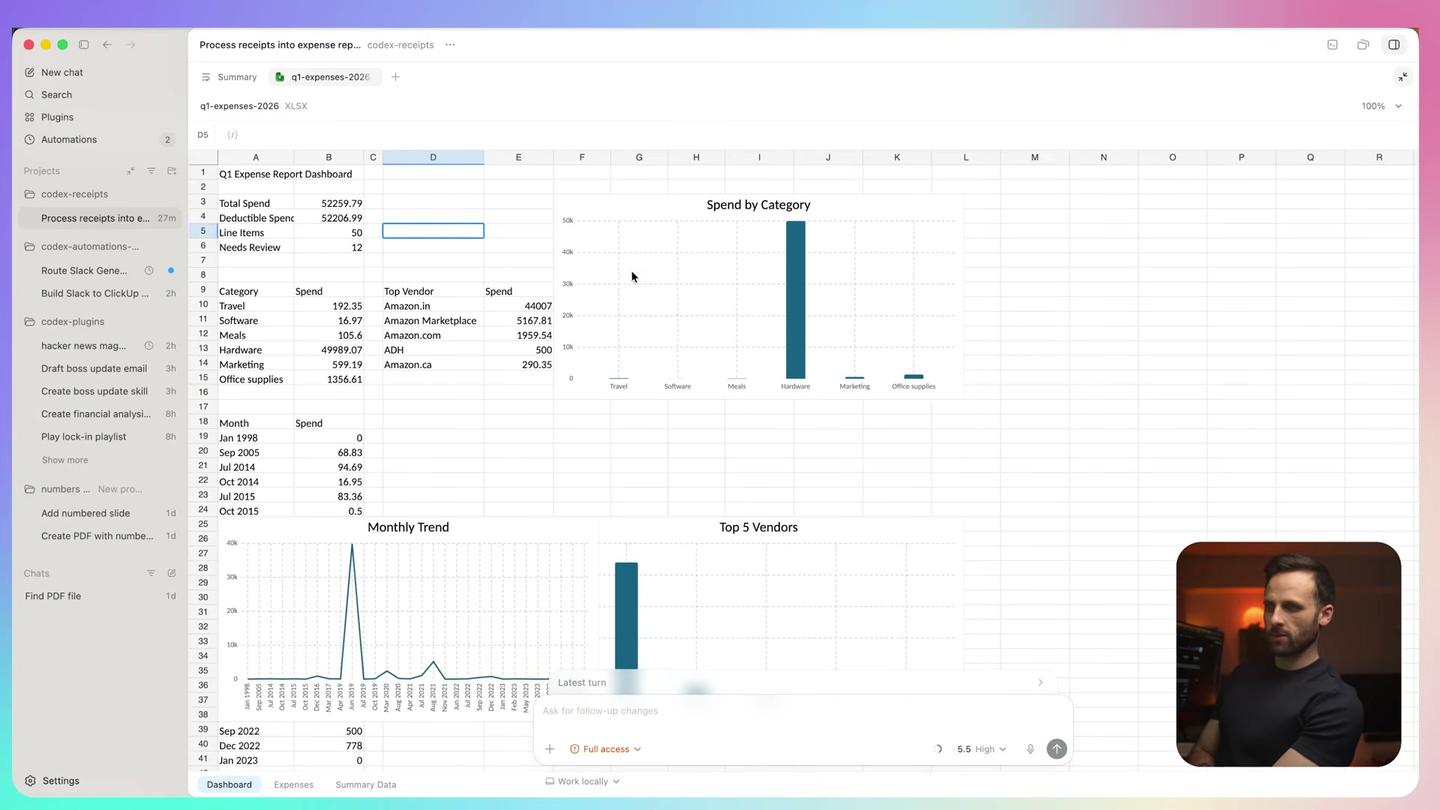
In the course he gives Codex 50 blurry, cut-off receipts he collected from Google Images and asks for a Q1 expense spreadsheet with a dashboard tab. At 29:01 in the video the workbook is ready, 13 minutes after he started it, with every receipt read, given an expense category and marked tax-deductible or not, though some dates came out confused, such as January 2, 1998, on a report meant for 2026.
He runs four more jobs the same way: five ad images from one product photo and then a Meta ad campaign set up by computer use, a sales-call transcript turned into a HubSpot record and a Slack alert, a 12-slide client report built from five spreadsheets of campaign data, and a job ad typed into LinkedIn and Glassdoor by computer use, stopped before it was submitted.
Three of his habits carry over to any agent. At 5:06 he sets the thinking level to low or medium for office jobs, because a high setting "will burn through credits quickly." On the client report he says at 42:17 that he forgot to tell Codex to use its presentation plugin, and that the plugin "will definitely give you a better output." And at 45:17 he says computer use is "relatively slow, but just minimize it or move it off to the side" while you get on with other work.
Build a small tool of your own
When no app does the job, you can have an AI build one. Pat built seven tools with OpenAI's Decisions API, and one of them, an auto-blur tool, checked 144 frames of a 72-second screen recording for private information in 5.2 seconds, for $0.06. The Decisions API is billed separately from a ChatGPT subscription, so it needs an OpenAI API account.
Every AI-at-work guide on AI for Mortals
Each guide below answers one question in more depth, with its own sources. The ones linked in this guide are linked where they come up above, and the rest are in Sources.
| Guide | What it answers |
|---|---|
| How to write AI prompts in ChatGPT, Claude and Gemini | What to put in a work prompt, with templates, custom instructions and skills |
| Is AI safe to use at work? | What each plan does with your chats, and the settings to check in ChatGPT, Claude, Copilot and Gemini |
| Microsoft puts Word, Excel and PowerPoint inside Copilot | What Office in Copilot does, and who gets it first |
| Claude now works inside Google Docs, Sheets and Slides | How the Claude add-on edits your open file, and which plans get it |
| ChatGPT Slides lets your team edit decks together | How ChatGPT builds and shares decks, and the PowerPoint add-in |
| NotebookLM can now turn your notes into a 60-second video | What Short Video Overviews make from your documents |
| AI for legal work | How lawyers use ChatGPT, Claude, Harvey and CoCounsel, and what to check |
| AI for healthcare workers | Drafting letters, handouts and notes, and keeping patient details on covered plans |
| AI for recruiting | Job ads, outreach and interview questions, and the rules on AI screening |
| AI for project managers | Status updates, risk lists and plans in ChatGPT, Claude and the AI in Asana, Monday, ClickUp, Jira and Notion |
| Claude computer use | What it is, what it costs, and how to turn it on |
| Gemini app for Mac gets computer use | How Gemini works your Mac in a background window |
| Instinct's AI agent joins group chats | How the agent plans and books in a group text |
| OpenAI Decisions API: 7 real use cases, tested | Pat's seven builds, with the prompts, run times and costs |
Questions people ask about AI at work
Is it safe to use AI at work?
It can be, on a business plan your company approves, since OpenAI and Anthropic say those plans don't train on your chats by default. On a personal account, turn training off first, and keep anything your company or your field restricts out of the chat.
How do I use ChatGPT at work?
Use your company's ChatGPT Business or Enterprise plan if it has one, start with one weekly task, and give it the task, audience, facts, format and what to leave out. For decks, ChatGPT Slides works on Plus, Pro, Business and Enterprise with Space access, and ChatGPT for PowerPoint works on every plan.
How do I use Claude at work?
On a paid Claude plan you can add Claude to Google Docs, Sheets and Slides with the beta add-on, which edits the open file and asks before each change by default. Claude for Work plans don't train on your chats by default.
Can AI make slides for work?
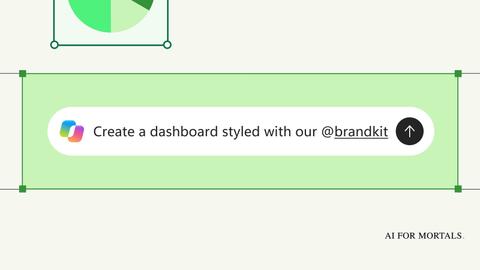
Yes. ChatGPT Slides builds decks your team edits together, ChatGPT for PowerPoint works inside PowerPoint, Copilot creates PowerPoint files beside its chat for Frontier companies, and Claude can create or restyle slides in Google Slides.
Do I need to pay to use AI at work?
You don't need to pay to start. ChatGPT for PowerPoint has limited use on the Free plan. The Claude add-on for Google Workspace needs a paid plan, starting with Pro at $20 a month, and Copilot's Office features need a Microsoft 365 Copilot license.
Sources
- Microsoft Copilot Blog: Introducing Office in the new Microsoft Copilot app
- Microsoft: Get started with Frontier for business users
- Claude Help Center: Use Claude in Google Docs, Sheets, and Slides
- Claude: Plans and pricing
- OpenAI Help Center: Creating and collaborating on slides in ChatGPT
- OpenAI Help Center: ChatGPT for PowerPoint
- OpenAI Help Center: What is ChatGPT Plus?
- OpenAI: Enterprise privacy at OpenAI
- Anthropic Privacy Center: Is my data used for model training? (commercial)
- OpenAI Help Center: Data controls in ChatGPT
- Anthropic Privacy Center: How do I change my model improvement privacy settings?
- OpenAI Help Center: Does ChatGPT tell the truth?
- AI for Mortals: Claude computer use, what it is, what it costs and how to turn it on
- AI for Mortals: Gemini app for Mac gets computer use
- AI for Mortals: Instinct's AI agent now joins group chats over text
- AI for Mortals: NotebookLM can now turn your notes into a 60-second video
- AI for Mortals: ChatGPT is merging its Chat and Work tabs into one

Comments
Sign in to join the conversation.